


Wixel: Creating an Icon with AI
5 min
In this article
- Generating an icon
- Customizing your icon
- FAQs
This article refers to the new Wixel, released in December 2025. If you're unsure whether you’re using the new or previous Wixel, view more information here.
Creating an icon is easier than ever with Wixel’s AI-powered icon generator. Share your idea with Aria, your AI design agent, and then explore smart design suggestions and fully customize the results. Design an icon that fits your brand, and use it to maintain consistent brand visuals across every platform.
Note:
Actions that involve generating and editing icons with AI use AI credits.
Generating an icon
Start by providing Aria with your business name and business description. Aria will suggest color palettes, shapes, and a set of icon concepts that fit your vibe and industry.
To generate an icon:
Desktop browser
Wixel app
- Go to your project in Wixel.
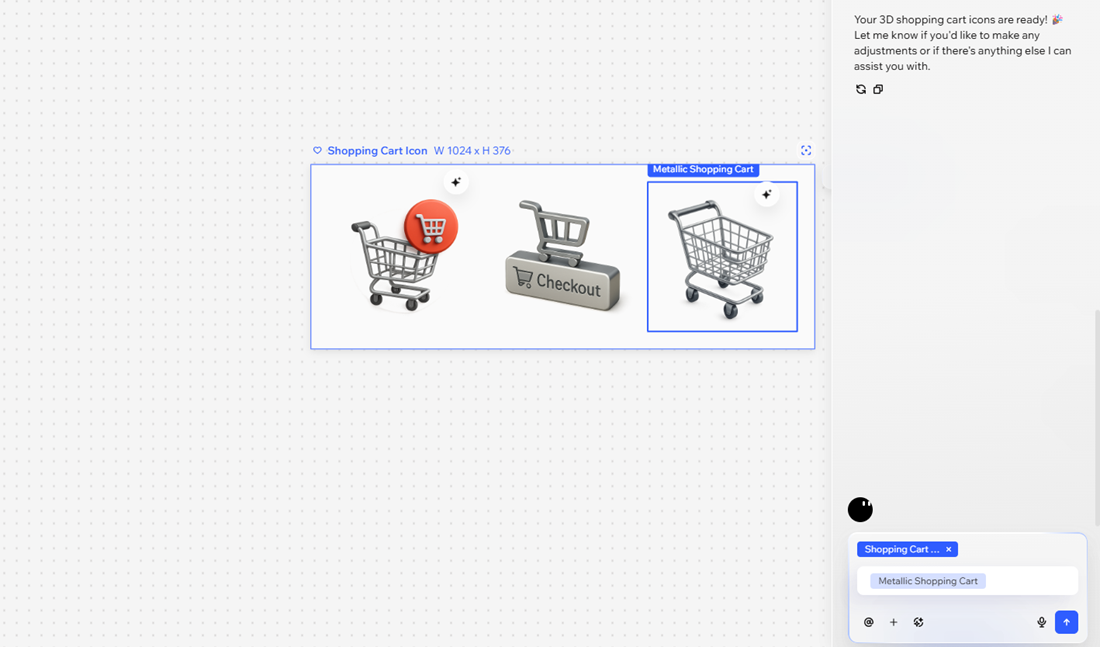
- Ask Aria to create an icon and share your brand name with a description of the business. For example, "Create an icon for a shopping cart for an e-commerce site".
- Browse the set of AI-generated icons and select the option you want to use.
Tip: Click Regenerate to get more options.
Prefer to design your icon manually?
You can start with a blank frame or choose a pre-designed template. Click Add Design in your project and search for icons in the search bar.
Customizing your icon
Make the icon your own by fine-tuning the details. Change the colors, corners and outline.
To customize your icon:
Desktop browser
Wixel app
- Go to your project in Wixel.
- Click the relevant icon in your project.
Tip: Use the AI Breakdown panel to work on each aspect of the icon separately, and try AI-powered suggestions to enhance your design. - Choose how to customize the icon:
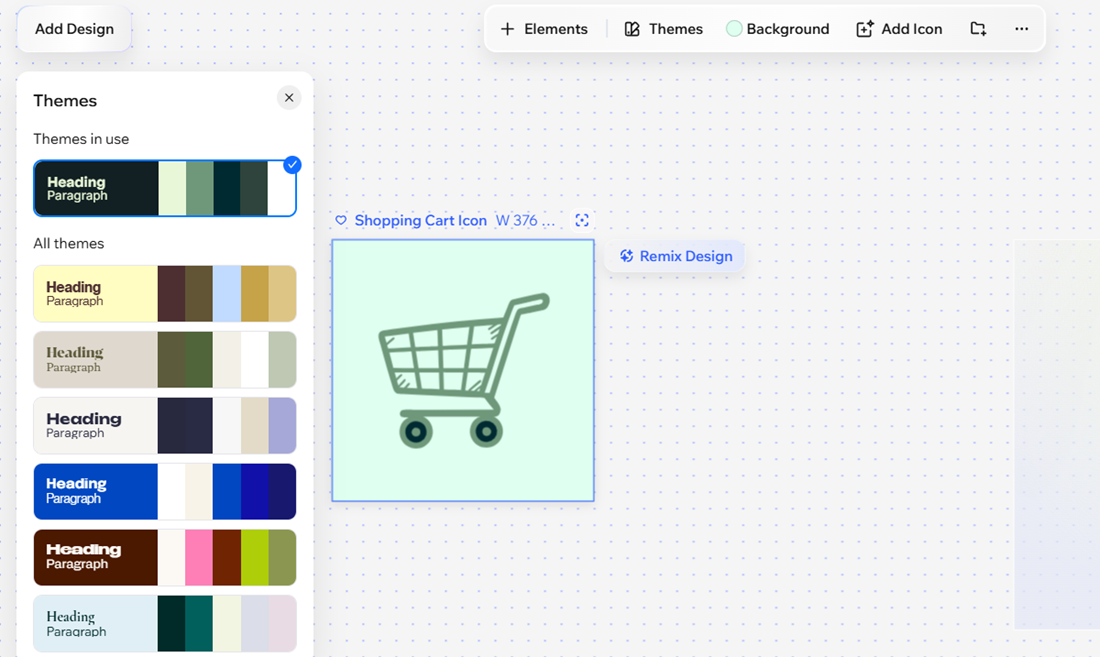
- Add elements: Click + Elements on the action bar to insert media, text, graphics, or icons.
- Apply a theme: Click Theme on the action bar to instantly change color palettes and fonts. Learn how to choose and customize themes.
- Change the background: Click Background on the action bar and pick new colors, adjust the opacity, or upload an image.
Tip:
Use the AI Breakdown panel to work on each aspect of the icon separately, and try AI-powered suggestions to enhance your design.
What's next?
Download and share your icons or build on them to create more branded designs (e.g. product images, social media posts, promo videos).
FAQs
Click a question below to learn more about creating icons with AI.
What file types are supported?
Can I save the icon to my media?
How do I duplicate an icon?
 on the action bar.
How do I delete an icon?
