


Wix Stores: Setting Up and Managing Abandoned Carts
In this article
- Activating the abandoned cart email
- Customizing abandoned cart emails
- Testing the abandoned cart automation
- Sharing and viewing abandoned carts
- FAQs
When a customer adds products to their cart but then doesn't complete a purchase, the cart is considered abandoned. A great way to improve sales and increase user retention is to email shoppers who abandon their carts.
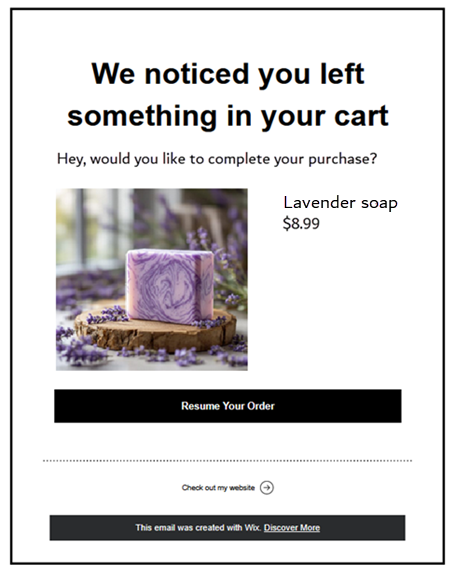
Sending customers an automated email with the image of an item that was left in the cart along with a direct link makes it easy to go back and complete the purchase.
What is considered an abandoned cart?
Activating the abandoned cart email
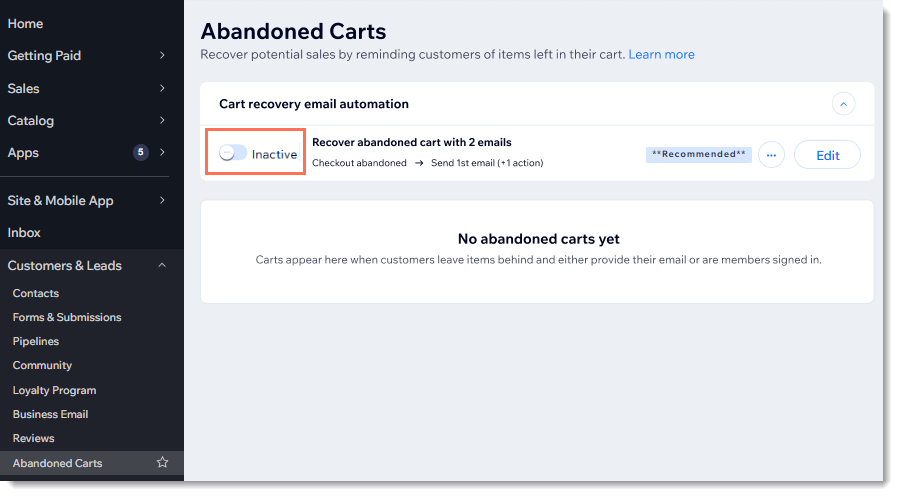
For some merchants, sending abandoned cart emails to customers is automatically activated. You can tell if it's enabled for you by checking the status of the abandoned cart toggle.
Tips:
- If your site is up and running and visitors have abandoned carts, you'll see a list of abandoned carts on the same page in the dashboard, whether or not you've activated abandoned cart emails.
- You can deactivate/activate this automation anytime.
To check activation status and activate abandoned cart emails:
- Go to Abandoned Carts in your site's dashboard.
- If not already active, click the Inactive toggle to activate it.
Customizing abandoned cart emails
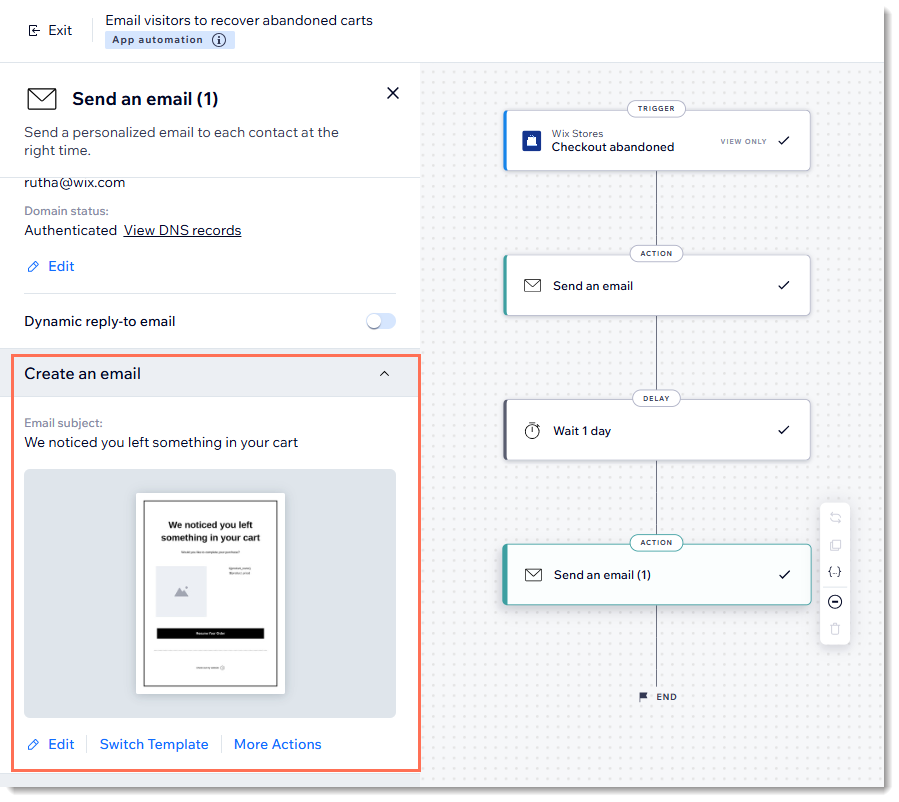
Every automation has a trigger, an action, and timing. In this case, the automation is triggered when a customer abandons their cart.
To customize the abandoned cart automation:
- Go to Abandoned Carts in your site's dashboard.
- (If needed) Click Show next to Cart recovery email automation.
- Click Edit next to Email visitors to recover abandoned carts.
- Choose what part of the automation you want to customize:
Change the sender details

Edit the default delay time
Edit the text and design of the email
5. When ready, click
Publish Changes at the top right.
Important:
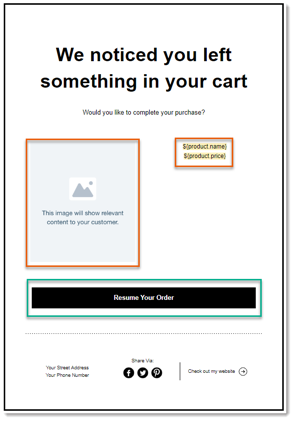
The automated email shows each customer a product they abandoned. For this to work,
do not edit the sections outlined in red in the example below. The design of the button (outlined in green) can be edited, but
do not change the button link.
Testing the abandoned cart automation
After setting up the automation, you can test it to see it in action. Both the "customer" and the site owner receive notifications.
Timing of notifications:
If you set a 2-hour delay, notifications arrive in 3 hours (since it takes an hour before a cart is considered abandoned).
To trigger a test abandoned cart email:
- Access your live site in incognito mode.
- Add an item to the cart and proceed to checkout.
- Enter the shipping details (including an email address).
- Click Continue.
- Close the site tab and wait for the test email.
Sharing and viewing abandoned carts
While communicating with a customer, you may want to share the cart that the customer abandoned. For example, in a chat, you can send them the direct link to their abandoned cart along with a discount coupon.
Alternatively, you might want to look at the customer's cart yourself. After copying the URL, just paste it into a browser tab to view the cart your customer abandoned.
Notes:
- If the customer is a site member, you cannot use the link to view their cart for security reasons.
- Carts remain in the Abandoned Carts tab for 30 days and are then removed.
To access your store's abandoned carts:
- Go to Abandoned Carts in your site's dashboard.
- Get a shareable link to a specific customer's abandoned cart:
- Click the More Actions icon
 next to the cart you want to view.
 - Click Copy link to cart.
- Click the More Actions icon
FAQs
Click a question below to learn more about abandoned carts.
If a customer unsubscribed from my mailing list, will they still get an abandoned cart email?
How can I view more information about a customer in the abandoned cart list?

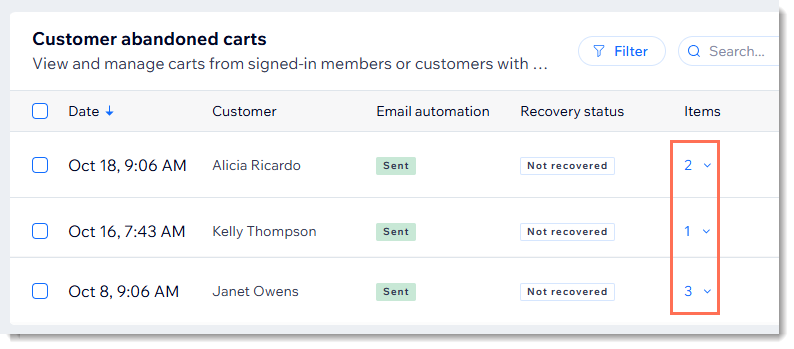
Is there a quick way to view the products my customer abandoned?
Can I send more than one reminder?

