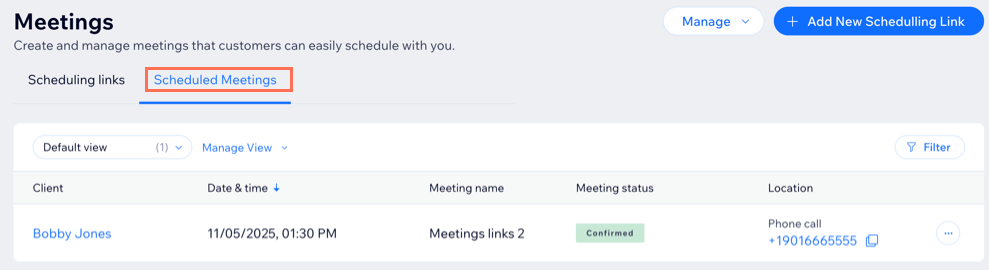
Keep your calendar organized so you can respond to clients with ease. From your Wix Meetings dashboard, you can view all your scheduled meetings, approve or decline requests, and reschedule or cancel sessions when needed.
Customizing your view for scheduled meetings
Organize your scheduled meetings to see the information that matters most to you. Filter meetings by date, status, or client, and customize which columns appear in your list. You can also reorder columns to prioritize the details you check most often.
To customize your view for scheduled meetings:
- Go to Wix Meetings in your site's dashboard.
- Click the Scheduled Meetings tab.
- Choose what you want to do:
- Click Filter.
- Choose how you want to filter your meetings:
- Meeting date & time: Filter by when meetings are scheduled. Choose preset options like Today, Tomorrow, Last 7 days, or Custom for a specific date range.
- Registration date: Filter by dates when clients booked their meetings. Options include Last 7 days, Last 14 days, Last month, or Custom.
- Meeting status: Filter by current status such as Confirmed, Pending approval (if manual approval is enabled), or Canceled.
- Payment status: Filter by payment completion. Choose Paid, Not Paid, or Partially Paid for completed payments or for outstanding meetings.
- Meeting name: Filter by your scheduling link name (e.g. '15-minute consultation'). This is helpful when you have multiple meeting types.
- Customer name: Search for meetings with a specific client by entering their name.
- Host: Filter by who is hosting the meetings. This is useful when multiple team members take meetings.
- Click Apply.
- Click the Customize icon
 .
.
- Choose what you want to do:
- Hide or show columns: Select the checkboxes next to each column you want to show in the view.
- Reorder columns: Drag the Reorder icon
 next to a column to place it in a different order.
- Click the Manage View drop-down.
- Select what you want to do:
- Save changes: Save any updates you've made to the current view.
- Save as new view: Create a new view based on your current filters and settings.
- Rename: Change the name of your current view.
- Set as default view: Make this view the one that opens automatically each time.
- Delete: Remove the current view from your list.
Managing scheduled meetings
See all your upcoming, pending, and past meetings in the
Scheduled Meetings tab.
To manage scheduled meetings:
- Go to Wix Meetings in your site's dashboard.
- Click the Scheduled Meetings tab.
- (Optional) Select a saved view next to Manage View if you want to manage meetings within a certain view.
- Choose what you want to do:
Approve or decline pending meetings
For meetings that are not automatically accepted via your policy, choose to approve or decline the meeting.
- Click Pending Approval in the Meeting status column.
- Choose what you want to do:
- Approve: Click Approve to allow the meeting to proceed.
- Decline: Notify your customer via SMS or email, add a message, then click Decline to confirm.
- Click the More Actions icon
 next to the relevant meeting.
- Choose what you want to do:
- View order: View order details for this meeting in your dashboard's Orders tab.
Note: An order is only created when a client pays for a meeting.
- Send message: Contact the client directly.
- View form submission: See the client’s booking details.
- Reschedule meeting: Change the date and notify your client by email.
- Cancel meeting: Cancel the meeting and notify your client by email.
Note: Clients can also cancel or reschedule through the confirmation email they receive after booking.
FAQs
Click below for answers to common questions about Wix Meetings.
Can I refund a meeting that has been paid for?
Yes, but it can only be processed manually from the
Orders page in your site's dashboard.
To refund a paid meeting:
- Go to Orders in your site's dashboard.
- Click the order you want to refund.
- Click More Actions at the top right.
- Click Refund.
- Click the item to refund and fill out any additional refund information. For example, you can offer a partial refund or send a confirmation email.
- Click Refund to confirm.
How do clients schedule meetings?
Once you create a meeting, you can share the link with clients in a way that works best for you. Copy the link from the meetings manager to send by email, social media, or messaging apps like WhatsApp. You can also use a QR code, or add the link to your site so clients can schedule meetings directly from your site.
When the client opens the link, they select a date and time, then add their details. Once scheduled, it shows up on the
Scheduled Meetings tab of your Meetings dashboard.
Can I cancel or reschedule meetings?
Yes, both you and your clients can cancel or reschedule meetings. Clients can do so from the confirmation email they receive after booking.
To cancel or reschedule meetings through your dashboard:
- Go to Wix Meetings in your site's dashboard.
- Click the Scheduled Meetings tab.
- (Optional) Select a saved view next to Manage View if you want to manage meetings within a certain view.
- Click the More Actions icon next to the relevant meeting.
- Choose what you want to do:
- Reschedule meeting: Change the date and notify your client by email.
- Cancel meeting: Cancel the meeting and notify your client by email.
Why can't I choose the option to notify customers via SMS?
The option to select the
Notify this customer via SMS checkbox might be unavailable for several reasons, including:
- If your customer has asked in the past to opt out of communication.
- If your customer doesn't have a valid country code with their phone number.
- If you've hit your SMS quota for the month.
- If you did not enable the Active toggle for this action in your settings.
Tip: If the option is greyed out, hover over
Notify the customer via SMS to see the reason.
Do meetings scheduled with Wix Meetings appear on my Booking Calendar?
Meetings scheduled with Wix Meetings are displayed in your Booking Calendar only if Wix Bookings is installed on your site. They do not appear in your Booking List or any other Bookings-related page.