


Refunding Customers & Canceling Orders
In this article
- Refunding an order
- Refunding and canceling store orders
- Canceling unpaid & unfulfilled store orders
- FAQs
Important:
This article is relevant for Wix Stores, Wix Bookings, Wix Restaurants Orders, Wix Donations, and is in the process of becoming available for Pricing Plans.
Need to refund a customer? In most cases, a full or partial refund can be handled right in the Wix dashboard. If the order includes store items that haven't been fulfilled, you can also cancel the order.
Refunding an order
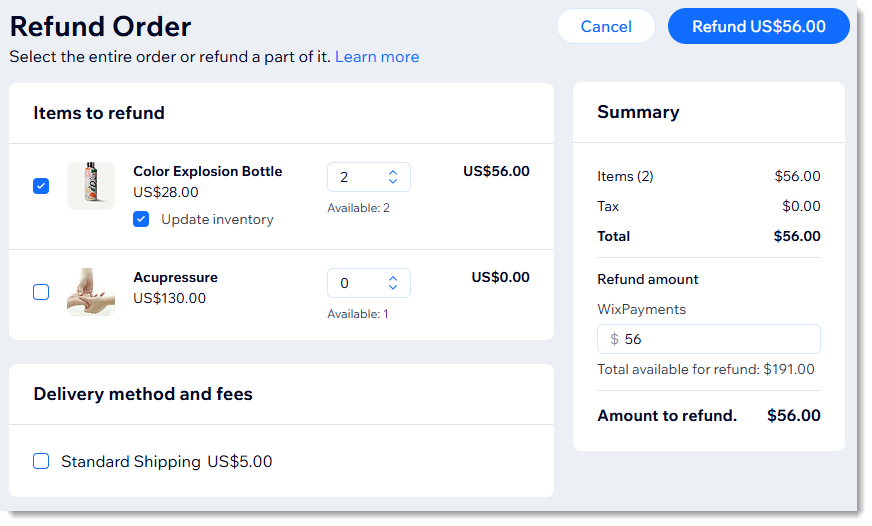
You can refund orders that were paid and fulfilled. Start by selecting exactly which items you want to refund. Then, you can provide a partial or complete refund for the selected items.
Important:
- Payments made using the Manual Payment method and with certain payment providers need to be provided outside of Wix. See the FAQs below for more details.
- Before you can refund a PayPal order, you need to enable Advanced Feature. See the FAQ below for details.
To refund an order:
- Go to Orders in your site's dashboard.
- Click the relevant order.
- Click More Actions at the top right.
- Select Refund.
- Select the checkboxes next to items you want to refund.
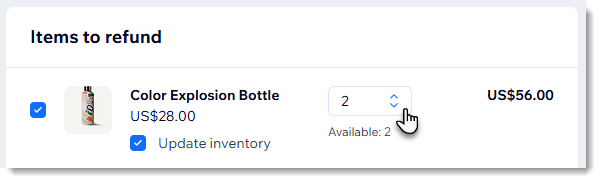
Tip: If there are more than 1 of the same item, use the arrows to select how many to refund.
- (Optional) To provide a partial refund, enter the total amount you want to refund for the order on the right.
- (Optional) Deselect the Update inventory checkbox next to a store product if you don't plan to restock it.
Tip: This is relevant if you track inventory amounts. - (Optional) Select the Send a confirmation email to customer checkbox and enter a personal note to your customer.
Note: Customers may also receive a notification from the payment provider. - Click Refund.
- Click Issue Refund.
Note: This cannot be undone.
Refunding and canceling store orders
You can cancel a store order and issue a refund if your customer no longer wants the items.
Important:
- Payments made using the Manual Payment method and with certain payment providers need to be provided outside of Wix. See the FAQs below for more details.
- Before you can refund a PayPal order, you need to enable Advanced Feature. See the FAQ below for details.
To refund and cancel an order:
- Go to Orders in your site's dashboard.
- Click the relevant order.
- Click More Actions at the top right.
- Select Cancel & refund.
- (Optional) To provide a partial refund, enter the amount you want to refund.
- (Optional) Select the Update inventory checkbox, to return all items to stock.
Tip: This option is available if you use Wix Stores and track inventory amounts. - (Optional) Select the Send a confirmation email to customer checkbox and enter a personal note to your customer.
Note: Customers may also receive a notification from the payment provider. - Click Continue.
- Click Cancel Order.
Note: This cannot be undone.
Canceling unpaid & unfulfilled store orders
You may want to cancel an entire unpaid store order when you're unable to fulfill it or your customer asks to cancel the purchase.
To cancel a store order:
- Go to Orders in your site's dashboard.
- Click the relevant order.
- Click More Actions at the top right.
- Select Cancel Order.
- (Optional) Select the Update inventory checkbox, to return all items to stock.
Tip: This option is available if you use Wix Stores and track inventory amounts. - (Optional) Select the Send a confirmation email to customer checkbox and enter a personal note to your customer.
Note: Customers may also receive a notification from the payment provider. - Click Continue.
- Click Cancel Order.
Note: This cannot be undone
FAQs
Click a question to learn more about refunding customers.
How do I refund an order paid with the Manual Payment method?
How do I refund an order paid for with a payment provider that can't be processed in the Wix dashboard?
My order payment status is "Pending". What does that mean?

Can I refund an order paid for using more than 1 payment method?
I provided a partial refund. Can I refund the balance?
Can I refund a payment made with a gift card or a membership?
Do I need to pay any fees associated with refunds?
I want to refund a PayPal order. How can I enable refunds?

How can I cancel a bookings service or restaurant order?
