


Wix Harmony Editor: Adding and Customizing Buttons
In this article
- Adding a button
- Customizing a button
- FAQs
Buttons add style and interactivity to your site, making it easy for visitors to navigate, find what they need, and stay engaged. Link your buttons to other pages, documents, or external sites to guide people exactly where you want them to go.
For example, if you run an online store, you can use buttons to spotlight special offers, highlight popular products, or send customers straight to the checkout, making every visit more rewarding.
Adding a button
You can add a button from the Add Elements panel on the left side of the editor. There are several different options available, with a range of layouts.
To add a button:
Click + Add at the top left of the editor.
Select Elements.
Click the Buttons icon on the left.
Drag a design you like onto your page.
Choose where the button leads:
Click the new button on the page.
Click the Link icon
 on the action bar.
Click Choose a link.
Choose a link type from the options at the top and set up the link details.
 on the left.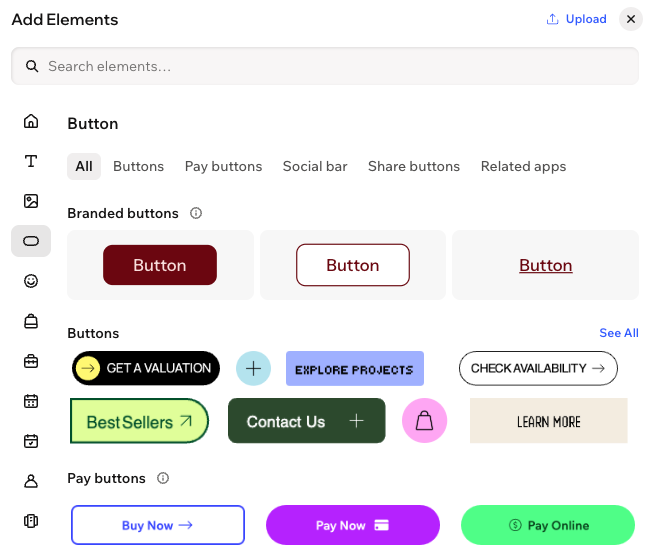
Customizing a button
There are a variety of ways to customize your buttons. Depending on the button type, you can adjust the background, text, and icon. Choose colors, fills, corners, shadows, and more to create eye-catching effects as visitors navigate your site.
Experiment with vibrant, distinct colors and design options to make each button stand out and match your site's look and feel
.
To customize a button:
- Go to your editor.
- Click the relevant button.
- Choose what you want to do:
Edit the text on your button
Change your button's style
Customize the button's hover state
 on the action bar.
Show or hide elements on your button
 on the action bar.
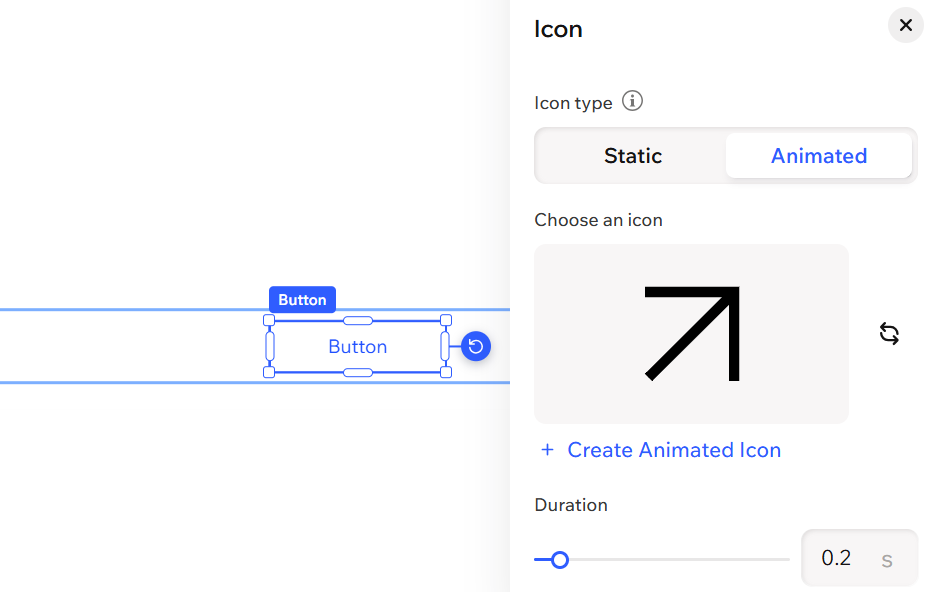
Replace the icon on your button
 .
.Add animation to your button icon
 under Start icon.
Edit the button link
Tip:
Click the All design options icon on the action bar to view even more design options for your button. Learn more about designing elements in your editor.
 on the action bar to view even more design options for your button.
 FAQs
Click a question below to learn more about adding and customizing buttons.
Can I change the button's background?
What is the rel attribute in SEO settings when I'm adding a link to a button, and do I need it?
What does linking a button to a popup do?
How do I allow search engines to index my PDF documents?
 on the action bar.