


Wix Harmony Editor: Adding a Link to an Element
In this article
- Types of links
- Adding a link to an element
- Adding a link to text
- Advanced SEO settings
- FAQs
Add links to elements on your site to help visitors navigate your content, and direct them to relevant and important info.
There are many types of links you can add – lead visitors to other site pages, external URLs, a popup, or even ways to contact you directly (e.g. email, WhatsApp).
Types of links
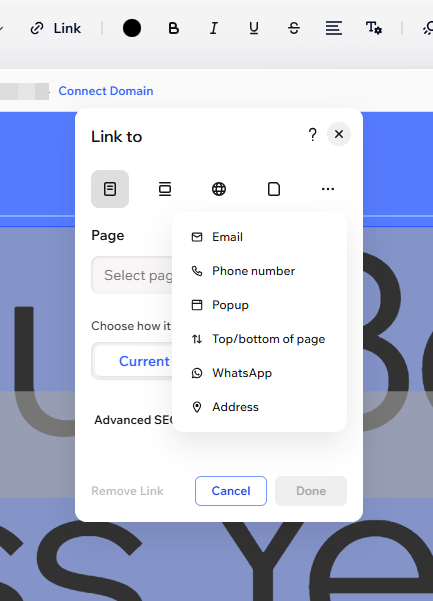
There are a many types of links you can add to your elements to direct your site visitors to whatever content you like; including links to popups, sections, and addresses.
Click an option below to learn more about the link types:
Page
Section
Web address
Document
Email
Phone number
Popup
Top / bottom of page
WhatsApp
Address
Adding a link to an element
Add links to a variety of elements including images, buttons, and vector art.
To add a link to an element:
- Go to your editor.
- Select the relevant element.
- Click the Link icon
 on the action bar.
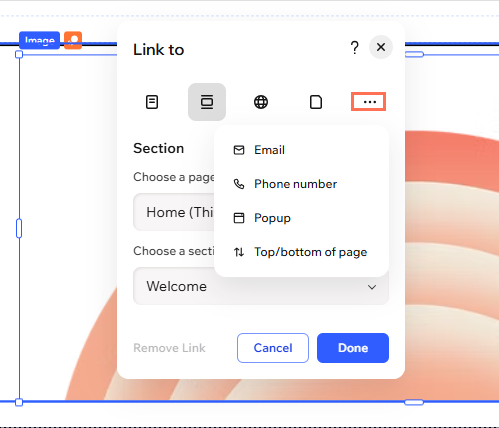
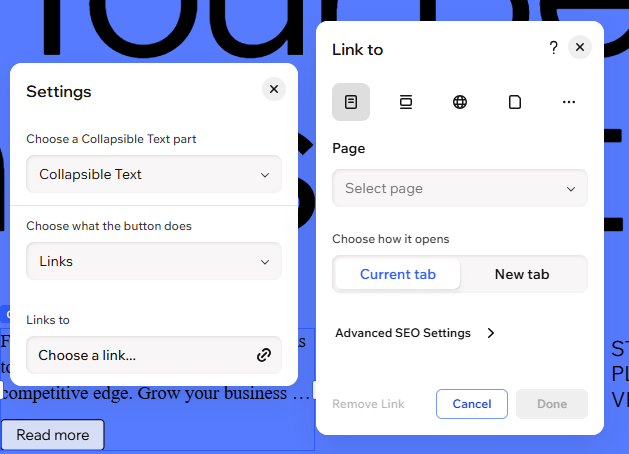
 - Click Choose a link.
- Choose a link type from the options at the top.
Tip: Click the More Options icon to find extra options like Email, Phone, Popup, Top/Bottom Page, WhatsApp, or Address.
 - Select the link type and enter the details.
- Click Done.
Want to remove a link?
Repeat steps 1-3 and click
Remove Link.
Adding a link to text
Guide your visitors to other sites, sections, or pages by adding text links. Turn any piece of text into a clickable link or add a URL, making navigation easy and intuitive.
Note:
Do not add any other text into the text box, as this will make the URL unclickable.
To add a link to text:
- Go to your editor.
- Select the relevant text box.
- Click the Link icon
 on the action bar.
 - Click Choose a link.
- Select the link type and enter the details.
Tip: Click the More Actions icon icon to find extra options like Email, Phone, Pop Up, Top/Bottom Page, WhatsApp, or Address. - Click Done.
Tip: To remove the hyperlink underline, highlight the linked text and click the Underline icon on the action bar. The text will still remain linked.
 - (Optional) Customize the color and formatting of your linked text.
Advanced SEO settings
When you link an element to a site page or web address, you can set the rel attribute. This tells search engines and browsers how to treat the link.
Important:
Rel attributes are an advanced setting. Choosing the wrong option can affect your site or links, so only change this if you know what you’re doing.
To add a rel attribute:
- Go to your editor.
- Select the relevant element.
- Click the Link icon on the action bar.
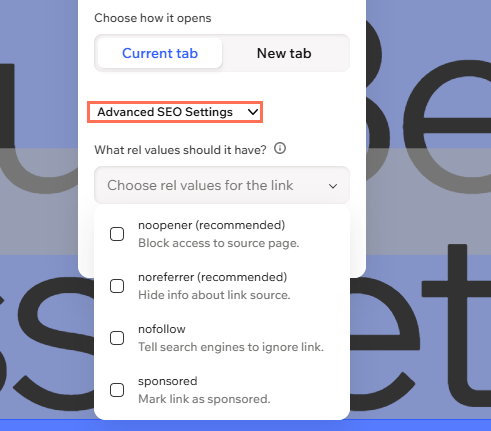
- Click Advanced SEO Settings.
- Under What rel values should it have?, Select the rel attribute you want:
- noopener: Keeps your site secure by stopping the linked page from accessing the page it’s linked from. (Recommended)
- noreferrer: Stops the linked site from seeing where visitors came from.
- nofollow: Tells search engines not to follow or rank the link.
- sponsored: Labels the link as a paid ad or placement, which helps protect your SEO.
FAQs
Click a question below to learn more.
Can I open a link in a new tab or window?
Can I choose which color my hyperlinked text changes to, once visitors click it?
When adding a link I receive an error saying "To add a link, first remove the line break"
Can I add a link to a downloadable file, like a PDF or Word document?
What should I do if a text link is broken or leading to a 404 error page?
