


Wix Harmony Editor: Adding and Customizing Text
In this article
- Adding text to your site
- Editing your text
- Formatting your text
- Adding and customizing text with AI
- FAQs
Text gives your site personality — welcoming visitors, sharing your story, and guiding them to take action. With the Wix Harmony Editor, it’s simple to add, customize, or remove text so your site always feels fresh and inviting. Clear, friendly words not only capture attention but also help people quickly understand what your business is all about.
Adding text to your site
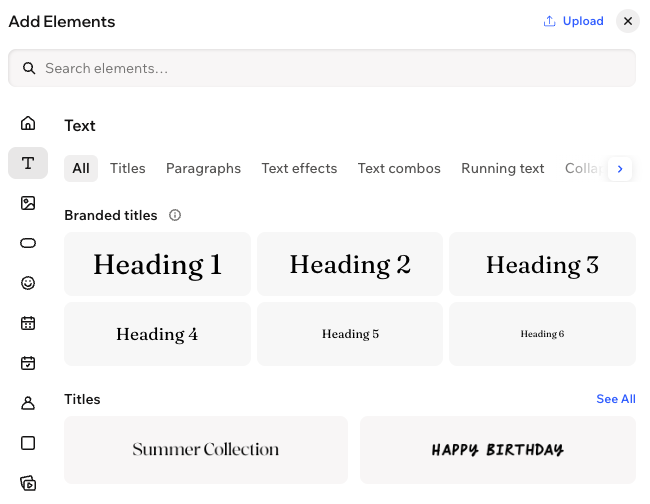
Start by adding text elements that reflect your unique style. Choose from bold titles, clear paragraphs, running text (text marquee), and creative text combinations — everything you need to share your message your way.
To add text:
- Go to your editor.
- Click + Add at the top left of the editor.
- Select Elements.
- Click the Text icon
 on the left.
 - Choose a text style:
- Titles: For headings and eye-catching headlines.
- Paragraphs: For longer pieces of text.
- Running Text: For small, flexible text areas (like captions or details).
- Text Combination: For creative text layouts with mixed styles.
- Click or drag your chosen text style onto your page.
- Double-click your new text box to add your words.
- Customize the font, color, and style to match your site’s look.
Editing your text
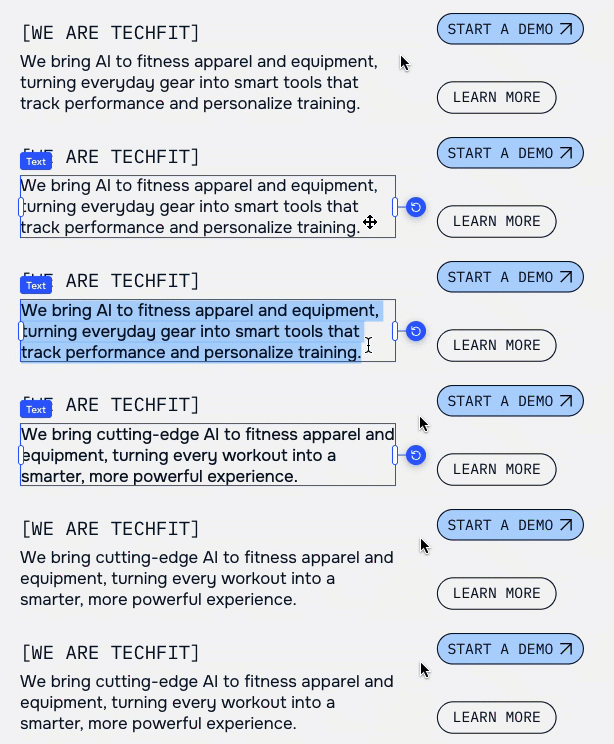
Once your text is on the page, you can shape every word to fit your message. Update your content anytime to keep each section of your site relevant and engaging for your audience.
To edit your text:
- Go to your editor.
- Double-click the text element.
- Type or paste your text in the text box.
Formatting your text
Formatting your text shapes how your words appear on the page — think bold headlines, different font sizes, colors, and spacing. With these options, you can highlight what matters and make your content easy for visitors to scan and enjoy.
To format your text:
- Go to your editor.
- Select the relevant text element.
- Click the All text options icon
 on the action bar.
 - Adjust the settings you want:
Font
 at the bottom of the font dropdown. Then, select the checkbox next to the relevant language
Bold, Italic, Underline, Strikethrough
 ,
Italics icon
,
Italics icon
 , and/or
Underline icon
, and/or
Underline icon
 .
.
Align
Line and character spacing
Case
List type
Indent
Orientation
Outline and highlight color
Apply shadow
SEO & Accessibility (HTML tag)
Tip:
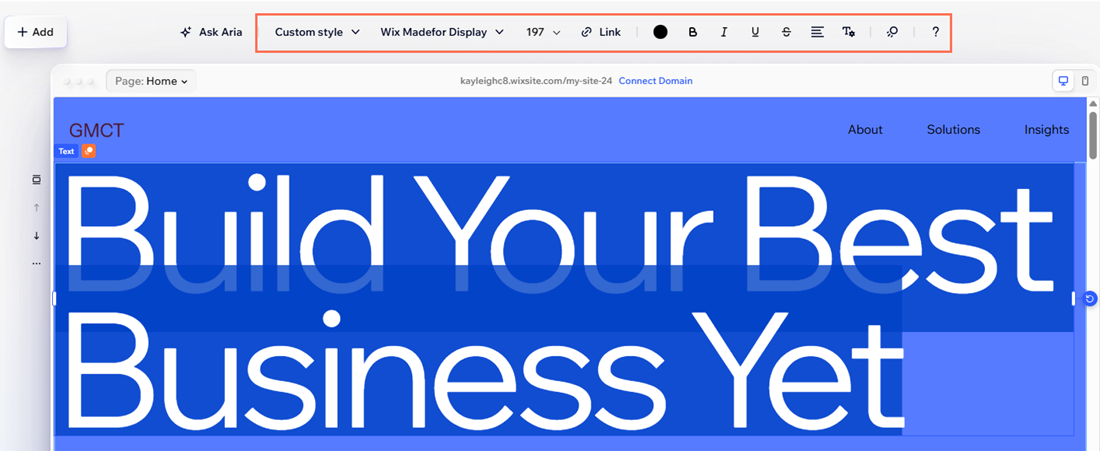
For quick formatting adjustments, you can also click the icons on the action bar at the top of the editor.
Adding and customizing text with AI
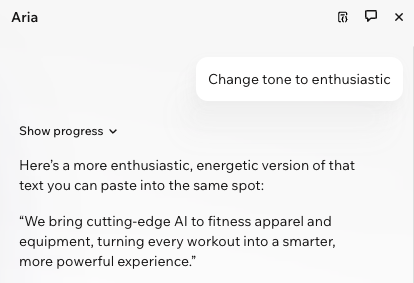
Let Aria, your built-in AI agent, help with everything from writing new text to refining what’s already there. Select the relevant text box and click
Ask Aria on the action bar — perfect for brainstorming, rewriting, or polishing your
site’s copy.
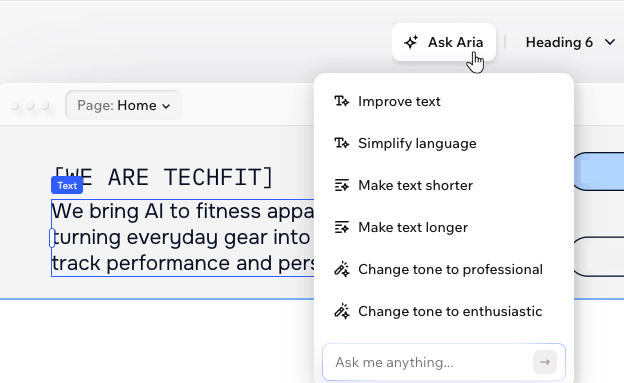
Aria gives you ready-to-use text in seconds, freeing up your time to focus on design and big ideas. Even better, the AI is super user-friendly—just type what you want and Aria delivers smart, on-brand results you can edit or move around however you like.
Important:
You need to check and edit the text where necessary before you publish the changes to ensure:
- That it aligns with the Wix Terms of Use.
- That you have all the necessary rights and licenses in order to use and publish this content.
FAQs
Click a question below to learn more about this.
How do I change the font style for all text on my site?
Can I paste text into a text box?
How can I show long text without taking up too much space?
Is it possible to place text in front of an image?
What is running text, and can I customize it?
Do text boxes in the editor have a character limit?
What are the usage restrictions for fonts in Wix?
