Wix Harmony Editor: Using the Right-Click Menu
In this article
- Managing individual elements
- Managing multiple elements
This article refers to the new Wix Harmony Editor, released in January 2026. If you're unsure whether you’re using the Wix Harmony Editor or the Wix Editor,
view more information here.
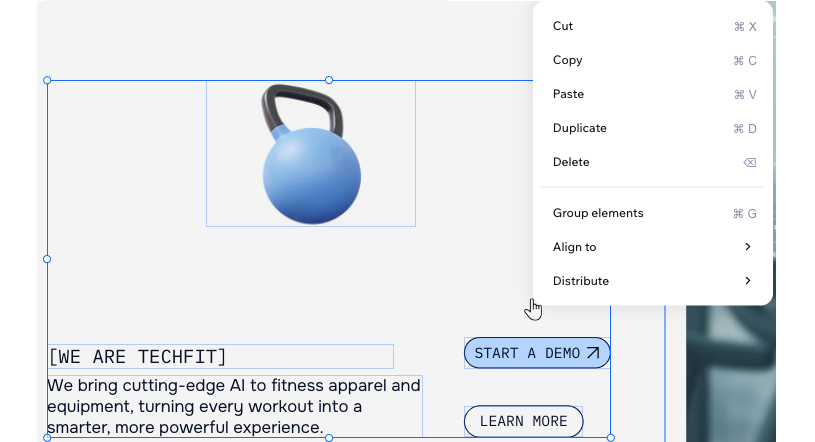
The right-click menu is your shortcut to managing elements, sections, and groups throughout your site. With a quick click, you can cut, copy, paste, arrange, and customize elements, helping you build and organize your site faster.
Managing individual elements
When you right-click an element, you unlock a range of options to control its placement, duplication, and more. These actions help you work efficiently and maintain a consistent, organized site design.
To manage an element using the right-click menu:
- Go to your editor.
- Right-click the element you want to edit.
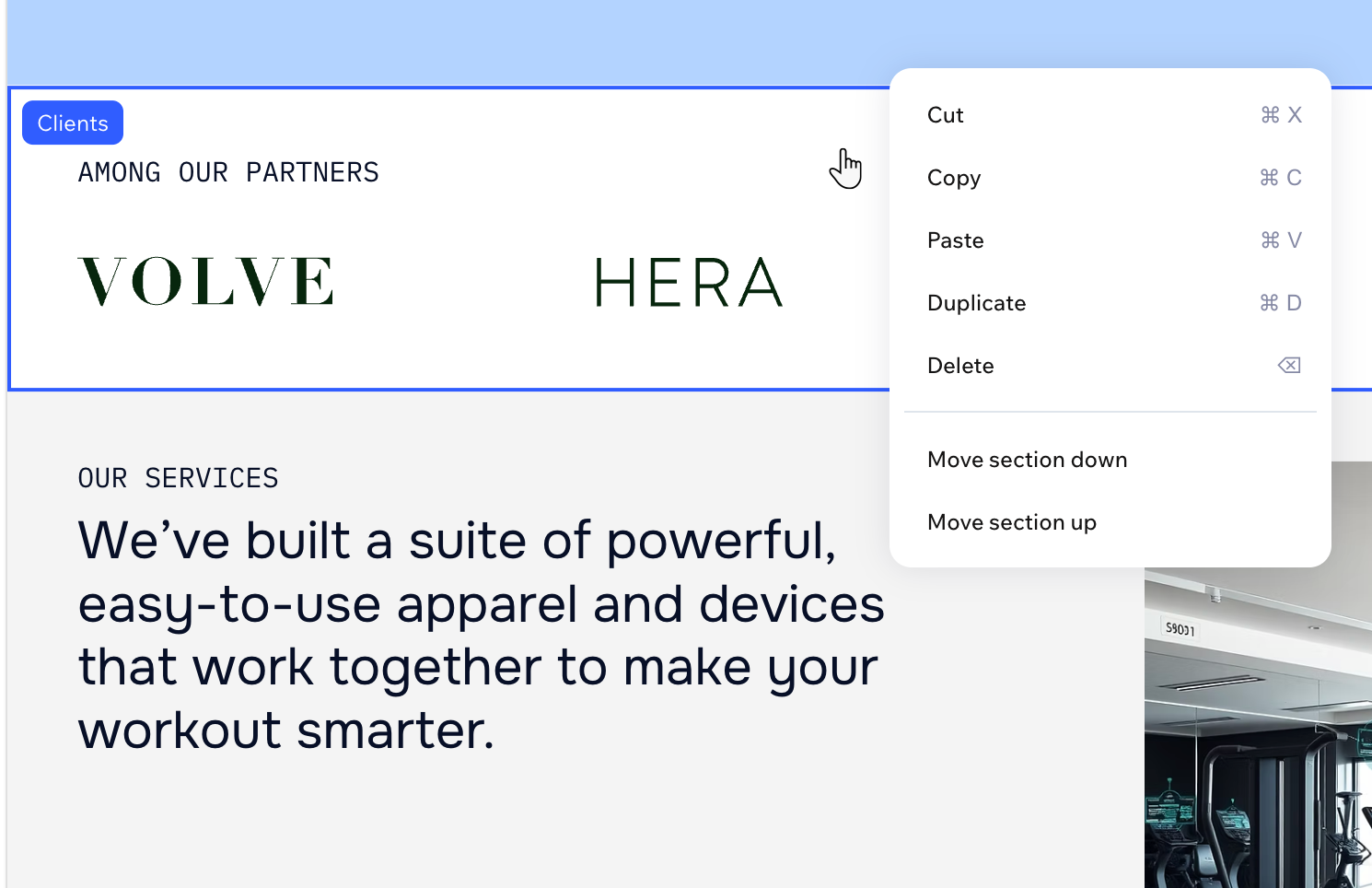
- Use the options to manage your element:
Copying or deleting the element
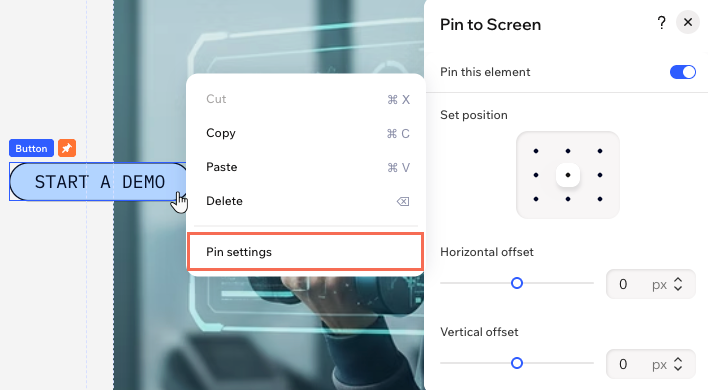
Pinning the element to the screen
Arranging the element
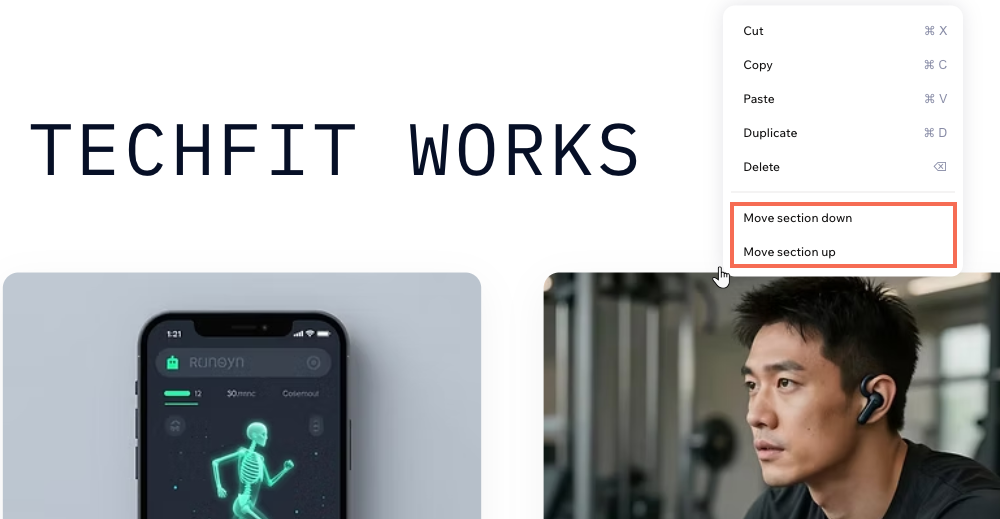
Moving a section up or down
Hiding the header or footer

Tip:
You can also arrange elements on your site in
the Layers panel.
Managing multiple elements
Take control of groups of elements by selecting and aligning them as a unit. Grouping makes it easier to move, format, or align several elements at once.
To manage multiple elements:
- Go to your editor.
- Hold the Shift key while clicking each element you want to select.
- Right-click, and choose what to do next:
- Cut, copy, paste, duplicate or delete: Perform these actions on all selected elements at once.
- Group elements: Treat several elements as a single group.
- Ungroup elements: Separate a group back into individual elements.
- Align to: Snap the selected elements left, center, right, top, middle, or bottom for a clean layout.
Distribute: Space your selected elements evenly by choosing Distribute horizontally (side to side), Distribute vertically (top to bottom), or Distribute (both directions).