


Wix Harmony Editor: Adding and Customizing Running Text
3 min
In this article
- Adding running text
- Customizing running text
- FAQs
Bring your site to life with running text, an animated text element that highlights your message in motion. It’s a simple, code-free way to showcase updates, promos, or news and keep visitors engaged from the moment they land on your page.
Adding running text
Running text lets you add animated, scrolling messages to your site. It’s perfect for announcing sales, events, or important news, making updates impossible to miss. Choose a style, customize your message, and keep your site looking energetic and up to date.
To add running text:
- Go to your editor.
- Click + Add at the top left of the editor.
- Select Elements.
- Click the Text icon
 on the left.
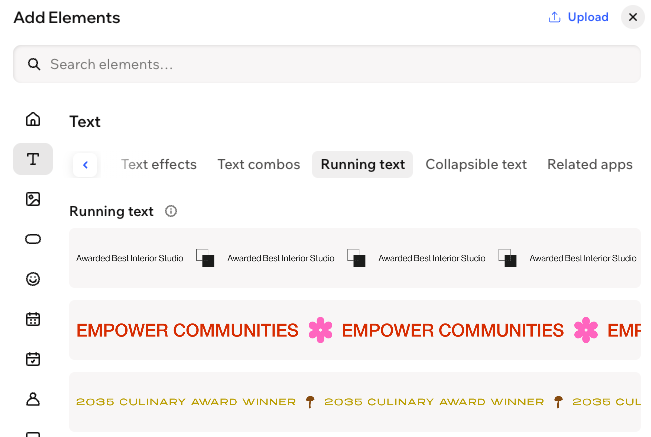
 - Select the Running text tab.
- Drag a design you like onto your page.
- Enter your text:
- Click Edit Text on the action bar.
- Enter your text under Text.
Tip:
While entering your text, you can add emojis using the relevant keyboard shortcut:
- PC: Windows logo key + . (period)
- Mac: Ctrl + Cmd + Space
Customizing running text
Bring your ideas to the forefront by making your running text truly yours. Pick a font that matches your style, add your brand’s colors, and set the mood with the scrolling direction and speed. With custom separators and flexible spacing, every detail can reflect your unique voice and capture your visitors’ attention.
To customize running text:
- Go to your editor.
- Click your running text.
- Customize your running text using the available options:
Settings
 on the action bar.
Separator settings
 to change the shape. You can choose from many different designs in the Media Manager, or upload your own SVG.
 to delete the separator.
Text and Spacing
 on the action bar.
FAQs
Click a question below to learn more.
What happens when visitors click the running text?
What is the running text character limit?
