Wix Harmony Editor: Adding and Customizing Collapsible Text
In this article
- Adding collapsible text
- Setting up your collapsible text
- Designing your collapsible text
Collapsible text is ideal for sharing lots of information without overwhelming your page. Only part of the text is visible at first, visitors can click an expand button or a link to reveal the rest.

Adding collapsible text
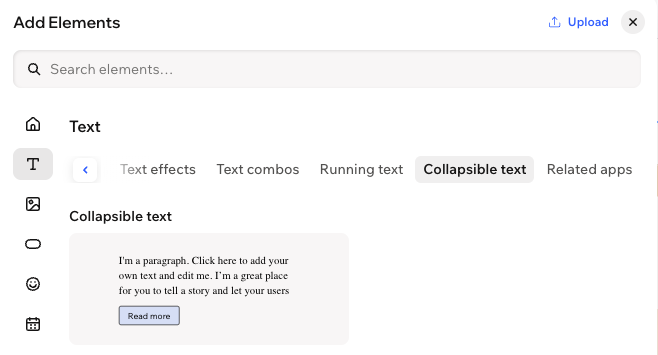
Start by adding a collapsible text box to your site. Choose from a variety of styles, fonts, line counts, and other settings to match your content and design.
Did you know?
Collapsible text boxes can hold up to 120,000 characters, so they're great for displaying long bodies of text.
To add collapsible text:
- Go to your editor.
- Click + Add at the top left of the editor.
- Select Elements.
- Click the Text icon
 on the left.
 - Select the Collapsible Text tab.
- Click or drag your chosen text style onto your page.
- Double-click your new text box to add your words.
- Customize the font, color, and style to match your site’s look.
Setting up your collapsible text
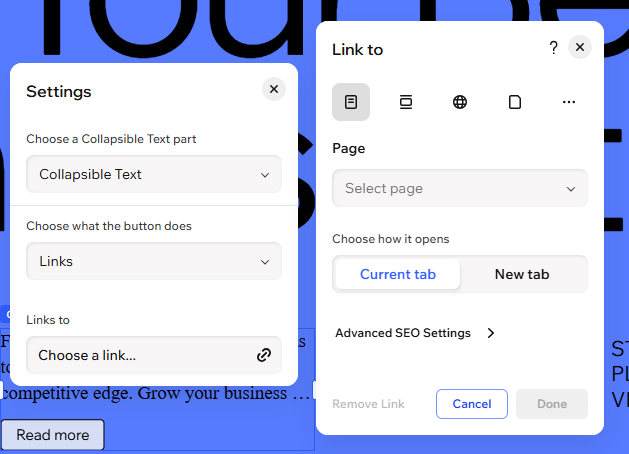
Once you’ve added the text box to your page, decide how visitors can access the full text. Add a button to expand the content on the same page, or create a link that leads to the complete text elsewhere. Set options for alignment, spacing, and how many lines are shown before visitors need to click.
To adjust the text's layout:
- Go to your editor.
- Click the collapsible text.
- Click the Settings icon
 on the action bar.
 - Adjust any of the following settings:
- Choose a Collapsible Text part: Decide whether you want to edit the Collapsible text or the Button.
- Choose what the button does: Decide if your button expands the text or acts as a link.
- Expands: Enter the text that should appear on the expand button and the button visitors click to collapse the text (e.g. 'Read more' and 'Read less').
- Links: Enter the text that should appear on the button visitors click, as well as the URL to the full piece of text.
- Accessible name: When you edit the button, enter a short description that tells screen readers what the button does (for example, “Read more about this section”).
Designing your collapsible text
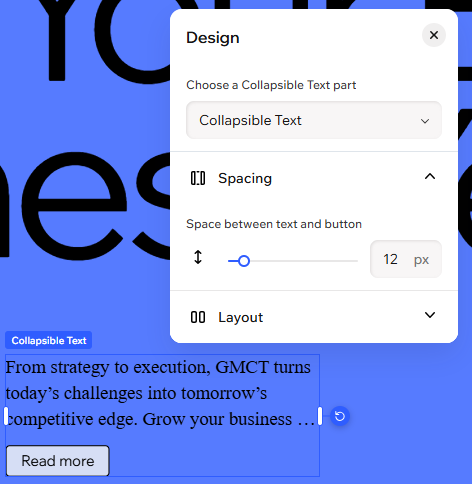
You have full control over the look and feel of your collapsible text. Design the collapsible text itself and the button visitors click to read more — fine-tune everything from fonts and colors to alignment and spacing.
To design your collapsible text:
- Go to your editor.
- Click the collapsible text.
- Click the All design options icon
 on the action bar.
 - Select the relevant part of the collapsible text under Choose what to design.
- Collapsible Text: Increase or decrease the space between the text and the button. You can also decide how many rows of text are displayed.
- Text: Adjust the text's font, formatting, alignment, capitalization and more. You can also choose whether or not to apply the site's direction to the text (i.e. left-to-right or right-to-left).
- Button: Design the button visitors click to read more. Change the fill color, borders, corners, shadow and spacing. You can also adjust the alignment and choose whether or not to apply the site's direction to the button (i.e. left-to-right or right-to-left).
- Text: Adjust the text that appears on the button. Change the font, formatting, alignment, capitalization and spacing. You can also apply shadow for a 3D effect.