


Wix Harmony Editor: Adding and Customizing Popups
In this article
- Adding a popup
- Customizing a popup
- Linking elements to popups
- Managing your popups
- FAQs
Popups are a powerful way to grab your visitors' attention and showcase important announcements, promotions, or simply welcome them to your site. You can fully customize these pop-up windows, decide when they appear, and choose how visitors interact with them.
Adding a popup
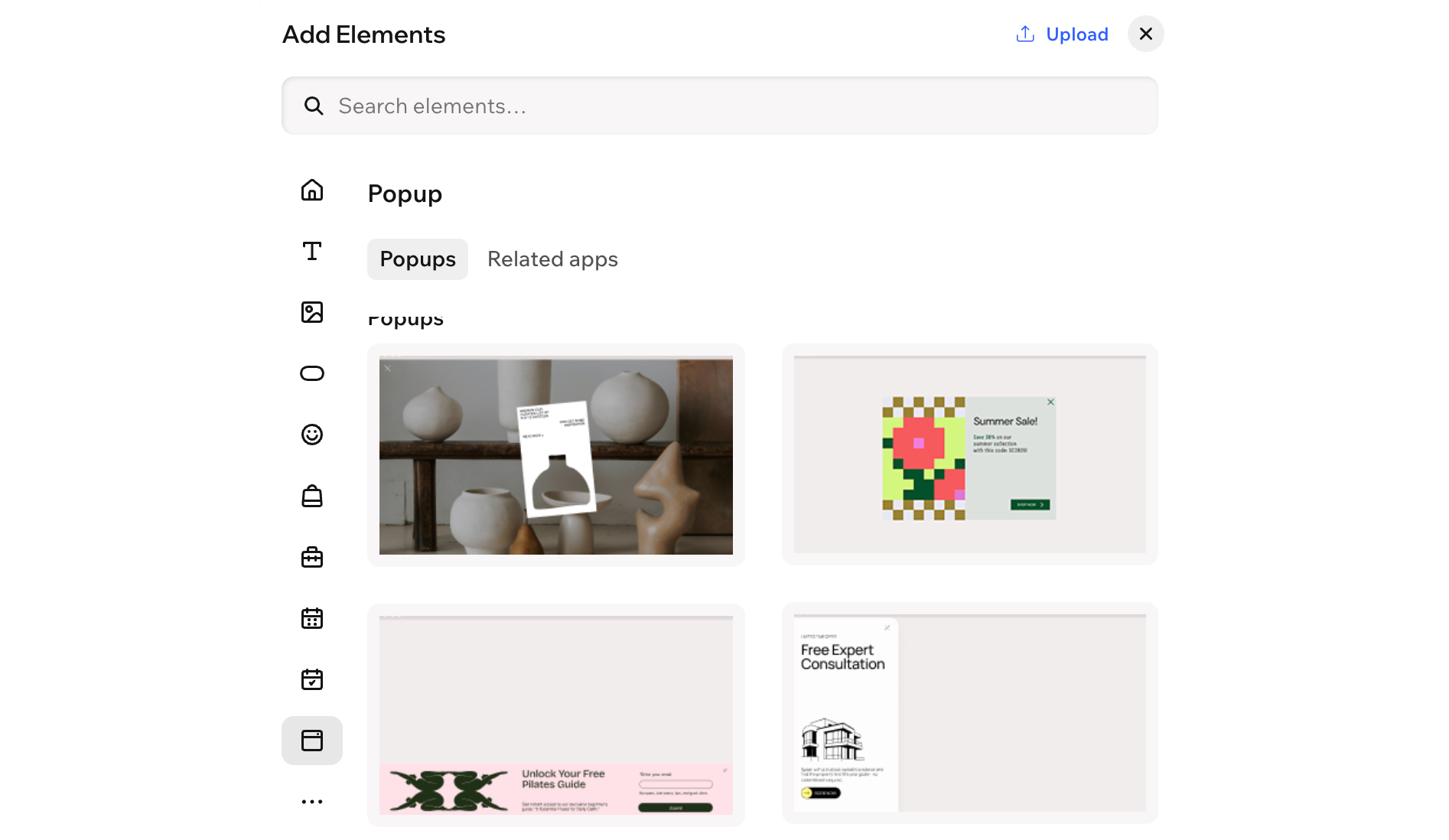
Get started by adding a popup to your site. There are various templates and categories to choose from, such as "Welcome" and "Contact" popups.
To add a popup:
- Go to your editor.
- Click + Add at the top left of the editor.
- Select Elements.
- Hover over the More Options icon
 , then scroll down and click Popup
  .
. - Drag a design you like onto your page.
Customizing a popup
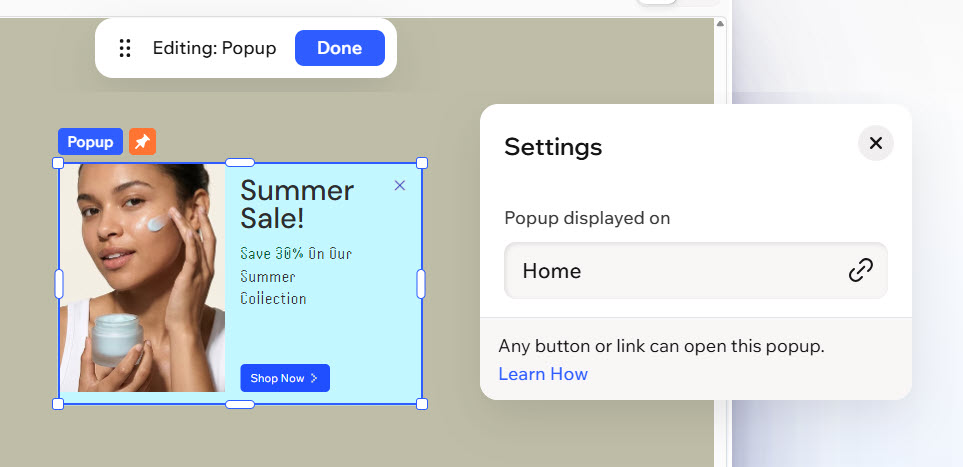
Match your popup to your brand by customizing its content, design, and behavior. Personalize how it looks, where it shows up on your site, and the way visitors close it.
To customize a popup:
- Go to your editor.
- Click the Page dropdown at the top left of the page.
- (In the Site pages panel) Select the relevant popup.
- Click the popup element in the editor.
- Decide how to customize the popup:
Choose which pages the popup appears on
 on the action bar
Add elements
Design the popup
 on the action bar.
 : Change the color(s) of your element, choosing one of your brand colors or a custom color.
 : Add breathing room to your content by adding padding around the element (or the selected area).
 : Define the borders of your element so it stands out, choosing a color, width and style.
  : Make the corners of your element more square or round by dragging the slider under Radius. Click the Edit individual corners icon
  to design each corner separately.
 : Apply inner and outer shadow to give the element an interesting 3D effect, setting the position, blurriness, color and more.
Choose how visitors close the popup
 on the action bar.
Set a delay
Linking elements to popups
Link elements on the site to open a popup, so visitors never miss an announcement. You can link elements like text, images, videos and buttons.
To link an element to a popup:
- Go to your editor.
- Click the relevant element in your editor.
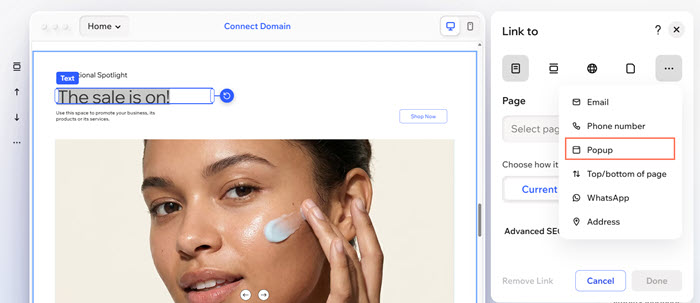
- Click the Link icon
 on the action bar.
 - Click Choose a link.
- Click the More Options icon
 and click Popup.
 - Click the Popup dropdown and select the relevant popup.
- Click Done.
Managing your popups
Keep your popups organized and up-to-date with these management options.
To manage your popups:
- Go to your editor.
- Click the Page dropdown at the top left of the page.
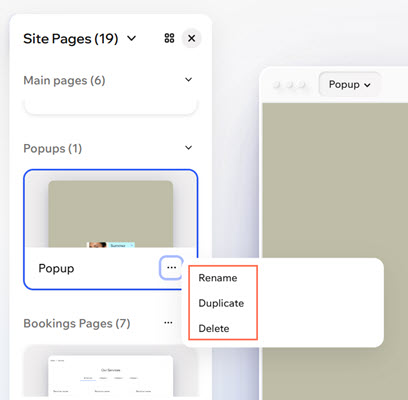
- (In the Site Pages panel) Hover over the popup and click the More Actions icon
 .
. - Choose what you want to do:
Rename a popup
 to save your changes.
Duplicate a popup
Delete a popup
FAQs
Click a question below to learn more about popups:
Can I set multiple popups to automatically show on a page?
Can I preview my popup before making the changes live?
Can I share a link to the popup?
Can I choose where on the screen my popup appears?
