


Wix Pro Gallery: Adding Media to the Gallery
In this article
- Adding media to your gallery
- Choosing the position and title of your media
- FAQs
Showcase images, videos and text side by side in your multimedia pro gallery. Upload your own media, add content from the Wix libraries, and embed videos from YouTube and Vimeo.

Adding media to your gallery
Add image, video and text items to your gallery from the
Organize your gallery window.
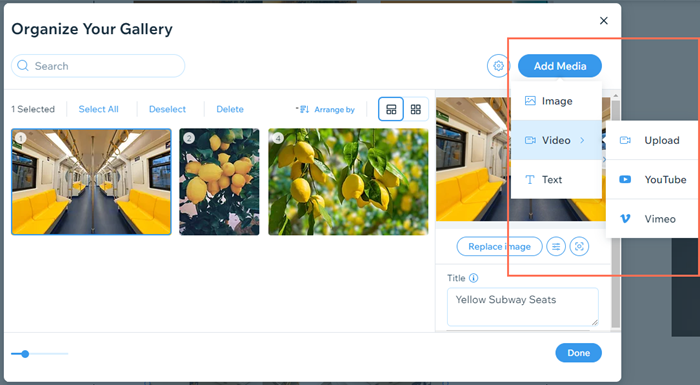
To add media items:
- Go to your editor.
- Click the pro gallery element on your page.
- Click Manage Media.
- Click Add Media.
- Select the media item you want to add and follow the relevant instructions below:
Image
Video

Text
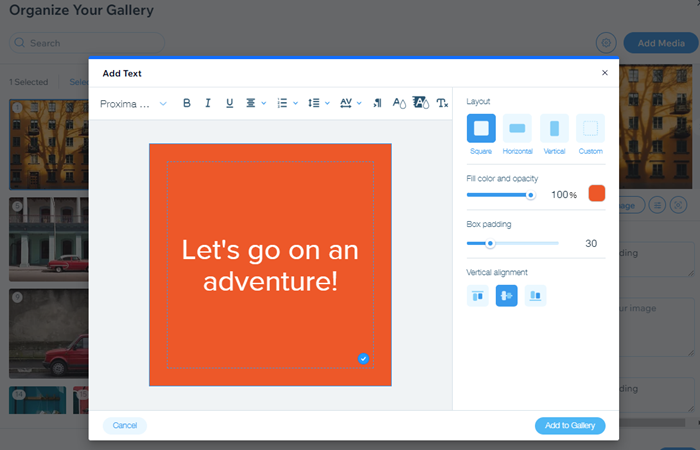
Tip:
When adding media to your gallery, you can also
add titles and descriptions,
alt text and
links to each gallery item.
Choosing the position and title of your media
Decide where your media is positioned in your gallery and how it's titled.
To choose the position and titles of newly add media:
- Go to your editor.
- Click the pro gallery element on your page.
- Click Manage Media.
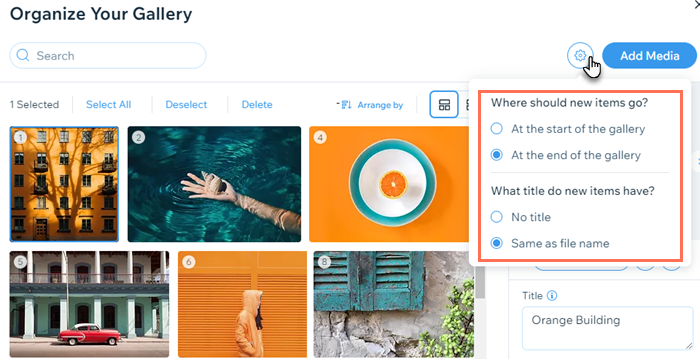
- Click the Settings for New Media icon
 .
. - Select the checkbox next to your preferred position and title setting:
- Where should new items go?: Choose to display new media at the start or end of the gallery.
- What title do new items have?: Decide whether newly added media has no title or retains the file name as its title.
FAQs
Click a question below to learn more about adding media to your gallery.
How can I delete the default media in the pro gallery?
 and click
Remove.
and click
Remove.
How can I add media to my gallery if it's connected to the CMS?
Can I play multiple videos in my gallery at the same time?
What is shown if I don't add a cover image to my YouTube video?
Can I embed playlists from YouTube or Vimeo in my gallery?
Can I control the quality of YouTube videos?
How can I change the order of my images, videos and text in the gallery?
Can I arrange gallery items by the date they were added?
Can I randomize the order of my gallery items?
Can I edit images in my gallery using the Wix Photo Studio?
 on the right.
If I close the 'Organize your gallery' window before clicking 'Done' are my changes saved?
Can I restore items I deleted from my pro gallery?
