


Studio Editor: Troubleshooting Menu Dropdowns
6 min
In this article
- Dropdown disappears or is hidden behind other elements
- Dropdown container jumps or changes size on hover
- Dropdown can only be opened once
- Items and sub-items in dropdowns look the same
Dropdowns are helpful menu items that you can use to display both submenus and site elements (text, images, etc.).
When working with dropdowns, you may notice issues with the sizing, positioning, or functionality. In this article, learn more about dropdown issues and find potential resolutions.
Important:
This article refers to dropdowns, which are only available on the latest menu element.
Dropdown disappears or is hidden behind other elements
Is the dropdown menu hiding behind other elements on the live site (partially or fully)? This is usually related to the page's layers, and / or the header's overflow settings.
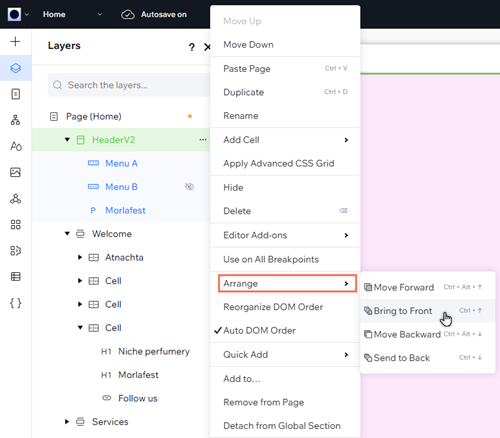
We recommend bringing the header to the front of the page from the Layers panel. If the dropdown extends past the header, you can also check and adjust the header to show overflow content.
Show me how to bring the header to the front
 on the left side of the editor.
 .
.
Show me how to adjust the header's overflow settings


Dropdown container jumps or changes size on hover
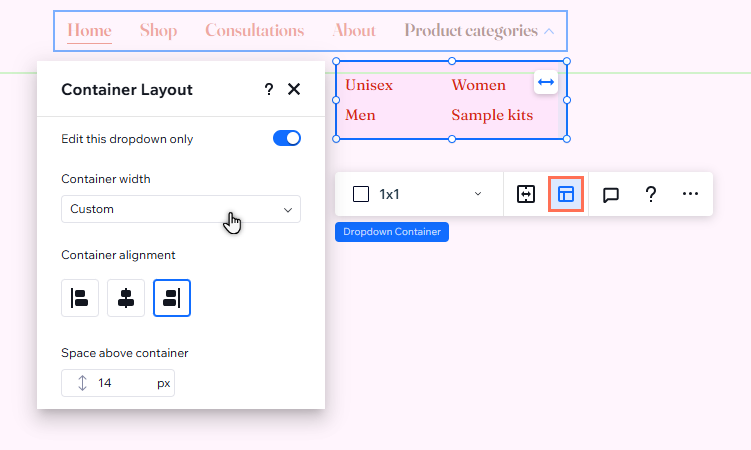
You can choose which width setting to apply to dropdown containers: Stretch, Fit to menu, or Hug content.
With Hug content, the container "hugs" the dropdown items—and automatically adjusts to fit the size of the items. This can result in the dropdown container jumping or changing size when visitors hover over an item on the live site.
To resolve this issue, we advise changing the container width to Stretch or Fit to menu.
Note:
These steps are to change the width of individual dropdown containers in a horizontal menu. To learn how to apply this setting to all dropdowns in a menu, please click here.
To change the container width of a dropdown:
- Go to your editor.
- Click the menu.
- Click Manage Menu.
- Hover over the dropdown in the panel.
- Click Edit to open the dropdown container.
- Click the Layout icon
.
- Select Stretch or Custom from the Container width drop-down.
Dropdown can only be opened once
While entrance animations are a great way to add interactivity and movement to your client’s site, they may cause issues when applied to a dropdown container.
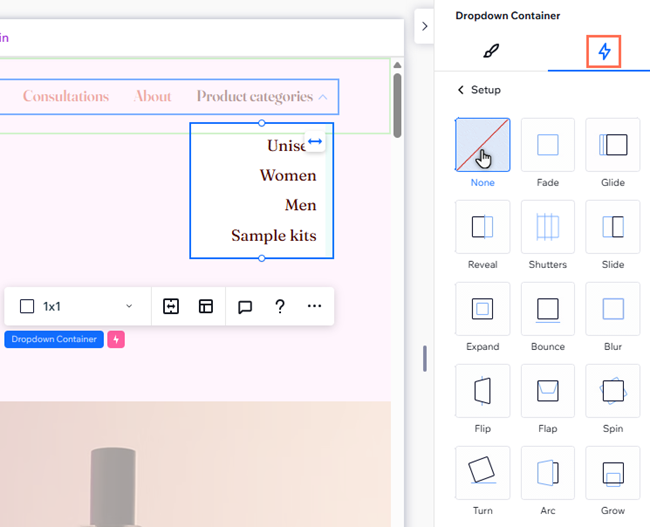
Entrance animations can only be triggered once (by the page loading). If a dropdown container has an entrance animation, it can therefore only be opened when the page loads.
We recommend removing the entrance animation from the dropdown container to ensure that visitors can navigate your client’s site with ease.
To remove an entrance animation:
- Go to your editor.
- Click the menu.
- Click Manage Menu.
- Hover over the dropdown in the panel.
- Click Edit to open the dropdown container.
- Click the Open Inspector icon
 at the top right of the editor.

- Click the Animations and Effects tab
 .
. - Click the entrance animation to open the panel.
- Click None.
Items and sub-items in dropdowns look the same
Items in your dropdown menu can contain their own sub-items, giving you the option to create multiple levels of navigation. These sub-items are always visible in the dropdown menu—so it's not possible to set them to open on click or hover. Vote for this feature.
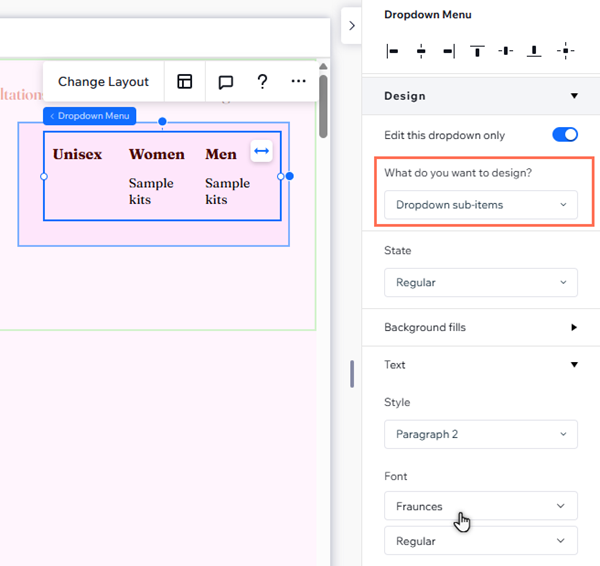
If the dropdown's items and sub-items look too similar (i.e. visitors might think they're the same level in the site's hierarchy), design the sub-items individually from the Inspector.
To customize sub-items in a dropdown:
- Go to your editor.
- Click the menu.
- Click Manage Menu.
- Hover over the dropdown in the panel.
- Click Edit to open the dropdown container.
- Click the dropdown menu in the container
- Click the Open Inspector icon at the top right of the editor.
- Select Dropdown sub-items under What do you want to design?.
- Customize the sub-items to look how you want.
Note:
These steps are for customizing sub-items in an individual dropdown. To learn how to apply the same design settings to all dropdowns in a menu, please click here.
Having issues with the main menu?
Follow our troubleshooting guide here.
