Studio Editor: Troubleshooting Menus
In this article
- Menu showing different items on different pages
- Menus not displaying correctly on smaller breakpoints
- Showing different menu layouts per breakpoint
- Showing different menu items per breakpoint
- Menu design changes on hover or click
- Anchor item doesn't work in a site menu
You may come across issues with menu elements in your editor. These are usually related to the menu's design and sizing, as well as the arrangement of elements on the page.
We've compiled the most common issues with menus in this article. Use the options to ensure that menus function as expected, and keep building the best sites for your clients.
Menu showing different items on different pages
You may notice that a site menu is displaying different items on different pages. This is usually because there are multiple headers in use across the site—so any changes you make to the attached menu only apply to pages using that specific header.
This issue can also be the result of using a non-global section as a page header. Changes made to non-global sections and their elements only apply to the page you're working on, which can lead to differences across the site.
We recommend using the same header across all site pages. You can set the section as global, and show it on every page on the site.
To create and use a global section:
- Go to your editor.
- Select the header you want to use on every page.
- Click the More Actions icon
 .
. - Hover over Set as Global.
- Select Header from the options.
- Apply the header to all pages:
- Click Global Sections
 on the left side of your editor.
 - Hover over the new global section and click the More Actions icon .
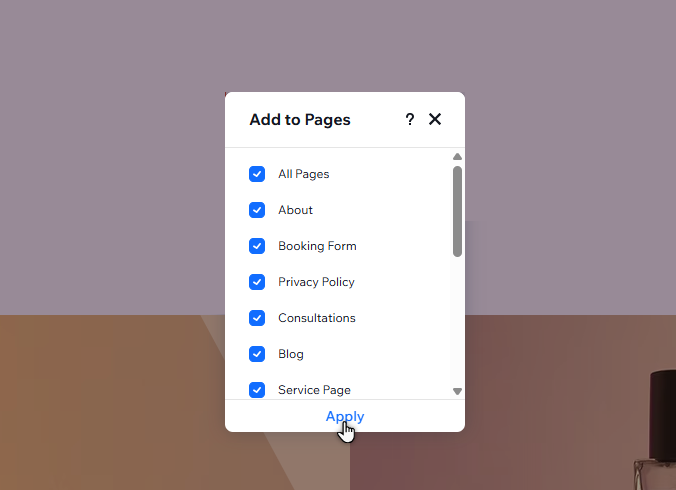
- Click Add to...
- Select the checkbox next to All Pages.
- Click Apply.
- Click Global Sections
Menus not displaying correctly on smaller breakpoints
When adding different menus to breakpoints (e.g. a horizontal menu on desktop and a hamburger menu on tablet and mobile), you may notice issues. These can include the menus becoming visible or invisible across all breakpoints, overlapping with other elements, etc.
This issue is generally because you are adding the latest menu component, which works a bit differently to older menus. Depending on what you want to do, use the options below to learn more about resolving this issue.
Showing different menu layouts per breakpoint
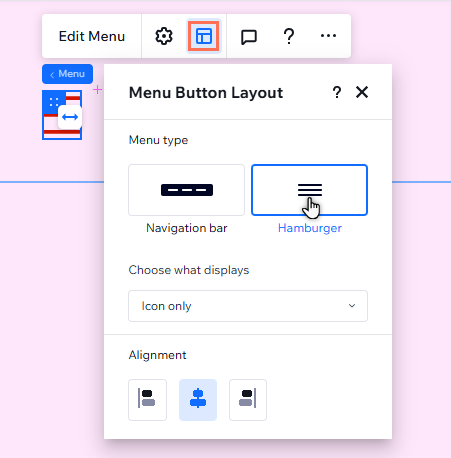
Previously, if you wanted to show different menu layouts across breakpoints, you needed to add both types of menus, and hide / show them accordingly. With the latest menu component, you can
change the layout per breakpoint; so there's no need to add multiple menus.
Show me how to change a menu's layout per breakpoint
 .
.
Showing different menu items per breakpoint
In order to display different menu
items per breakpoint, you still need to
add multiple menus. You can then use the Layers panel for each breakpoint to decide which menus to display.
Show me how to show different menus per breakpoint
 on the left side of the editor.
 .
.
Menu design changes on hover or click
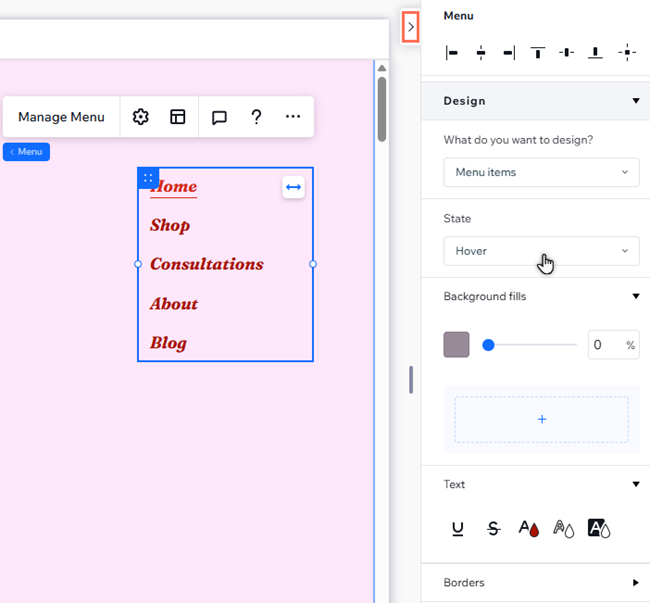
You can change the design of your menu items for each state (Regular, Hover, and Selected). If you notice unexpected design changes when you use the menu on the live site (e.g. text disappears, the background color changes), we recommend checking the design for the specific state and adjusting as needed.
To check a menu's design:
- Go to your editor.
- Select the menu.
- Click the Open Inspector icon
 at the top right of the editor.

- Scroll down to Design.
- Select Menu items from the What do you want to design? drop-down.
- Select the state where you're seeing the issue (Hover or Selected).
- Check the design settings and make adjustments as needed.
Having issues with menu dropdowns?
Follow our
troubleshooting guide here.
Anchor item doesn't work in a site menu
Anchors allow you to link directly to an element. You can display them in both
regular site menus and dedicated anchor menus.
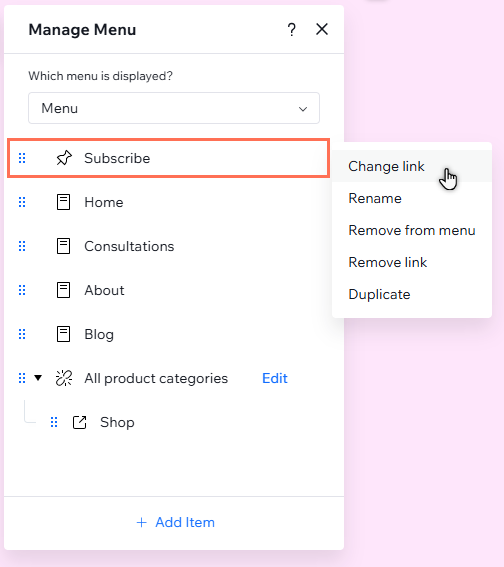
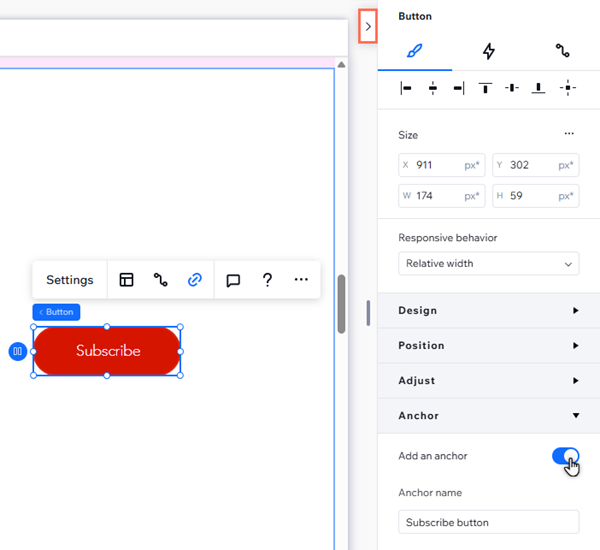
If nothing happens when you click an anchor item in a site menu, we recommend checking that the anchor itself is still enabled on the element. You can also check the anchor item in the menu to ensure it's set up the way you want.
Show me how to check the anchor settings

Show me how to check the anchor item in the menu