After creating your email campaign, spread the word by sending it to your subscribers. You can schedule your campaign to be sent later, send it right away, or send a test email.
Sending a test email before sending your campaign
You can send a test email to see how your campaign will look and function in a real inbox. This does not affect your monthly email limit.
To send a test email:
- Create an email campaign or edit an existing one.
- Customize the elements in your campaign to your liking, then click Preview & Test.
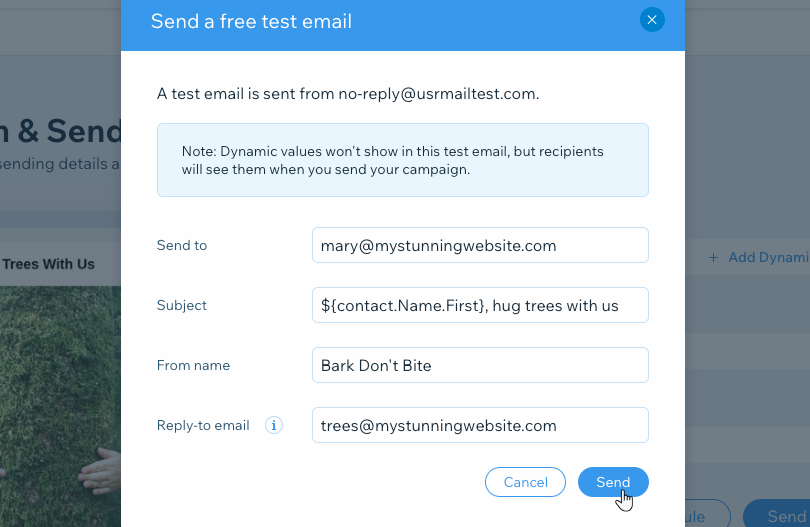
- Click Send Test Email.
- Enter details in the following fields:
- Send to: Enter the email address you want to send the test email to. You can only send test emails to one recipient at a time.
- Subject: Enter the subject line of the test email.
- Sender's name: Enter the name the test email will show as sent from. This may be your business or personal name.
- Reply-to email: Enter the email address that will appear when you reply to the test email.
- Click Send.
Scheduling an email marketing campaign
You can schedule your campaign to be sent at a later date and time. Make sure to
upgrade your plan if you would like to use this feature. Once scheduled, the emails in your campaign count towards your monthly sending limit. You cannot restore this limit by deleting the scheduled campaign.
To schedule sending a campaign:
- Create an email campaign or edit an existing one. Then click Next.
- Customize the elements in your campaign to your liking, then click Next.
Tip: Preview and test your email campaign to make sure it is perfect before you add recipients and send.
- Add recipients to your campaign and click Next.
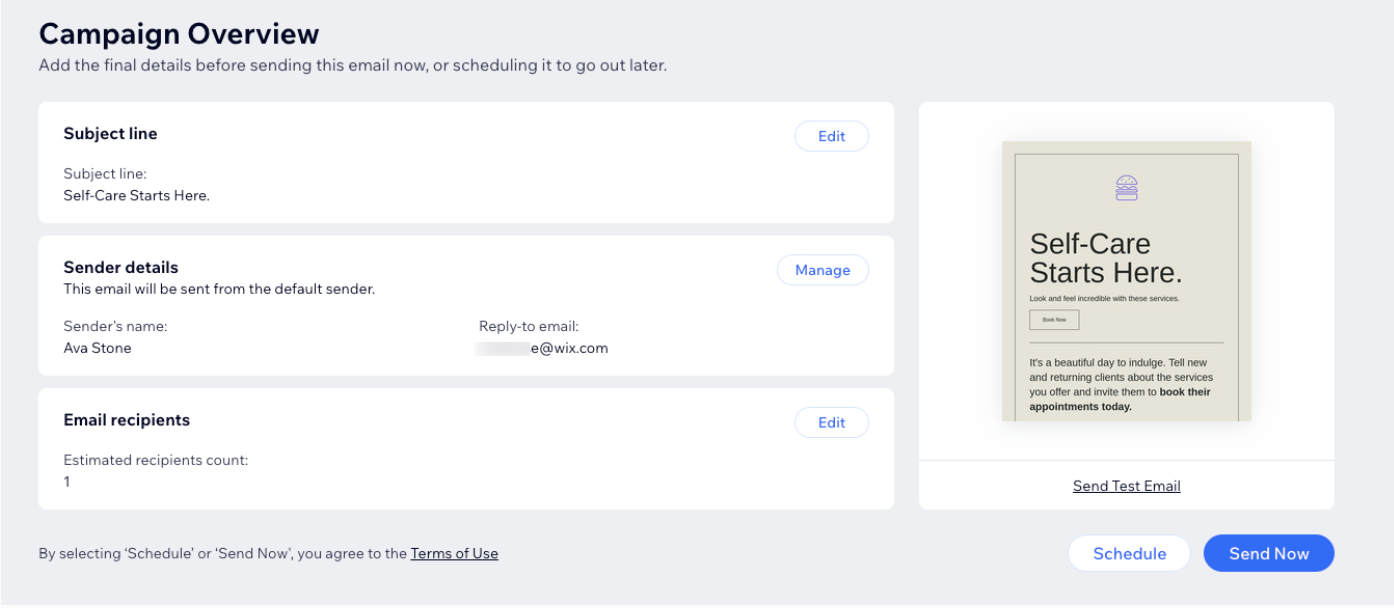
- Edit the final sending details:
- Subject line: Enter the subject line of the emails. You can add dynamic text that automatically adjusts to your contacts' details or your site's URL by clicking + Add Dynamic Value and choosing an option.
- Sender details: Enter the Sender's name and Reply-to email. This is the name and email address that recipients will see and can reply to once they receive the email.
Note: You sender name can be your business or personal name.
- Email recipients: See an overview of how many people the email will be sent to.
- Click Schedule.
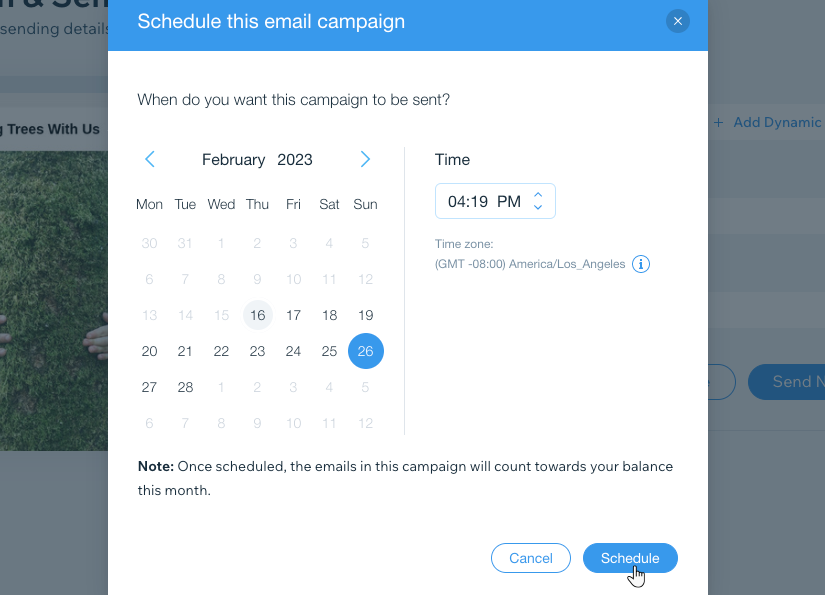
- Select the date and time in which you want the campaign to be sent.
Tip: Check the time zone to make sure your campaign is sent at the right time. If the time zone is incorrect, change it in your browser's settings.
- Click Schedule.
Sending your campaign as soon as possible
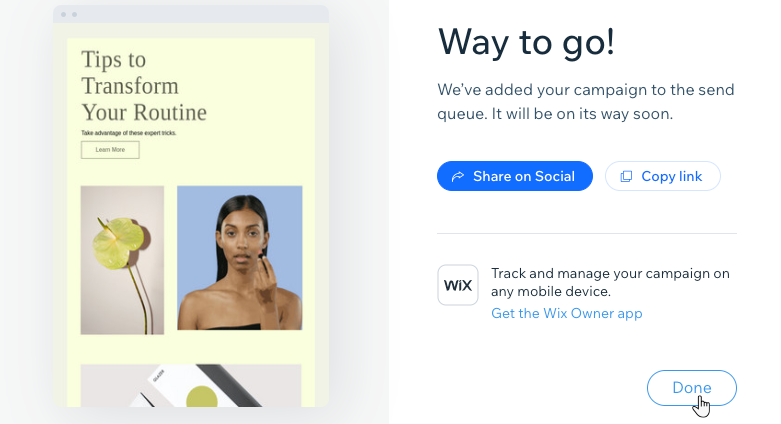
Once you're ready to get the news out about your campaign, send it. Your campaign goes into a queue where it's reviewed before it gets sent. You can then share your campaign wherever else you'd like.
To send your email campaign:
- Create an email campaign or edit an existing one.
- Customize the elements in your campaign to your liking, then click Next.
Tip: Preview and test your email campaign to make sure it is perfect before you add recipients and send.
- Add recipients to your campaign and click Next.
- Review the final details before sending the campaign:
- Subject line: Enter the email's subject line. You can add dynamic text that automatically adjusts to your contacts' details / your site's URL by clicking + Add Dynamic Value.
- Sender details: View the name and reply-to email address that will appear on your email campaign as the sender. If needed, you click Manage to edit the details.
- Email recipients: See an overview of how many people the email will be sent to. If needed, you can click Edit to change the recipients.
- Click Send Now.
- (Optional) Choose an option to share your campaign: Share on Social or Copy link.
Tip: Learn more about the URL of your published campaigns.
- Click Done.
Sending your campaign again
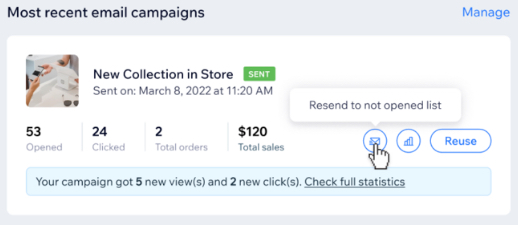
You can resend an email campaign to any recipients who have not yet opened your email. 24 hours after you send a campaign, a Resend icon  appears next to your campaign stats.
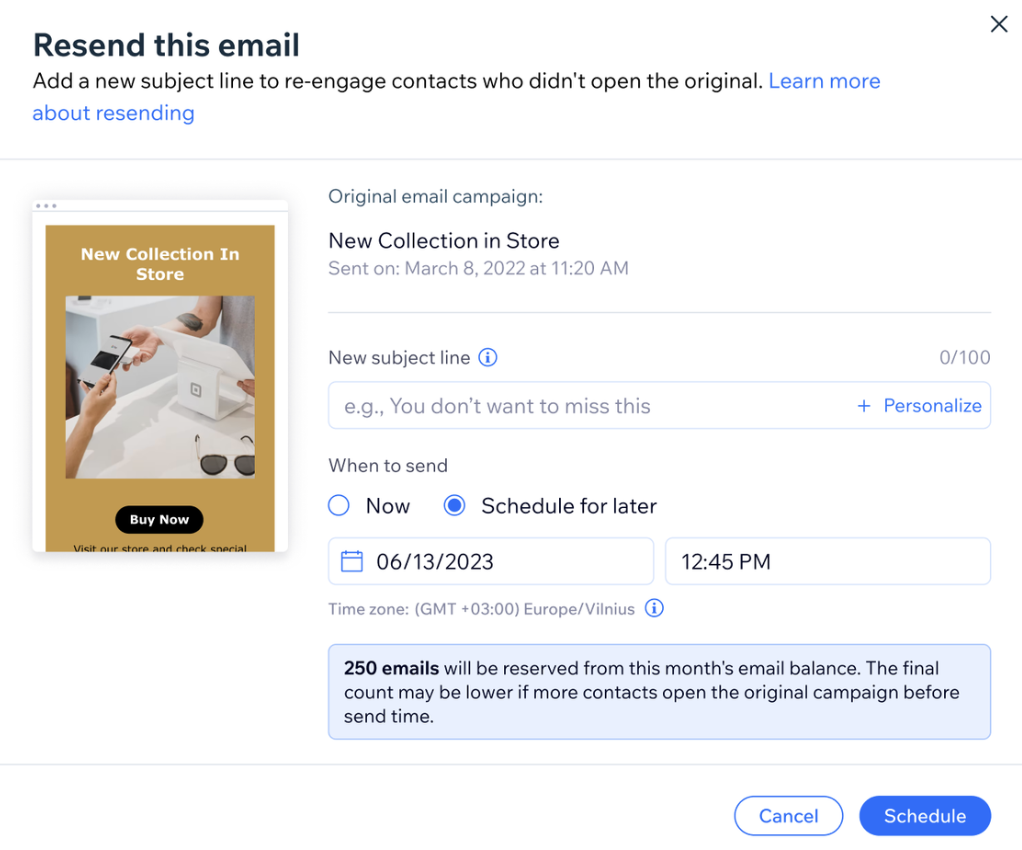
Resending a campaign also provides an opportunity to re-engage recipients. Before resending, you can update the subject line to see if more people will interact with the email the second time.
To resend your email campaign:
Go to Email Marketing in your site's dashboard.
Click View all Campaigns.
Click the Published tab.
Hover over the campaign you want and click the Resend icon .
Note: This icon only appears 24 hours after the first campaign was sent to give your recipients time to open when it's convenient for them.
Add a subject line for the campaign.
Choose when to send the campaign:
FAQs
Click a question below to learn more about sending your email campaign.
Why do my email campaigns with a large number of recipients take longer to send?
Sending your campaigns to a large number of recipients may still increase the time it takes for all recipients to receive your newsletter. Most campaigns are sent immediately, however, in extreme cases it may take up to 24 hours for all to be sent.
What is the Reply-to-Email?
The
Reply-to email is the email address your subscribers reach when clicking
Reply.
Do my campaigns get sent from my reply-to email address?
The email address your campaign is sent from depends on a few factors.
If your reply-to email address is:
A business email address with your own custom domain: Your campaigns will be sent from the reply-to email address (e.g. sales@mystunningwebsite.com).
Note: Your business email's domain must be connected to Wix via name servers for the emails to send from your business email. If you connected the domain to Wix via pointing, the emails will be sent from a Wix email address.
A public email address such as @gmail, @yahoo, @outlook: Your campaigns will be sent from a Wix email address such as user@pb01.ascendbywix.com.
Learn more about the Wix email addresses used to send your campaigns.
When you send your campaign to a new list of contacts, Wix may send the emails in batches. If a certain percentage of your emails are bounced or rejected, your campaign will not be sent to the rest of the recipients.
This email sampling is done to ensure that you do not damage your sending reputation, in case you send to invalid contacts. Learn more about email sampling.
What is email throttling?
Email throttling is a part of the email marketing abuse detection system used to prevent spam and harmful campaigns. If the system finds potential issues with your campaign, the rate at which the emails are delivered is slowed down. This deliberate slowdown of email distribution in order to prevent potential spam is known as 'email throttling'.
Why did some recipients get removed from my campaign?
After sending your email campaign, Wix reviews your list of recipients. Your recipients are automatically removed if emails to them are likely to get marked as spam or bounce back.
This automatic removal of recipients is to protect your sender reputation.
Why is my campaign in "In Review" status?
After sending your email campaign, it can go into an "In Review" status before it is actually sent to your contacts. In this status, your campaign is being checked to make sure it complies with our Email Marketing Terms of Use. This is also to ensure you do not damage your sender reputation.
Campaigns in review are usually sent within minutes. However, it can take up to 3 hours to complete the review.
If your campaign is still in review after 3 hours, you can contact us to check the reason for the delay.
Why am I not receiving my test emails?
Here are some common reasons why you might not be receiving your test emails:
Spam Filters: The email service provider receiving your email campaign decides whether or not to mark it as spam. Most email service providers, such as Google and Yahoo have systems in place which automatically scan incoming mail.
Delivery Time: Non compliance with Wix Email Marketing best practices leads at a minimum to a delay in the delivery of your newsletter.
Small Batch Delivery: Webmail providers that deliver in small batches include Yahoo, AOL, and Hotmail. If your sender's email account is hosted at one of these providers, it may take up to 24 hours for your email campaign to be delivered.
DMARC: Several free email service providers like Yahoo and AOL have updated their DMARC policies in an effort to reduce email abuse issues. If you send an email campaign with a Yahoo (including Ymail and RocketMail) or AOL sender's email address, the receiving email provider may reject the newsletter.
If you do not receive your test emails, try the following:
Why aren't my images displayed in my email campaign?
Some mail providers prevent images and multimedia content from appearing directly in the email. These settings are not determined by Wix but by the mail provider receiving the email.
Why is my campaign marked as Published but it wasn't sent to anyone?
Why does my test email show the subject line or pre-header from a previous campaign?
If your test email displays a subject line or pre-header from a past campaign, it may be because you duplicated an earlier campaign to create your new one.
Currently, you cannot edit the subject line or pre-header on test emails. If you use a duplicated campaign, the test email will show the original details.
You’ll be able to update the subject line and pre-header when finalizing your campaign on the Campaign Preview page, before you send it to your recipients.
Why is the wrong image shown when I share my email campaign on Facebook?
If Facebook is displaying the wrong image when you share your email campaign link, you can try using the Facebook debugger tool with your campaign URL. This tool refreshes how Facebook sees your link and can help show the correct image.
If the image still doesn't appear as expected, make sure you have an image added directly in your email campaign content (not just inside a column). Images that are part of a column may not display correctly when sharing on Facebook.
Why do recipients see the warning “Be careful with this message” in their inbox?
If you haven’t authenticated your email address, Gmail may flag your emails to recipients with a “Be careful with this message” warning. This is to help protect users from potentially suspicious emails.
To resolve this, authenticate your domain. This lets email providers know that your emails are safe and come from a trusted source.
Why are my emails going to the Promotions tab instead of the Primary inbox?
The Promotions tab in Gmail is not a spam folder. It is a separate inbox tab where Gmail places marketing emails, newsletters, discounts, and business updates. If your email lands in Promotions, it means the email was delivered successfully and passed spam checks.
Wix cannot force an email into a recipient's Primary inbox. If someone wants your emails in their Primary tab, they need to drag the email from Promotions to Primary and confirm that future emails should go there.
Why didn't my scheduled email campaign send at the right time?
If you edit an email campaign after scheduling it, the campaign is automatically paused so your new changes can be saved. The campaign doesn't resume on its own.
To send the campaign, go back to it and reschedule the send time.
Why did my monthly balance change after my scheduled resend was sent?
At the scheduled time, the resend goes only to recipients who still haven’t opened your campaign, and your balance is adjusted to match the number of emails actually sent. This number might be less than the number you originally saw when scheduling the resend email.