
CMS: Adding and Setting Up Rich Text Fields
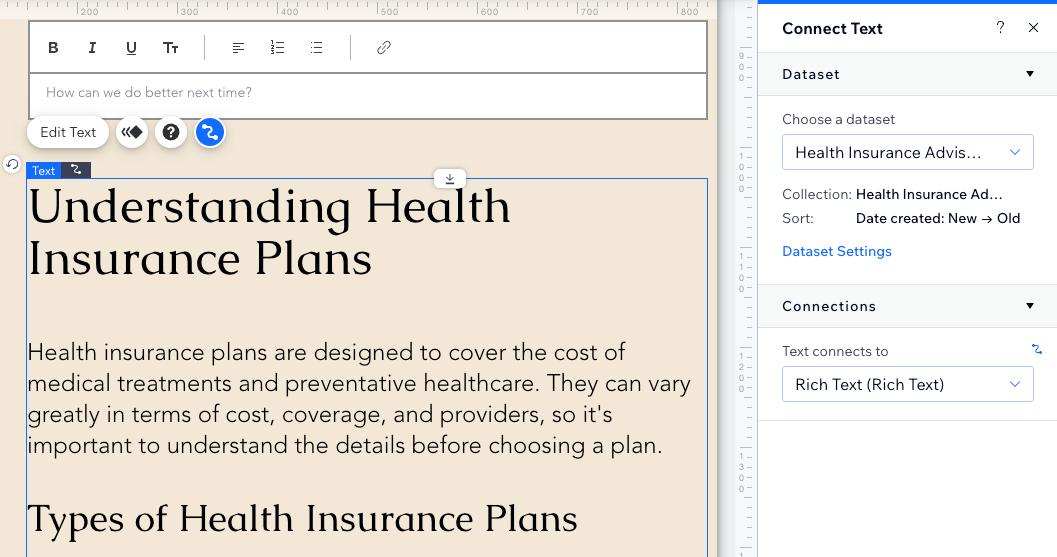
Adding the 'Rich Text' field type in your collection
To add a 'Rich Text' field to your collection:
- Go to CMS in your site's dashboard. Alternatively, you can click CMS in your editor, then click Your Collections.
- Click the relevant collection.
- Click Manage Fields.
- Click + Add Field.
- Select Rich text and click Choose Field Type.
 in your editor, then click Your Collections.
- Enter a name in the Field name field.
- (Velo only) Update the Field ID, which is used in the site's code. You cannot update this ID later.
- (Optional) Enter Help text if you want a tooltip to appear in your collection next to the field title.
- Click Save.
- Choose what you want to do:

 to edit the text in a larger window.

Formatting your 'Rich Text' field content
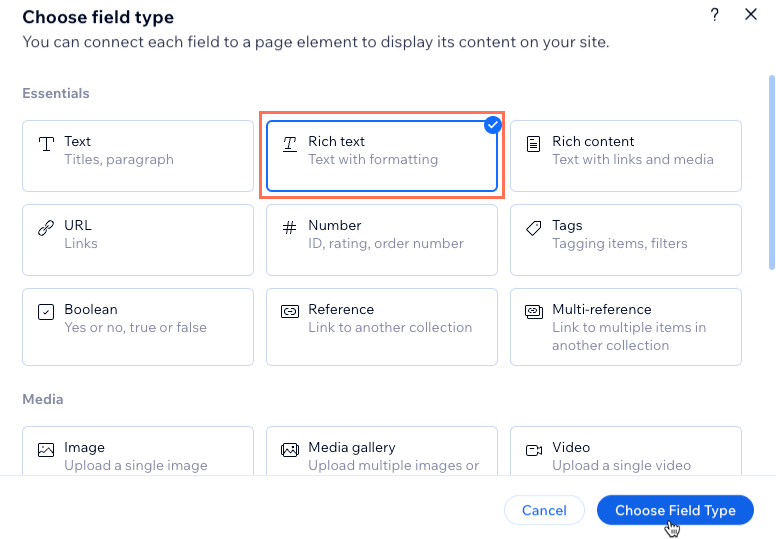
When editing your 'Rich Text' field from your collection, select from the options at the top to format your text. The Rich Text editor uses the same font theme that your site uses. Update your site's text theme in your editor to adjust the heading and paragraph styles used by your entire site and the Rich Text editor. In the Wix Editor and Studio Editor, you can also adjust the line and character spacing in your site's text theme.
Displaying 'Rich Text' field content on your site
- Go to your editor.
- Go to the page in which you want to display the 'Rich Text' field contents.
- Add a text element to the page:
- Click Add Elements on the left side of the editor.
- Click Text then drag the relevant text element onto your page.
- Click the Connect to CMS icon on the text element.
- Click the Choose a dataset drop-down and select an existing dataset that connects to the collection that includes your 'Rich Text' field. Alternatively, click Add a Dataset, then choose the collection that includes your 'Rich Text' field, give the dataset a name and click Create.
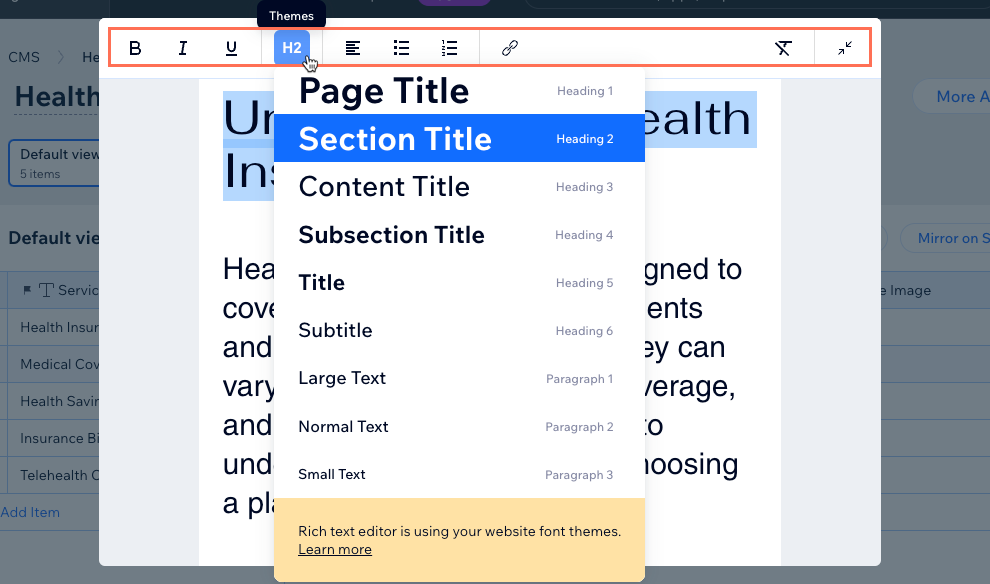
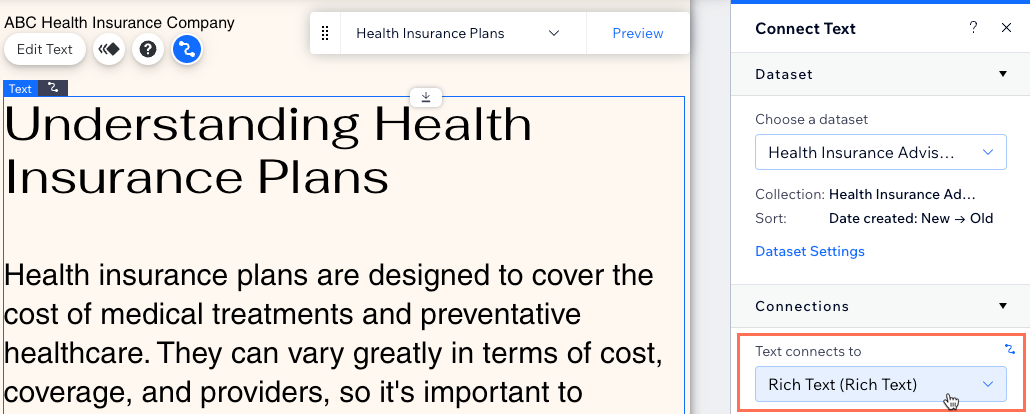
- Click the Text connects to drop-down in the Connect Text panel and select the Rich Text field you created.
 on the left side of the editor.

Datasets aren't part of the Wix Harmony Editor. In Wix Harmony, connect a text element in a repeater, or anywhere on an item page, straight to your 'Rich Text' field. Learn how to connect elements in Wix Harmony.
Using the rich text input element to collect content from site visitors
Input elements aren't available in the Wix Harmony Editor, so visitors can't filter your content or submit items to your collection. To collect information from visitors, add a form with Wix Forms instead. Learn more about features that work differently in Wix Harmony.
- Go to your editor.
- Add the rich text input element:
- Go to the page or section where you want visitors to submit text to your collection.
- Click Add Elements on the left side of the editor.
- Click Input.
- Click Rich Text.
- Click and drag the relevant rich text box onto the page.
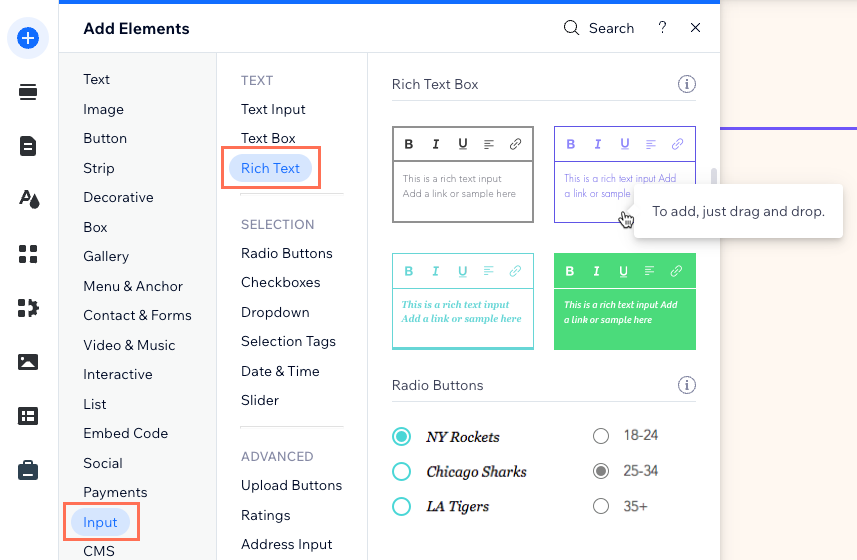
- Connect the rich text element to the CMS collection where you will store the submissions:
- Click the Connect to CMS icon on the rich text element.
- Click the Choose a dataset drop-down and select an existing dataset that connects to a collection where you will save visitor submissions in a 'Rich Text' field. Alternatively, click Add a Dataset, then choose a collection where you will save visitor submissions in a 'Rich Text' field. Give the dataset a name and click Create.
- Click the Value connects to drop-down and choose the 'Rich Text' field in which you will store the submissions.
Tip: To add a new field for storing submissions, select + Add, then enter the field name and click Add.
- Click the permission type next to Permissions to determine who can view, add, update, or delete the collection's content.
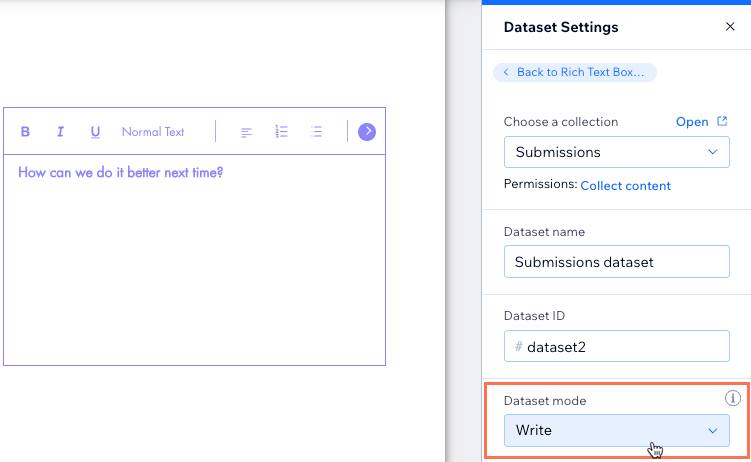
- Set the dataset mode:
- Click Dataset Settings.
- Click the Dataset mode drop-down and select the relevant option:
- Write: Connected elements cannot display content from the collection. Visitors can interact with user input elements and a submit button to add content as new items in the collection.
Note: This mode is not available in dynamic page datasets. - Read & Write: Connected elements can display content from your collection. Input elements can add or edit content in your collection.
- Write: Connected elements cannot display content from the collection. Visitors can interact with user input elements and a submit button to add content as new items in the collection.
- Click the rich text input element and customize it:
- Click Settings to edit the following:
- Field title: Enter a title that appears above the input element.
- Show initial text: Choose the initial text that displays.
- Field type: (Optional) Select the relevant options:
- Required: Make it mandatory that visitors enter a value in the box before submitting.
- Read only: Set the element to display content only. Visitors cannot edit the values but they can copy them
- Allow links: Enable the toggle to allow visitors to submit links in the element.
- Set character limit: Enable the toggle to limit visitor submissions to a set number of characters then enter the character limit.
- Click the Layout icon to set the text alignment, indentation, spacing, margin and toolbar position.
- Click the Design icon to choose a preset design and customize it further.
- Click Settings to edit the following:
- Add a 'Submit' button for visitors to click to submit once they're done entering the text they want to submit. You can add other buttons for editing by connecting buttons to dataset click actions.
 to set the text alignment, indentation, spacing, margin and toolbar position.
 to choose a preset design and customize it further.
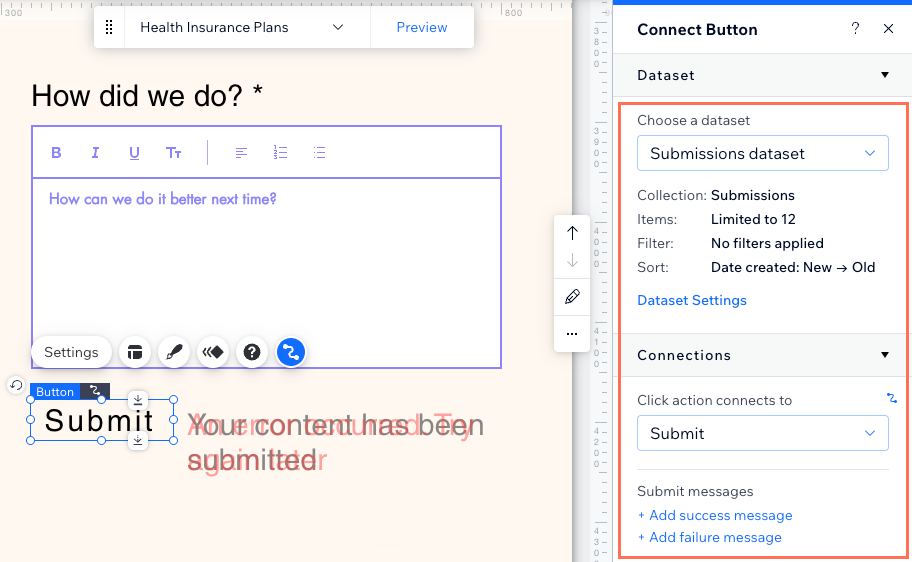
- Click Preview to test your rich text input element.
- Click Publish if you are ready to make the changes go live.