


Wix Harmony Editor: What's New with the CMS
- Adding your first CMS content
- Repeaters connect directly to your collections
- One panel for managing your content
- Item pages instead of dynamic pages
- Features that work differently in Wix Harmony
- FAQs
We're working on releasing CMS in Wix Harmony, which is not yet available in all Wix accounts.
The CMS (Content Management System) in the Wix Harmony Editor connects your content directly to your design. There are no datasets to set up, no modes to choose, and no extra layers between your collections and your page. Add a repeater, connect it to a collection, and your content appears right away.
If you've built with the CMS in the Wix Editor or Studio Editor, a lot has changed — here's how to get the same results in Wix Harmony.
Adding your first CMS content
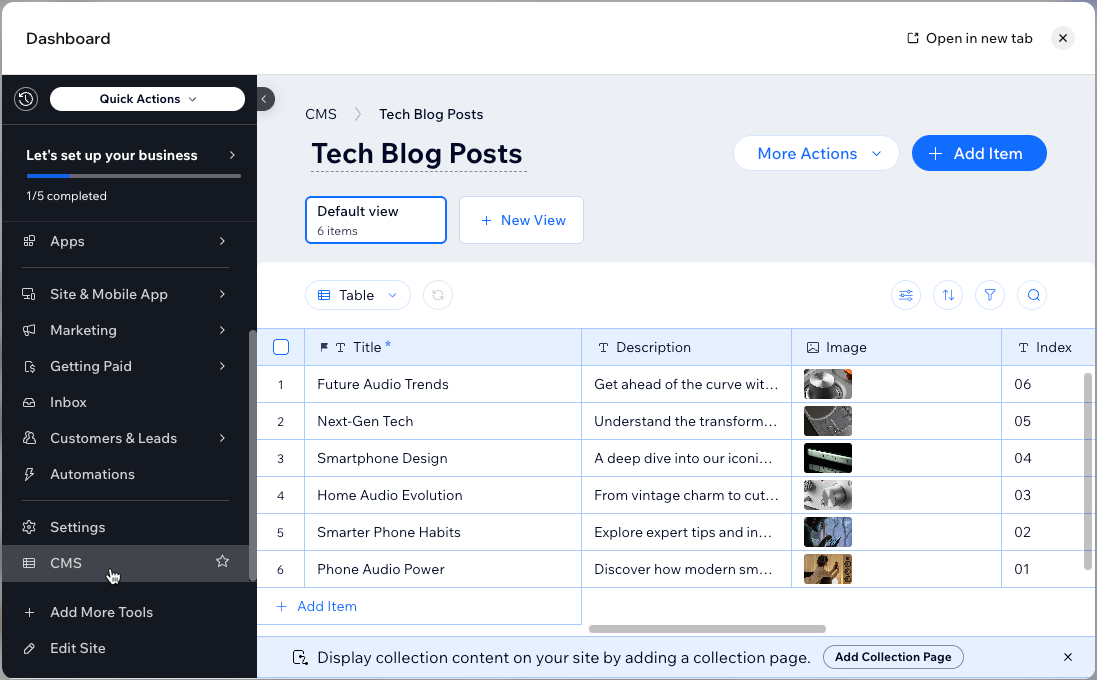
There's no CMS app to install and no CMS button in the Wix Harmony Editor. The CMS becomes part of your site the moment you add something that uses it — for example, a repeater from the Add panel or a page connected to a collection.
The first time this happens, Wix Harmony creates a starter collection filled with sample content, so you can see how everything works before adding your own. You can manage this collection, and any others you create, from the CMS tab in your site's dashboard.
Repeaters connect directly to your collections
Repeaters are your main connection to the CMS in Wix Harmony. Instead of adding a dataset in between, you connect your repeater straight to a collection — new or existing. Wix Harmony automatically matches the text, images, and buttons in your repeater to your collection's fields. These are the elements that show your collection content — inside a repeater on your pages, or wherever you place them on an item page. You can also connect a gallery to a 'Media Gallery' field to show each item's images and videos. Learn more about connecting the Wix Gallery to a Media Gallery field.
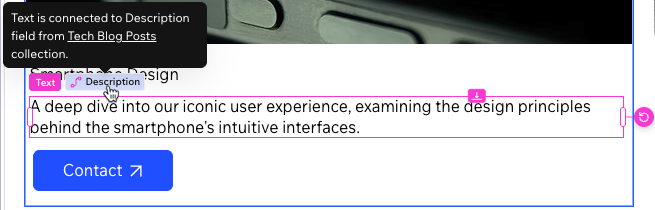
Color coding shows you what's connected as you design:
Pink: The element is connected to your collection. Its content comes from the CMS.
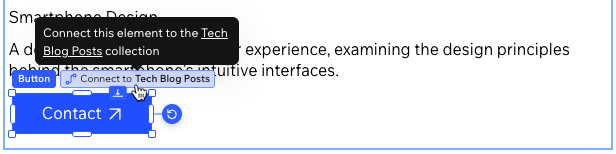
Blue: The element is static. Its content stays the same for every item.
Since there are no datasets, there are also no dataset modes — every connection is set to display collection content on your site.
Your content lives in your collection where you manage it, rather than in static elements on your page. This includes any text you used to build with CMS expressions, which aren't part of Wix Harmony.
One panel for managing your content
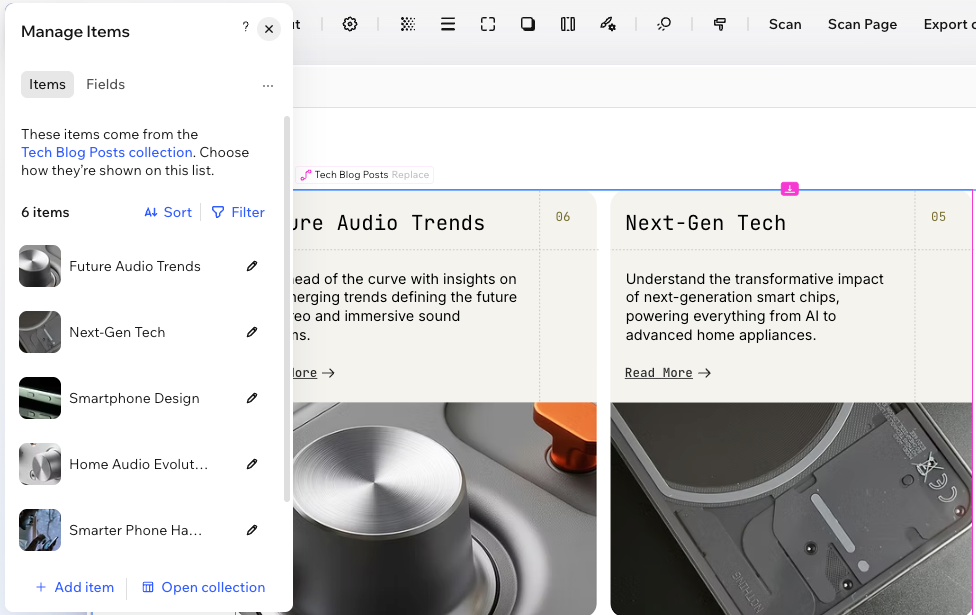
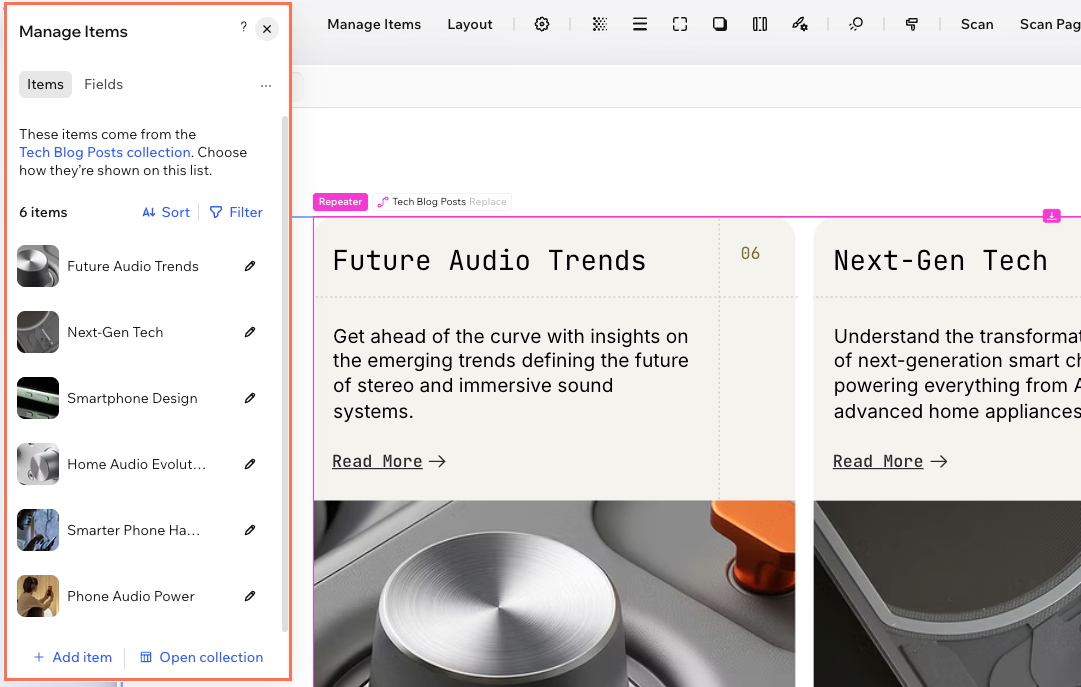
Every connected repeater and item page comes with a Manage Items panel, so your content stays within reach while you design. You can add, edit, and organize items without leaving your editor.
The Items tab lists every item your repeater displays. From there you can add and edit items, filter and sort your list, or give every item its own page. Learn more about managing the items in your list.
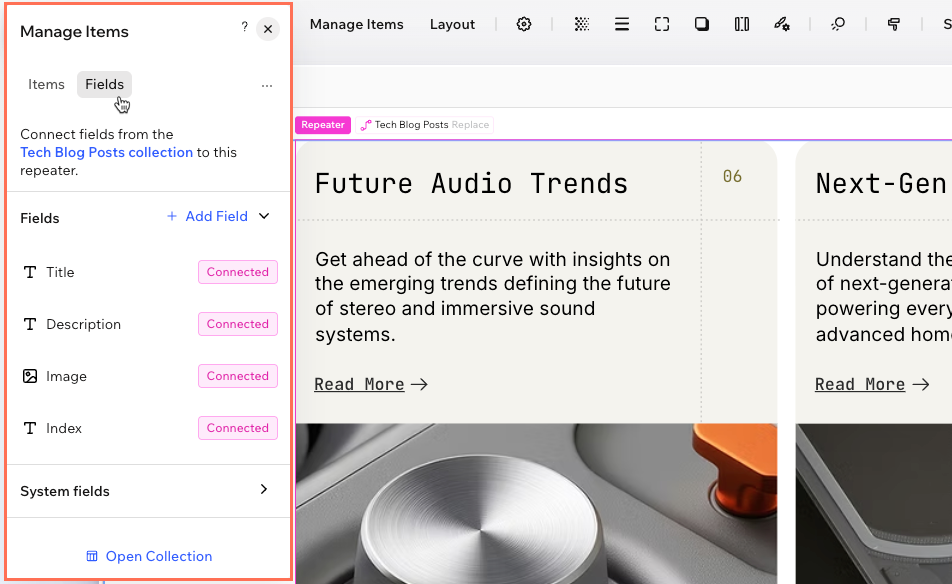
The Fields tab lists every field in your collection, with a pink Connected label on the ones showing on your page. From there you can see what each field connects to, add elements that display more of your content, create new fields, or use system fields like Created Date. Learn more about managing fields and connecting elements.
From either tab, you can also replace the collection your repeater uses, or create a page for every item. When you replace a collection, Wix Harmony matches the new fields to your existing elements automatically and shows you a field-matching panel, so you can check and adjust the connections before you confirm.
Item pages instead of dynamic pages
The "dynamic pages" setup is gone, along with the split between dynamic list pages and dynamic item pages. In Wix Harmony, you work with pages and item pages:
- Lists: Any page can show a list of your collection items — add a repeater and connect it to your collection. There's no separate "list page" type to manage.
- Item pages: Design one page, and every item in your collection gets its own version of it, each with its own URL. Item pages replace what used to be called dynamic item pages.
You can create item pages in a few ways:
- From a repeater: Link a button or image in your repeater to an item page. If you don't have one yet, select Create your first item page and Wix Harmony creates the item pages for you. Learn more about creating item pages from a repeater.
- From the Add panel: Add a page with a list, or a bundle that creates a list page and an item page together.
- With Aria: Ask Aria, the AI assistant in your editor, to turn a static page into an item page. This is also the way to convert pages you've already designed.
Each item page URL ends with the item's slug — a unique, editable value stored in the Item slug field. Wix Harmony adds this field to the right of your collection fields when you create item pages. The field uses the 'Slug' field type, and you can't change its name or type. Learn more about URL slugs in Wix Harmony.
Features that work differently in Wix Harmony
Some tools from the Wix Editor and Studio Editor work differently in Wix Harmony, and some aren't included. You can vote for the features you want to see in Wix Harmony. Here's how to get similar results:
- Showcasing a single item: There's no Single Item collection type. Instead, connect a repeater to your collection and set it to show one item.
- Showing different views of your content: Input elements, like dropdowns visitors use to filter content, aren't available. To display different sets of items, add a repeater for each view with its own filter — for example, "Featured" and "Latest".
- Collecting content from visitors: All CMS connections display content, so custom forms built with input elements aren't available. Instead, use Wix Forms to collect submissions from your site visitors.
- Editing safely: There's no sandbox environment — you work with one version of your content. Changes you save in a collection appear on your published site unless you filter to exclude items in your Manage Items panel.
- Choosing who sees your content: Permissions are now a single setting. In your collection's settings, go to Who can view this content on the live site? and select Everyone, Members only (site members who are logged in), or Admin (only you and your collaborators). You and your collaborators are the only ones who can add, update, or delete content.
- Ordering your items: Collections don't mirror their order to your site. Use sorting in the Manage Items panel to control the order. For a fully custom order, add a number field to your collection (for example, "Display order") and sort by it.
- Working with app collections: Collections from Wix apps, such as Stores or Wix Forms, can't connect to repeaters in Wix Harmony.
- Working with field types: You can add any field type to your collections in the CMS. However, you can't connect some field types, like 'Reference' and 'Video', to elements on your page yet. You can connect 'Media Gallery' fields to a gallery.
FAQs
Click a question below to learn more about the CMS in Wix Harmony.
