Site Members: Change the Layout of Your Member Pages
4 min
In this article
- Layout options
- Full-width layout
- Cards layout
- Changing the layout of member pages
- Customizing the layout on mobile
This article refers to the previous version of the Members Area app. If you're using the new version, click here. Click here to check which version you're using.
Choose a layout for the pages of your Members Area, and customize it as you wish.
Layout options
There are two layouts for you to choose from. Learn more about them below and select the one that's right for your site.
Using Editor X?
The default layout of your member pages is full-width. Currently, it is not possibly to switch to a different layout.
Full-width layout
The profile design for the full-width layout for member pages spans the width of your site. This means that it looks great from whatever size screen your visitors are viewing your site on, including mobile.
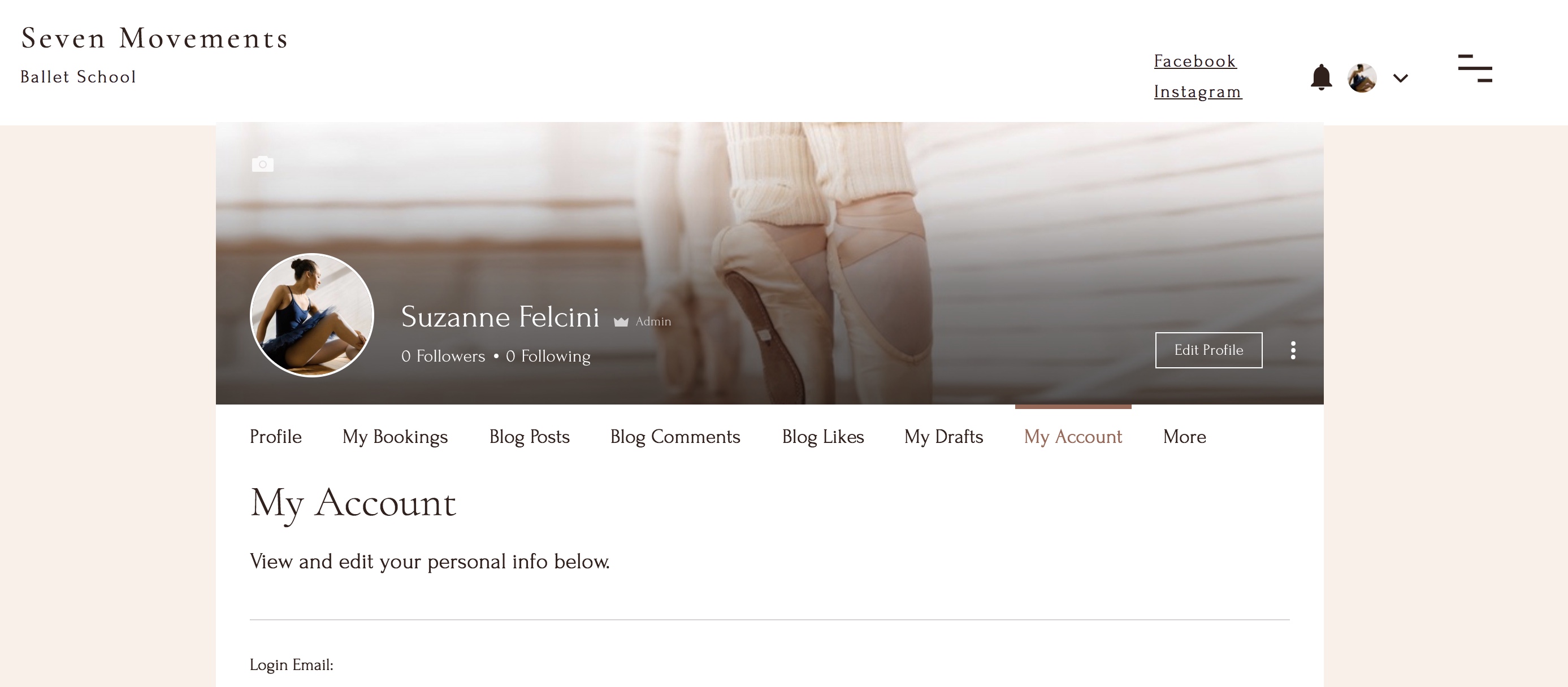
Learn more about the features of this layout:
Profile Cover


Followers/ Following indication

Show/Hide Message button


Cards layout
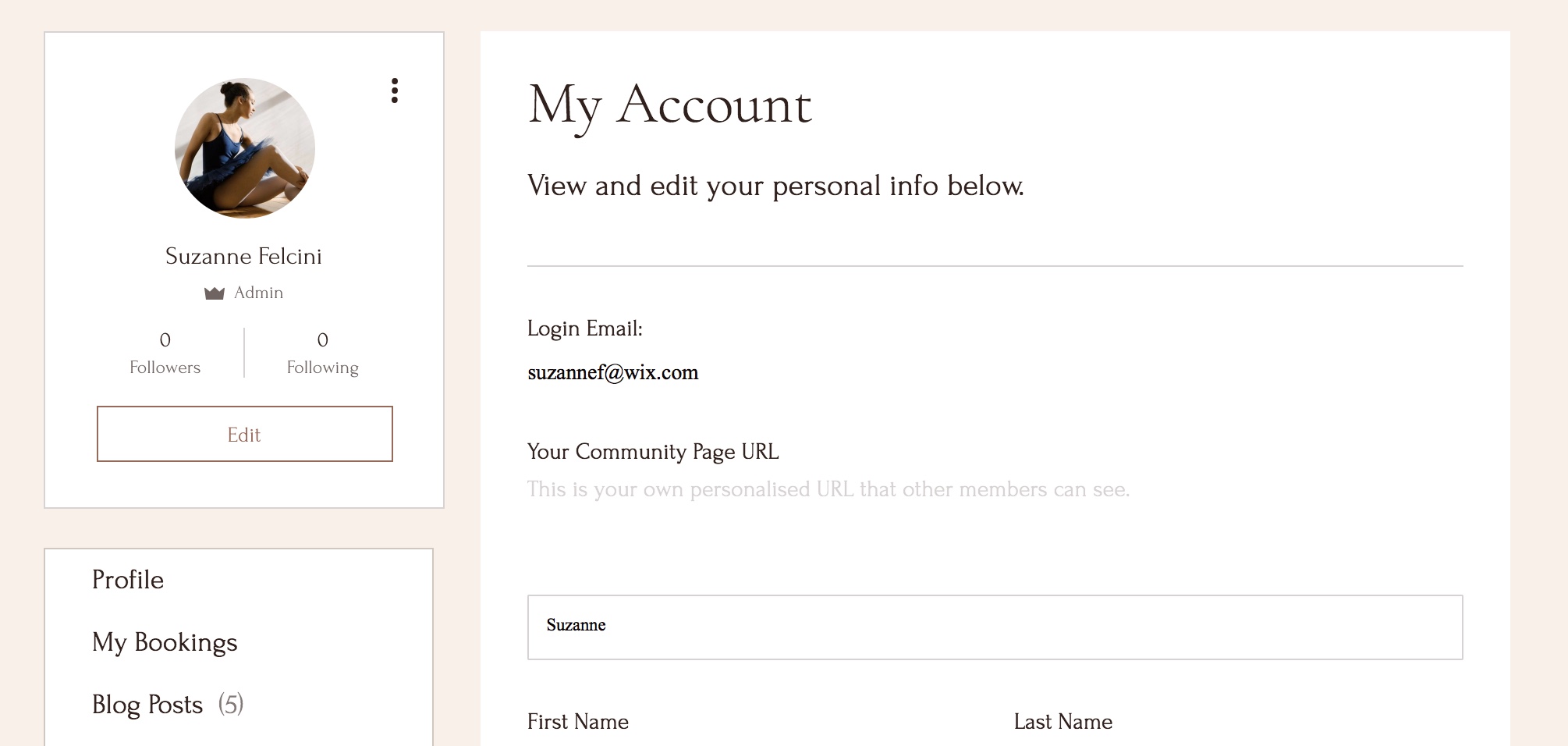
The Cards layout is more of a traditional layout, and suits formal businesses better as it puts less emphasis on the member. It's also really easy to move each section around individually and place it where you want.
Changing the layout of member pages
- Go to the My Account page in your Editor.
- Click the My Account page.
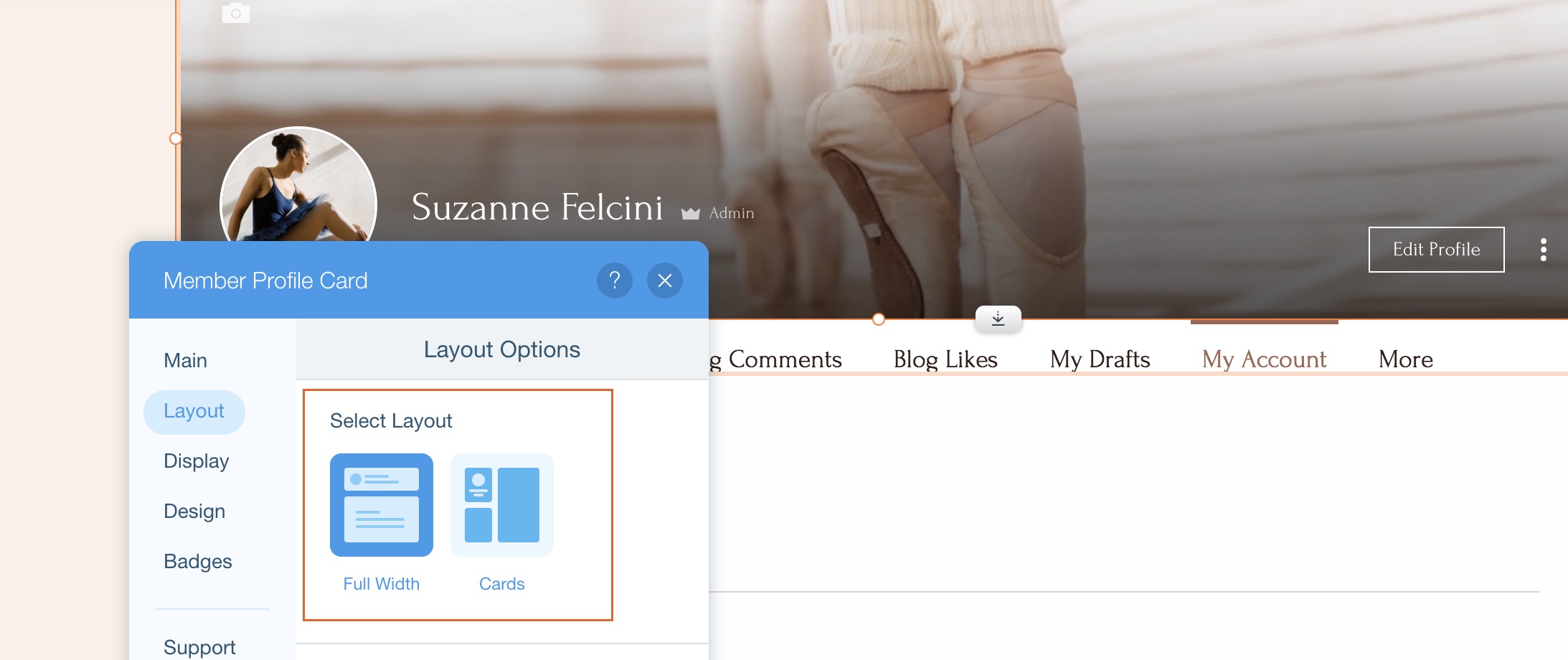
- Click the Member Profile Card.
- Click Settings.
- Click Layout.
- Select a layout; Full Width or Cards.
Customizing the layout on mobile
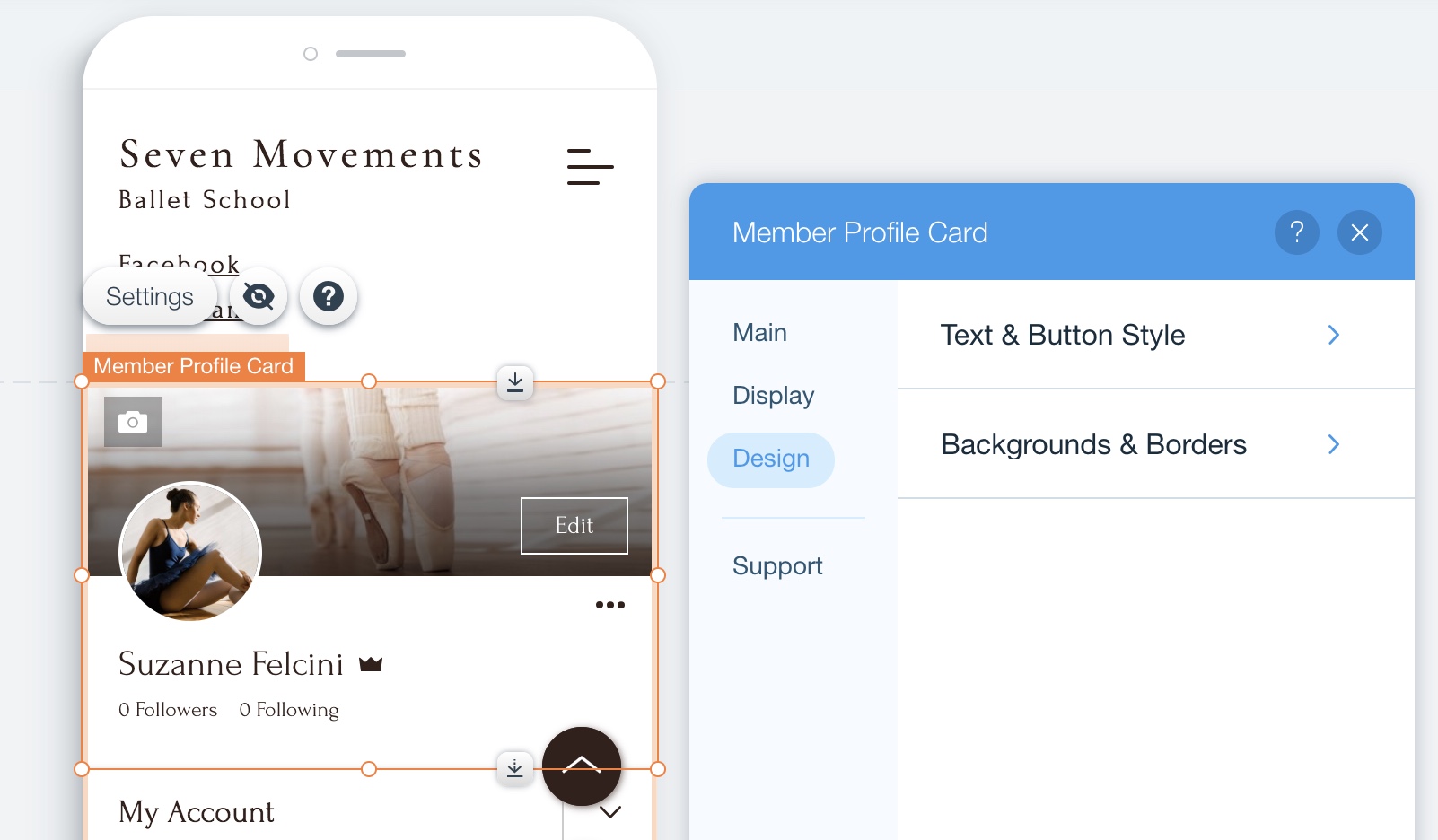
The member pages layout also looks stunning on mobile devices, and you can customize it separately to the desktop layout. This means that you can have a different cover photo and color, different design and show or hide member features on your mobile site only.
Tip:
Go to the mobile Editor to check it out.
To customize the mobile layout:
- Go to the mobile Editor.
- Click the Switch Page dropdown on the top bar.
- Click the My Account page.
- Click the Member Profile Card.
- Click Settings.
- Customize your mobile layout for members pages.