


Connecting a Domain to Wix Using the Pointing Method
In this article
- Video tutorial
- Step 1 | Add the domain to your Wix account
- Step 2 | Update the DNS records in your domain host account
- Step 3 | Wait for your domain to propagate
- FAQs
Create a website with Wix and connect an existing domain that you already own to it using the pointing method. This keeps your DNS hosted outside of Wix.
When you connect your domain by pointing, you continue to manage your DNS settings from your DNS host's account. We don't recommend pointing in most cases because we're unable to assist in case you have DNS issues. However, if your domain has complicated DNS records that you prefer not to reconfigure, pointing may be your best option.
Learn more about the differences between
connecting your domain via name servers vs. pointing.
Before you begin:
You must
upgrade your Wix site before you can connect your domain.
Video tutorial
Check out this short video tutorial, or scroll down to read the full article.
Step 1 | Add the domain to your Wix account
Before updating the DNS settings in your domain host account, you'll need to add the domain to your Wix account.
To add your domain:
- Go to Domains in your Wix account.
- Click Add an Existing Domain.
- Click Connect a domain you already own.
- Select the site you want to connect your domain to and click Continue.
- Enter your domain in the search bar and click the arrow icon
 .
. - Click connect it to your site in the sentence below the search field.
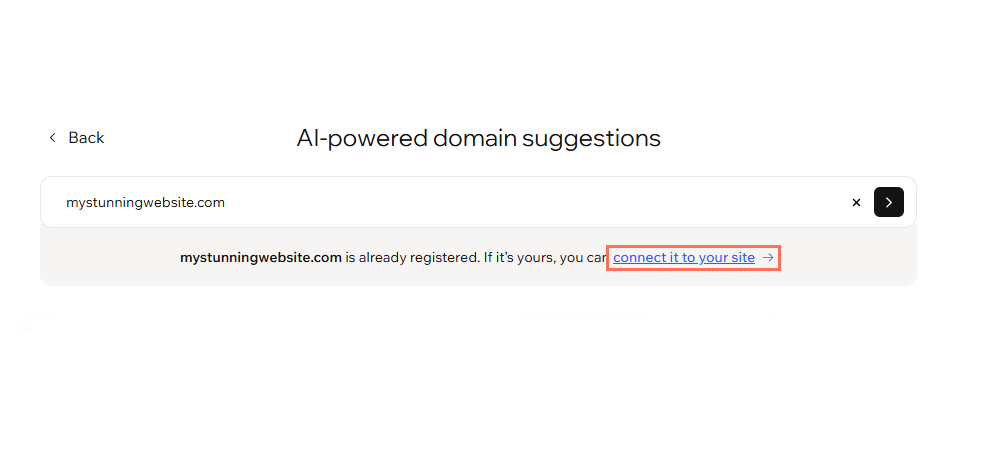
- Some domain providers support connecting your domain automatically. Depending on your provider, you may see different steps. Choose an option:
Note: If a "Start Transfer" option appears, click connect your domain in the sentence below it.
Connect your domain automatically (Continue button)

Connect your domain manually


Step 2 | Update the DNS records in your domain host account
To finish the connection, you must update your domain's DNS records in your domain host account (usually the company you bought your domain from).
You will see a step-by-step outline in your Wix dashboard, which will help you to go through the steps to change the DNS records in your domain's current host account.
Keep this Wix guidance page open and work through the steps on the domain host's account. The steps will tell you everything you need to know, including the records you should use.
To update your DNS records in your host account:
- Log in to your domain's current host account:
- Open a new tab in your browser.
- Go to your domain host's site and log in.
- Go back to the step-by-step outline in your Wix dashboard.

- Click I logged in.
- Find your domain settings page:
- Go to the domains page on your domain host's site.
- Find your domain and go to its settings panel.
- Return to the step-by-step outline in your Wix dashboard.
- Click I found my domain settings.
- Find your DNS Records:
- In your domain settings, find the area where you manage or edit DNS server records.
- Return to the step-by-step outline in your Wix dashboard.
- Click I found the records.
- Replace your DNS records:
- On your domain host's site, replace your current records with the Wix DNS records provided on your Wix domains page.

- Return to the step-by-step outline in your Wix dashboard.
- Click I updated my records.
- On your domain host's site, replace your current records with the Wix DNS records provided on your Wix domains page.
Important:
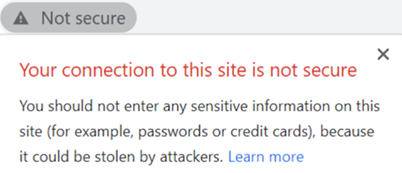
Be sure to update
both your CNAME and A record with your domain host. If you don't, your site will appear unsecure and your visitors may see this warning message:
If you're having trouble updating your DNS records, contact your domain host for assistance. For your convenience, we've created this email template to help you explain what you need to do.
Send these details to your domain host
Step 3 | Wait for your domain to propagate
Your work is done. It may take up to 48 hours for your domain's new DNS records to propagate and your site to appear worldwide. Learn more about
domain propagation.
FAQs
Click a question below to learn more about connecting a domain to Wix.
Why am I seeing a 'www.www.' loop in my browser's address bar?
Does Wix support the use of DNSSEC or DNS Proxies?
Can I transfer my domain to Wix?
