


Wix Stores: Creating an Index of Product Categories
In this article
- Step 1 | Create category pages
- Step 2 | Set up the index page
- FAQs
Important:
- We're releasing a new version of product categories that comes with a Category Page. This site page conveniently displays categories to your customers.
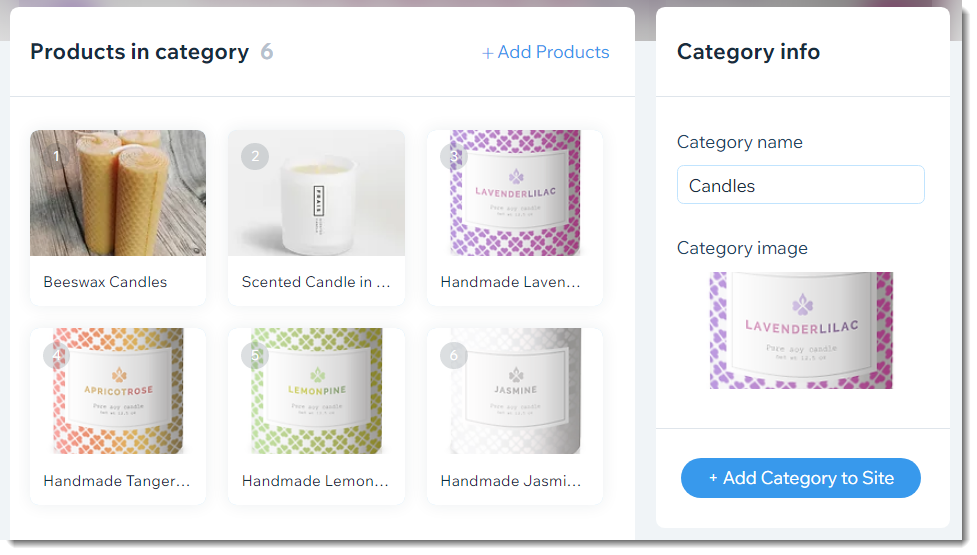
- If your category creation page doesn't match the image below, click this link to learn how to add and display categories.
Create a main category page that shows thumbnail images of all your categories. This lets customers easily select the category they want to browse.

Step 1 | Create category pages
To start, create the categories you need and display each one of them on a separate site page.
Wix Editor
Studio Editor
Wix Harmony Editor
- Go to Categories in your site's dashboard.
- Create the categories you need.
As soon as you click
Save to create a category, a popup appears. You can continue the category display flow from the pop-up or connect from the category tab link.
- Do one of the following:
- From the Popup: Click Add Now.
- From the Category tab:
- Click the category you want to display.
- Click +Add Category to Site on the right.
- Click Add Now.
- Choose where to add the category:
- Create a new page for this category:
- (Optional) Enter a page name.
- Click Create Page.
- Add this category to an existing page: Displays the category on a page you already have on your site.
- Expand the Which Page arrow
 and select the relevant page.
 - Click Add Category.
- Click the category gallery and drag it to where you want to display it on the page.
- Expand the Which Page arrow
- Create a new page for this category:
Step 2 | Set up the index page
You can now start creating the page that displays all of your categories. Choose whether to create it using the Wix Pro Gallery or by manually adding images and/or text.
Create the page using the Wix Pro Gallery


Create the page by manually adding images and text

FAQs
Can I build an automatic index of product categories using Wix CMS?
What is the new Category Page and how does it display store categories?

