


Wix Editor: Changing Your Strip Background
In this article
- Adding a color or gradient to your strip background
- Adding an image to your strip background
- Adding a video to your strip background
- Removing an image or video from a strip
Update your site's design and impress your visitors by customizing your strip background. Add a color, image or video background to your strip. You can choose from a variety of professional imagery and video from the Wix libraries, or upload your own.

Adding a color or gradient to your strip background
Add a block color or a gradient background to your strip. You can choose from your site's colors, or create your own.
To add a color or gradient to your strip:
- Click the strip in your editor.
- Click Change Background.
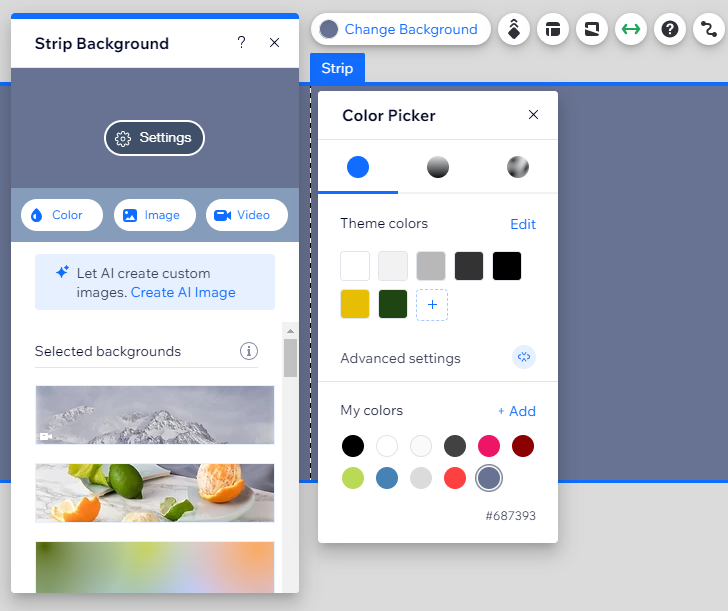
- Click Color and select from one of the following options:
- Color: Choose a block color to apply to your strip.
- Gradient: Apply a cool effect to your strip background with a Linear, Radial, or Conic gradient.
- Fluid gradient: Make your strips stand out with a sophisticated fluid gradient.
Tip:
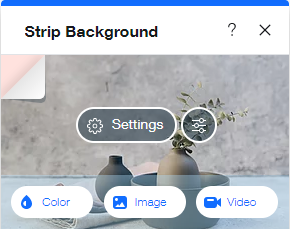
You can add a color
and an image or video. The color appears while the image or video is loading. You can see the color behind the image or video in the
Strip Background panel:
Adding an image to your strip background
Draw your visitors' eyes to your strip by adding striking imagery. Use
Wix Photo Studio to apply a variety of imagery elevating effects from unique filters to crop and resizing.
Tip:
We recommend uploading images with a resolution of no less than 1920px by 1080px.
To add an image to your strip:
- Click the strip in your editor.
- Click Change Background.
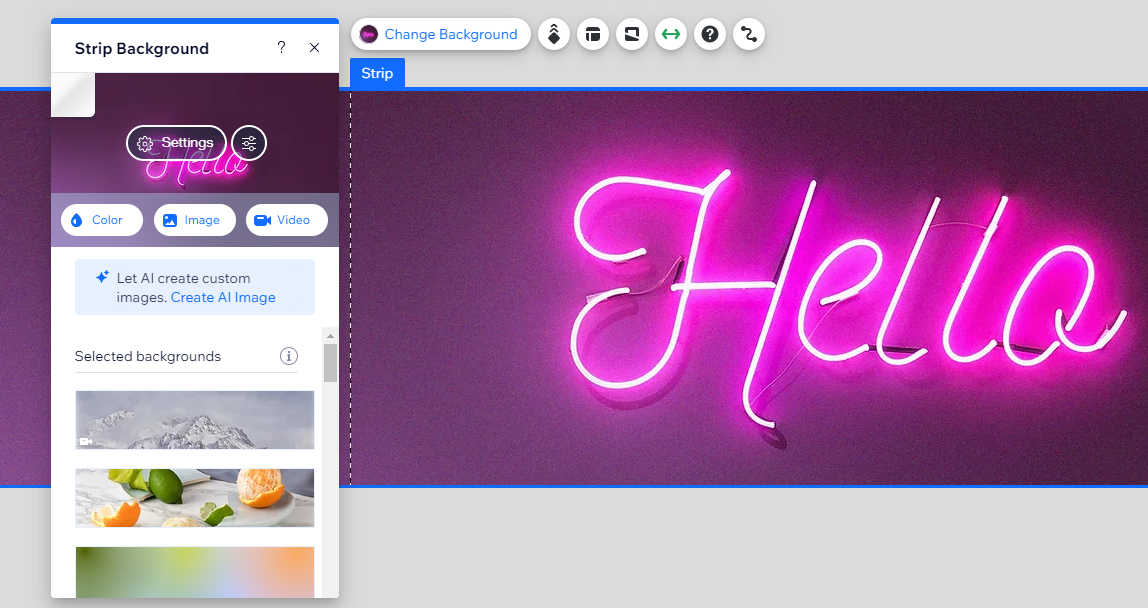
- Click Image.
- Select an image from the Media Manager.
- Click Change Background.
- (Optional) Clicking the Edit icon
 to access the Wix Photo Studio, where you can crop the image and make other adjustments.
Adding a video to your strip background
Add movement to your site by giving your strip a video background. Choose from free Wix videos or upload a video of your own.
Important:
By default, video backgrounds on strips are set to not play on mobile. However, you can select the strip and enable the video background in the mobile editor.
To add a video to your strip:
- Click the strip in your editor.
- Click Change Background.
- Click Video.
- Select a video from the Media Manager or click Upload Videos to upload your own.
- Click Change Background.

Notes:
- Depending on the file size, your video may take a while to upload. You can continue editing your site while the upload is in progress. Learn about file types and sizes.
- After upload, the video finalizes its properties to ensure that it is optimized for all devices. This may take a few minutes, and you will not see the full resolution video on your page background until it has finalized.
Removing an image or video from a strip
To remove an image or video from a strip, you simply need to replace the strip background with another color, image or video.
Tips:
- To remove your strip background completely, change your strip color to white.
- Add a cool scroll effect to create a sense of movement around your strip.
To remove an image or video from a strip:
- Click the strip in your editor.
- Click Change Background.
- Select another background.
What's next?
Change your
strip settings. Add overlays, adjust opacity, fine-tune position and scaling, and more.
