Wixel: Using the PDF Editor
9 min
In this article
- Uploading a PDF to your project
- Filling out a PDF
- Using PDF tools
- Adding a signature
- Organizing pages
- Customizing a PDF
- FAQs
This article refers to the new Wixel, released in December 2025. If you're unsure whether you’re using the new or previous Wixel, view more information here.
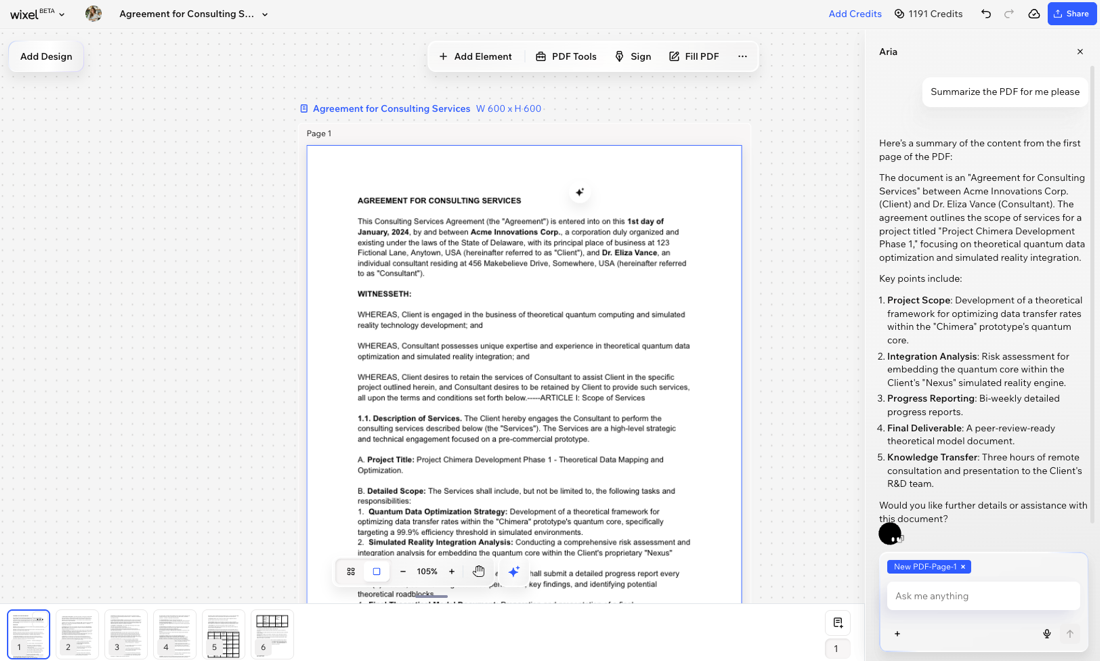
Wixel's PDF editor make it simple to work with your documents online. Upload any PDF and handle everything from filling out forms and adding signatures, to merging, splitting, or watermarking your files. Aria, your AI design agent, can even summarize contracts and reports for you.

Uploading a PDF to your project
Add your document to Wixel for easy editing. To work on a PDF, you need to open a new or existing project.
To upload a PDF:
Desktop browser
Mobile browser
- Go to your project in Wixel.
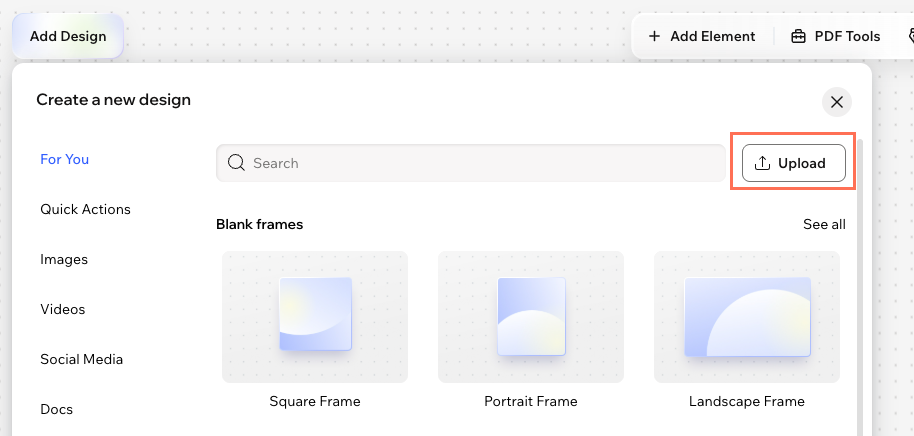
- Click Add Design and click Upload.
- Select the PDF file from your device.

Note:
You can upload PDF files up to 100 pages or 25 MB in size.
Filling out a PDF
You can use Wixel’s PDF editor to quickly complete forms right on your device, no printing or scanning required. Add your text, fill in checkboxes, add your signature, and submit documents online in just a few clicks.
Desktop browser
Mobile browser
- Go to your project in Wixel.
- Select the PDF in your project.
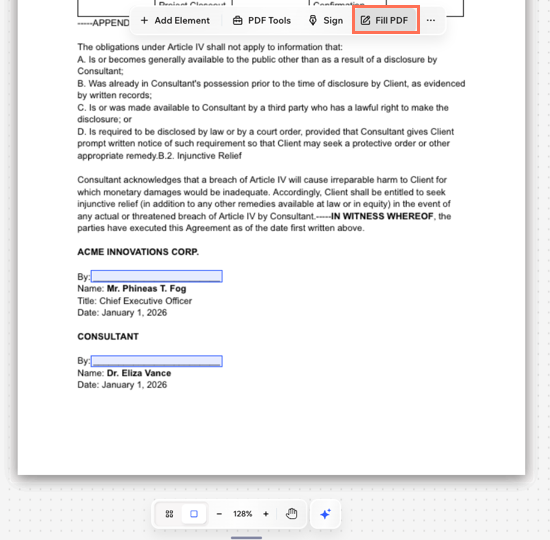
- Click Fill PDF at the top.
Tip: The PDF will get scanned and the fields that need to get filled out will be highlighted for you. - Click on the relevant field to fill in the information.
Using PDF tools
Use the handy PDF tools in Wixel to help you manage your documents all in one place.
To use the PDF tools:
Desktop browser
Mobile browser
- Go to your project in Wixel.
- Select the PDF in your project.
- Click PDF Tools on the action bar.
- Choose what to do:
Merge PDF
Split PDF
Tip:
Switch to the Gallery View to see a birds-eye view of your PDF file pages. You can collapse or expand the file's pages by clicking the Collapse icon
at the top of the file.
at the top of the file.Adding a signature
Quickly sign any PDF by drawing, typing, or uploading your signature. Your signatures are saved and accessible from the Add Element panel for future use.
To add a signature:
Desktop browser
Mobile browser
- Go to your project in Wixel.
- Select the PDF in your project.
- Click Sign on the action bar.
- Choose how you want to create your signature: Draw, Type, or Upload.
Tip: Start over by clicking Redo. - Click Add.
Organizing pages
Organize your PDF by reordering, adding, duplicating, or deleting pages right inside Wixel. This makes it easy to update your document’s flow, add new content, or remove extra pages as needed.
To organize pages:
Desktop browser
Mobile browser
- Go to your project in Wixel.
- Select the PDF in your project.
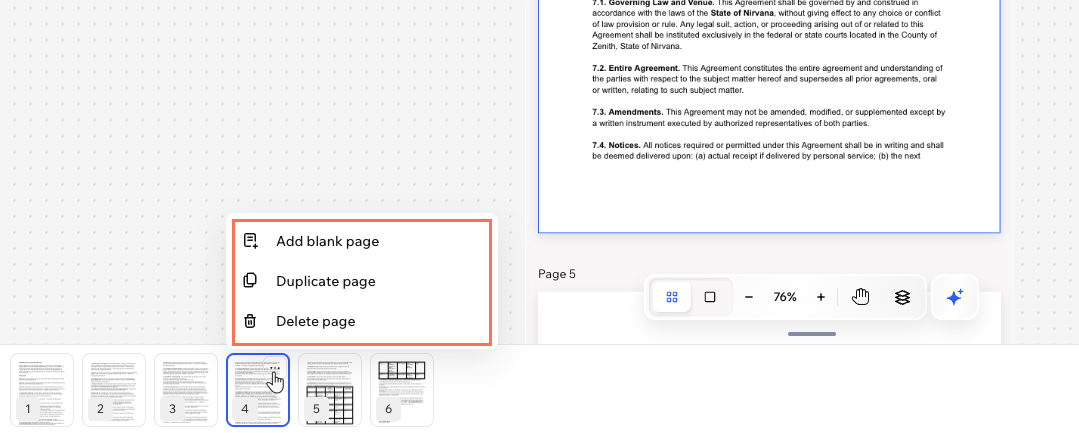
- Navigate to the Pages panel at the bottom.
- Choose what to do:
- Reorder the pages: Drag and drop the pages to change their order.
- Add a blank page: Click the Add page icon
on the panel.
Tip: Add text and images to the page by clicking Add Element on the action bar. - Duplicate a page: Click the More Actions icon
and click Duplicate page. - Delete a page: Click the More Actions icon
and click Delete page.

Customizing a PDF
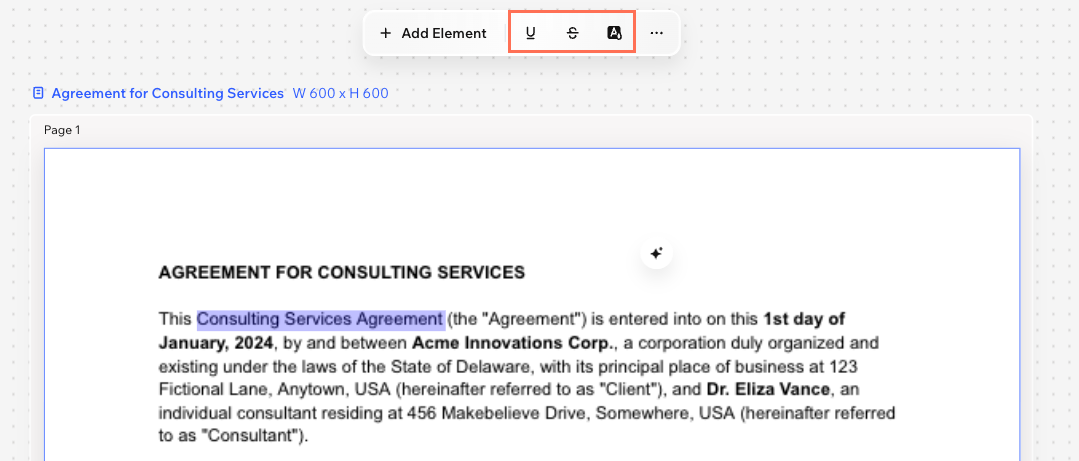
Personalize and style your PDF using the action bar tools at the top of the editor. These options let you emphasize important information while crossing out unnecessary information, giving you control over how your document looks and reads.
To customize a PDF:
Desktop browser
Mobile browser
- Go to your project in Wixel.
- Select the PDF in your project.
- Highlight the relevant text.
- Use the tools on the action bar to make changes:
- Underline
: Underline important words or sections for emphasis. - Strikethrough
: Cross out text you want to mark as removed or outdated. - Highlight
: Highlight text in the document to make it stand out.
- Underline

What's next?
FAQs
Click a question below to learn more about using the PDF editor.
What can Aria help me do?
Can I save my PDF file to my media?