


Wixel: Managing Your Form Fields
16 min
In this article
- Types of form fields
- Setting up your form fields
- Adding and managing rules
- FAQs
This article refers to the new Wixel, released in December 2025. If you're unsure whether you’re using the new or previous Wixel, view more information here.
Customize your forms in Wixel to collect the information you need for your business, event, or campaign. With a wide variety of form field options, flexible settings, and simple management tools, you’re always in control of how your forms look and work.
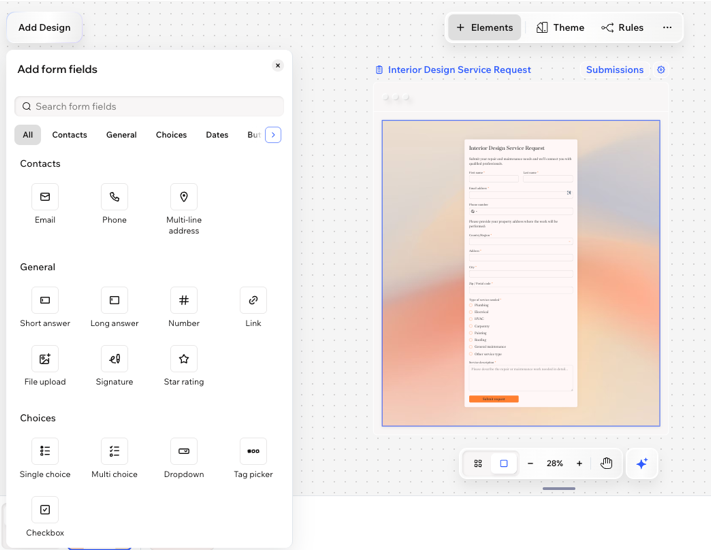
Types of form fields
Choose from a variety of form fields and collect the right information for your business needs. Form fields are grouped into the following types:
- Contacts: Collect contact details (e.g. email, phone, address).
- General: All the common types of fields you can add (e.g. text fields, number fields, file uploads, signatures).
- Choices: These are great for any selection the visitor has to make in your form (e.g. multi choice, dropdown, checkbox, image choice)
- Dates: Allow visitors to select a specific date and/or time.
- Buttons: Add a call to action button to your form.
Tip: Choose what happens when visitors submit the form. - Layout elements: Add header and text elements to provide more information and explanations throughout the form.
Setting up your form fields
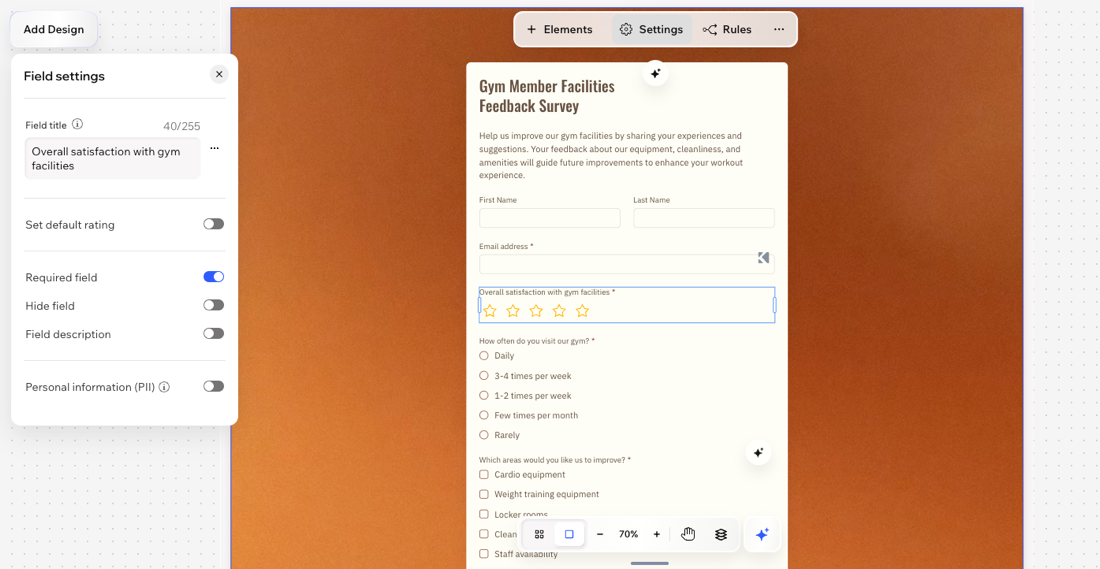
While some fields just need you to enter the question and placeholder text, others require extra customization or important details. You can set options for a dropdown, mark a question as required, or adjust other settings to make sure people interact with your form the way you want.
To set up a form field:
Desktop browser
Wixel app
- Go to your project in Wixel.
- Select the relevant field in your form and click Field Settings on the action bar to customize it:
Tip: If you have not yet added the field you want to customize, learn how to add form fields to your Wixel form.
All fields
Signature field
File upload field
Single and multi choice fields
Image choice field
Dropdown field
Tip:
Ask Aria, your AI design agent, to customize your form fields for you. Just describe what you need, and Aria will help set it up.
Adding and managing rules
Use conditional logic to show or hide fields based on a user’s selections. For example, if someone selects "Yes" to a question, you can display additional fields for further information.
To add and manage rules:
Desktop browser
Wixel app
- Go to your project in Wixel.
- Select the relevant field in your form and click Rules on the action bar.
- Choose what to do:
Add a new rule
Manage rules
 next to the relevant rule and select Edit. Make the necessary changes, then click Save Rule.
 next to the relevant rule and select Delete.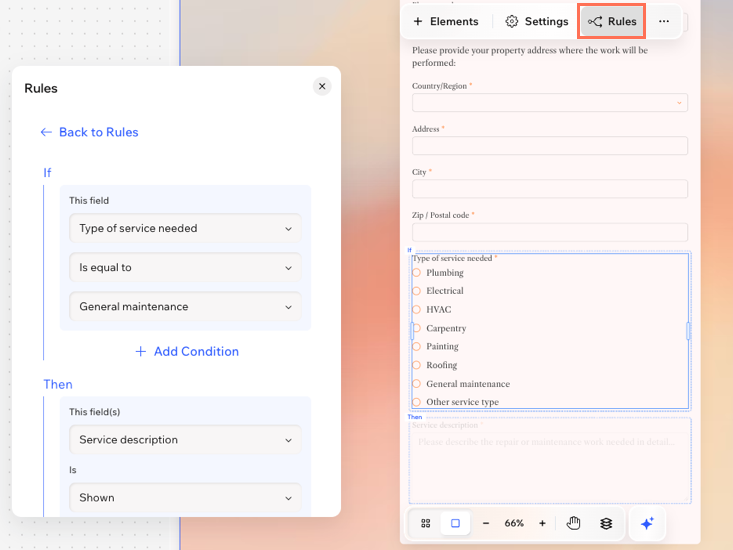
Test your form rules in the Preview at the top.
FAQs
Click a question below to learn more about managing form fields in Wixel.
Can I choose which countries the phone field accepts numbers from?
 Field Settings on the action bar.
 on the right.
 on the action bar.
Can I customize the design of the form fields?
Is it possible to create a form with multiple steps?
 on the Pages panel at the bottom. Then, add form fields to the new page.
Where can I find files that visitors uploaded?
Why are my form's rules not working?
