


Wixel: Creating an Icon with AI
- Generating an icon
- Customizing your icon
- FAQs

Actions that involve generating and editing icons with AI use AI credits.
Generating an icon
Start by providing your business name and business description. Aria will suggest color palettes, shapes, and a set of icon concepts that fit your vibe and industry.
To generate an icon:
Describe the icon(s) you want to create in the text box and share your brand name with a description of the business. For example, "Create an icon for a shopping cart for an e-commerce site".
Browse the set of AI-generated icons and select the option you want to use.
Tip: Click Regenerate to get more options.
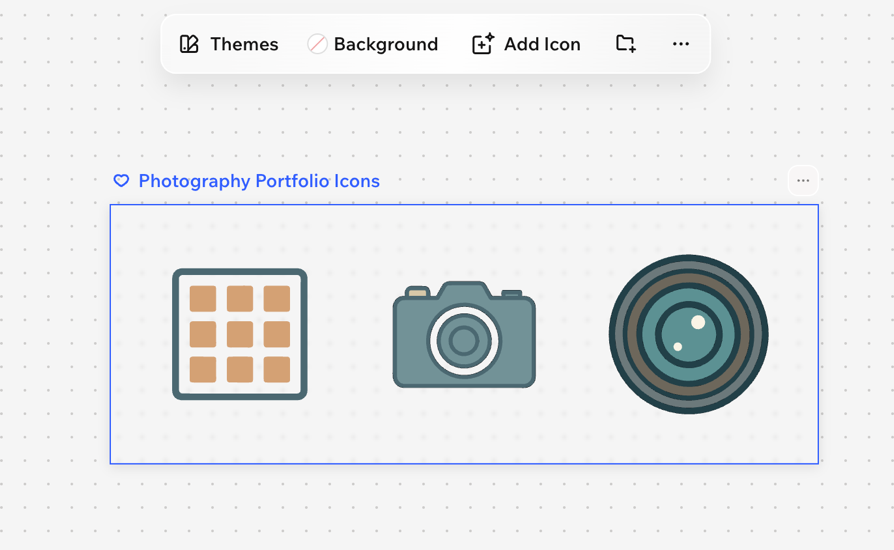
You can start with a blank frame or choose a pre-designed template. Click the Add design icon  in your project and search for icons in the search bar.
Customizing your icon
To customize your icon:
Click the relevant icons in your project.
Choose how to customize the icons.
Add elements: Use the toolbar on the left to insert media, text, graphics, or icons.
Apply a theme: Click Themes on the action bar to instantly change color palettes and fonts. Learn how to choose and customize themes.
Change the background: Click Background on the action bar and pick new colors, adjust the opacity, or upload an image.
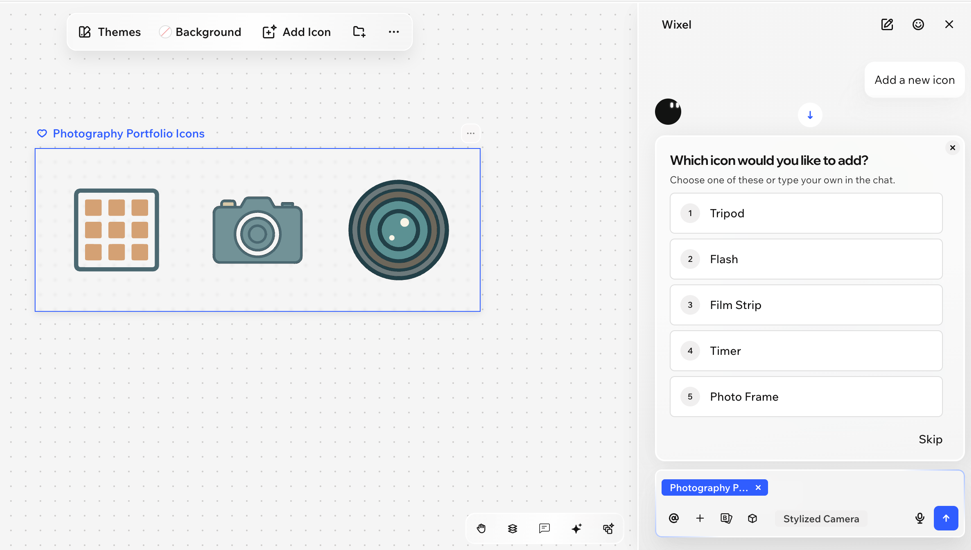
Add more icons: Click Add Icon to generate new icons for the collection.
FAQs
 on the action bar.