
Wix Stores: Importing Products from Another eCommerce Platform
This article relates to importing products to the new Wix Stores product catalog. If the first field you see on your product creation page is Images and videos, you're on the previous version. Learn more about importing products in the previous version.
Step 1 | Download the template file
To download the template file:
- Go to Store Products in your site's dashboard.
- Click the More Actions drop-down.
- Click Import.
- Click Download Template

- Open the CSV file.
Note: Mac users should open the file with Numbers or Excel version 15 or higher. - Save the exported file in CSV (Comma delimited) format.


Step 2 | Add products to the file
To add your products:
- Enter the product data into the CSV file, following the instructions in the table below.
- Save the file in a CSV format.
- Do not add or delete columns.
- Do not edit column names.
- Add data to all mandatory fields (marked in the table below)
- If you're unsure how to fill out non-mandatory fields, leave them blank and make changes to products later.
| Column | What is it? | Instructions |
|---|---|---|
handle
|
A unique label used to identify the product.
|
Each product variant must have the same handle as the product.
Missing handles are automatically added.
|
fieldType
|
Each row must be a product, a variant, or media.
|
Field is mandatory
Must be
PRODUCT,
VARIANT or
MEDIA.
This field is case sensitive.
|
name
|
The name you gave your product.
|
Mandatory for PRODUCTS
Rows with VARIANTS or MEDIA should be left blank.
Max. length:
80 characters
|
visible
|
If item is hidden or visible in your online store.
|
Must be
TRUE or
FALSE.
This field is case sensitive.
If left blank, marked as TRUE
|
plainDescription
|
Your product description.
|
Max. length:
16000 characters
|
categorySlugs
|
The names of the categories the product is in.
|
Enter all categories, separated by semicolons
[ ; ] Notes: You can create new categories, but cannot nest them. You'll need to create the hierarchy in the dashboard. |
primaryCategorySlug
|
The name of product's primary category.
|
Learn more
about primary categories.
|
media
|
Your images, GIFs, or videos.
|
Must contain either 1 media URL or 1 media ID.
Media IDs are automatically added when exporting.
For new media, add an image URL to the template.
Tip: See FAQ below to learn how to find the URL of uploaded media.
Important: Add each product image, GIF, or video in a separate row. The row order determines the media display order on your site.
|
mediaAltText
|
Alt text added to media.
| |
ribbon
|
Ribbon that appears on product on live site. (e.g. New)
|
Max. length:
30 characters
1 ribbon allowed per product.
|
brand
|
The product brand attribute.
|
Max. length:
50 characters
|
price
|
The current price of the product or variant.
|
Field is mandatory
|
strikethroughPrice
|
Strikethrough price is a display of a crossed-out original price.
|
Must be higher than the product's price.
|
baseUnit
|
The
price per unit base price.
|
E.g. to define a price per 100 grams, enter
100.
This price is per product.
|
baseUnitMeasurement
|
The unit of measure used for the base unit.
|
E.g. to define a price per 100 grams, enter
G.
This field is case sensitive.
Supported units: SQFT, YD, FT, IN, GAL, QT, PT, FLOZ, LB, OZ, SQM, M, CM, MM, KG, G, MG, CBM, L, CL, ML, UNSPECIFIED |
totalUnits
|
Actual measure of the product or variant. Used for price per unit.
|
E.g. if a product contain 500 grams, enter
500.
For products with variants, leave the product row empty.
|
totalUnitsMeasurement
|
The unit of measure used for the total product quantity.
|
E.g. if a product contain 500 grams, enter
G.
For products with variants, leave the product row empty.
This field is case sensitive.
Supported units: SQFT, YD, FT, IN, GAL, QT, PT, FLOZ, LB, OZ, SQM, M, CM, MM, KG, G, MG, CBM, L, CL, ML, UNSPECIFIED |
cost
|
The product's
cost of goods.
|
No more than
9 digits
No more than
2 digits after decimal point
|
inventory
|
Product or variant inventory amount
|
Must be
IN_STOCK,
OUT_OF_STOCK, or an inventory
number (e.g. 55).
This field is case sensitive.
Fields left blank are automatically marked OUT_OF_STOCK |
preOrderEnabled
|
Whether
pre-order is enabled for this product/ variant
|
Must be
TRUE or
FALSE.
This field is case sensitive.
|
preOrderMessage
|
Message displayed to customers on a pre-order product or variant.
|
Text must be between
1 to 250 characters.
|
preOrderLimit
|
Number of products or variants customers can pre-order.
|
To set a pre-order limit, you need to enter a specific inventory number in the
Inventory column (not IN_STOCK or OUT_OF_STOCK)
|
sku
|
Stock keeping unit of the product or variant.
|
Max. length:
40 characters
Can be made up of characters or digits.
Variant SKUs should be unique.
|
barcode
|
The barcode of the product or variant.
|
Max. length:
40 characters
Must be unique
|
weight
|
Product or variant's shipping weight
|
No more than
9 digits
No more than
3 digits after decimal point
|
packageLength | Length of the product package. | Must be greater than 0, up to 2 decimal places. If you enter a value in any dimension field, all 3 must be filled (packageLength, packageWidth, packageHeight). Leave all 3 blank to clear the dimensions for that product or variant. For products with variants, leave the product row empty. Example: 20 |
packageWidth | Width of the product package. | Must be greater than 0, up to 2 decimal places. For products with variants, leave the product row empty. Example: 10.5 |
packageHeight | Height of the product package. | Must be 0 or greater, up to 2 decimal places. For products with variants, leave the product row empty. Example: 5 or 0 |
packageUnit | The unit for all 3 dimension values (length, width, height). | Units can be mm, cm, m, in, ft, yd (not case sensitive). Must match the store's measurement unit setting — a mismatch results in an error. For products with variants, leave the product row empty. Example: cm |
productOptionName[1]
|
The name you gave to a product option (e.g. color, size)
|
Max. length:
50
characters
|
productOptionType[1]
|
The type of product option, color or drop-down.
|
Mandatory for product options.
Must be either
SWATCH_CHOICES or
TEXT_CHOICES
This field is case sensitive.
|
productOptionChoices[1]
|
Option choices
|
PRODUCT
rows: Enter all products options, separated by semicolons
[ ; ]
Examples:
Small;Medium;Large or #FFFFFF:White;#808080:Grey
VARIANT rows: Enter a single product option choice.
Examples:
Small or #FFFFF:White
|
modifierName[1]
|
The name you gave to a product modifier (e.g. Name to Embroider)
|
Max. length:
50
characters
|
modifierType[1]
|
The type of modifier: color drop-down, or text.
|
Must be either
SWATCH_CHOICES,
TEXT_CHOICES, or
FREE_TEXT
This field is case sensitive.
|
modifierCharLimit[1]
|
The maximum number of characters customers can enter.
|
Must be
500 or less.
Relevant only for
FREE_TEXT modifiers.
|
modifierMandatory[1]
|
Whether it's mandatory for customers to fill out the text field.
|
Must be
TRUE or
FALSE.
Relevant only for
FREE_TEXT modifiers.
This field is case sensitive.
|
modifierDescription[1]
|
Modifier choices.
|
SWATCH_CHOICES: Enter the color choices separated by semicolons
[ ; ]
TEXT_CHOICES: Enter the drop-down choices, separated by a semicolons
[ ; ]
FREE_TEXT: Enter the field title. Max. length:
150
characters
|
Step 3 | Import your file

To import your file:
- Go to Store Products in your site's dashboard.
- If the import screen is not already open, reopen it:
- Click More Actions.
- Click Import.
- Click Continue.
- Click Upload File and upload your saved file.
- Click Import.
Note: You'll see a summary of successfully uploaded items. Any errors will be displayed by row for review.
Step 4 | Handling Errors
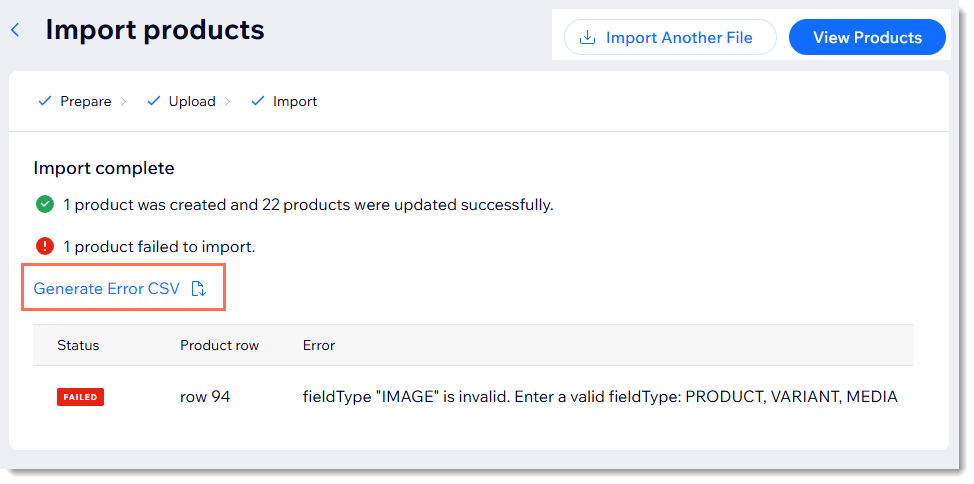
To handle errors & upload a corrected file:
- Click Generate Error CSV and open the file.
- Review the errors.
Note: Learn more about what the import errors mean and how to fix them. - Go back to the CSV file, and correct the errors.
- Click Import Another File to import the corrected file.