


Wix Restaurants: Customizing Your Order Settings in the Wix App
3 min
Important:
- This article is about the original Restaurants Orders app.
- We've released a new online ordering app. Learn how to add and set up the new Wix Restaurants Orders (New) app.
Customize the way you handle incoming orders for your restaurant using the Wix app. Choose to pause online ordering for an hour, until the next business day, or turn off online ordering altogether. Get a quick snapshot of all your pickup and delivery options, and temporarily disable delivery areas.
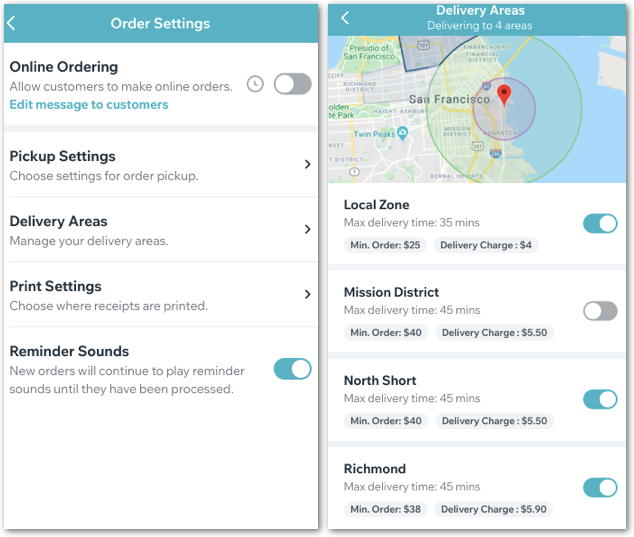
To customize your order settings in the Wix app:
- Go to your site in the Wix app.
- Tap Manage at the bottom right.
- Tap Orders under the Business apps.
- Tap the Settings icon
 at the top right.
 - Tap the Online Ordering toggle:
- Enabled: Customers can place online orders on your site.
- Disabled: Choose whether to pause online ordering or turn it off completely. You can also include a message for customers letting them know why online ordering is currently unavailable.
Show me more

6. Customize your pickup settings.
Show me more
7. Manage your delivery areas.
Show me more
8. Connect a printer for receipt printing.
Show me more
9. Tap the Reminder Sounds toggle to enable or disable it:
- Enabled: Any new or unfilled orders will continue to play reminder sounds in the app until they have been processed.
- Disabled: You won't get reminder sounds about new and unfilled orders.
