


Wix POS Go: About the Wix POS Go
In this article
- Make sales by browsing your catalog
- Process custom charges effortlessly
- Sell products from multiple sites with one device
- Access your sales history
- Use Wix POS Go with Wix POS Register or Desktop POS
Important
The Wix POS Go card reader is currently available only in the US, Canada, and UK.
The Wix POS Go is a standalone POS solution featuring a color touchscreen that allows you to browse your product catalog and process cash or card payments anywhere and anytime.
Wix POS Go can be used to sell Wix Stores products, making it the ideal solution for pop-up shops, fairs, and multi-location businesses.

Ready to get started?
Purchase a Wix POS Go for your business
by visiting our store, then
pair it with your Wix account so you can start making sales on the go.
Make sales by browsing your catalog
The Wix POS Go card reader features a color touchscreen that allows you to browse your site catalog, find the products you want to sell, add them to the cart, and then complete the sale with cash, card, or gift card. When making a sale with the Wix POS Go, your Wix Stores inventory syncs automatically on your site dashboard.

Learn more about
using your Wix POS Go to make a sale.
Process custom charges effortlessly
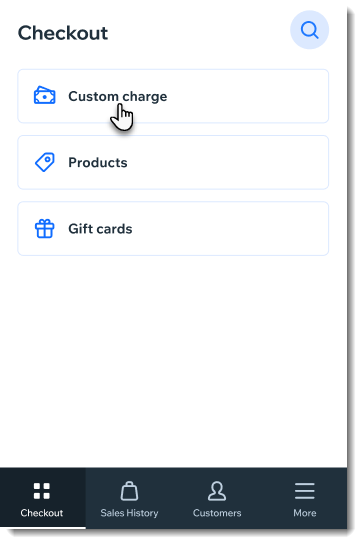
Do you sell products not listed in your Wix Stores inventory? Wix POS Go also makes it possible to create custom charges so you can sell unique or one-time products without needing to update your catalog beforehand. For example, if you are selling jewelry at a craft fair or market and want to sell a personalized item you have handmade in real time, you can create a custom charge.
You can also apply discounts to sales as needed, collect tips, and adjust or disable tax calculations depending on your business requirements.
Sell products from multiple sites with one device
Operating multiple stores or event booths? Wix POS Go is built to support multiple businesses, allowing you to switch between sites in your Wix account directly from the device’s
More tab.

Access your sales history
Stay on top of your sales by accessing your Wix POS Go’s
Sales History
tab. With this device you can view transactions and access their details directly from its screen, giving you a comprehensive overview of previous sales you’ve made.
This feature allows you to keep track of your business activities, whether you want to confirm a payment, review past sales, process a refund, or analyze trends.

Use Wix POS Go with Wix POS Register or Desktop POS
Instead of using the Wix POS Go as a standalone device, you can use it with
Wix POS Register or
Desktop POS as a card reader. For example, in addition to a checkout counter set up in your store with Wix POS Register, you can provide your staff with Wix POS Go devices, making it possible for them to check inventory and complete sales anywhere on the sales floor.
