Wix Pipelines: Setting Up Your Pipelines
In this article
- Step 1 | Set up your pipeline stages
- Step 2 | Configure the 'Done' stage
- (Optional) Step 3 | Automate your pipelines
- Step 4 | Customize your pipelines settings
Wix Pipelines helps you turn your sales, booking, or lead process into
a clear set of stages you can track from start to finish. By setting up your pipeline structure and configuring how the final 'Done' stage works, you make sure every card reflects its real status and outcome. This gives you a reliable view of your work so you always know what needs your attention next.
Step 1 | Set up your pipeline stages
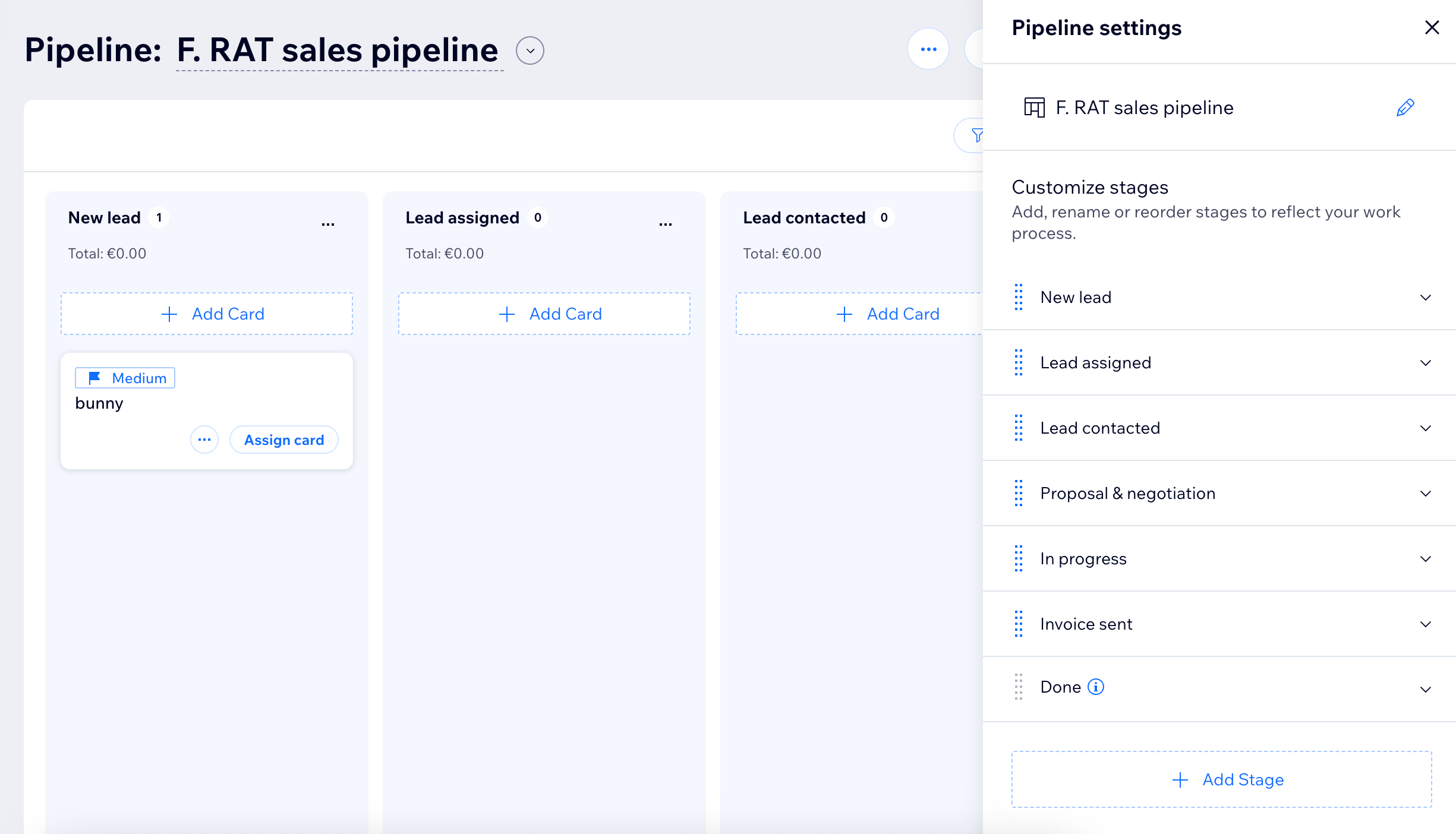
A pipeline is a series of customizable stages like "New lead," "In progress," or "Done". Customize your pipeline by adding, reordering, or deleting stages. Managing your stages ensures your process matches the way your team works, making it easier to track progress.
To set up your pipeline stages:
- Go to Pipelines in your site's dashboard.
- (First time only) click Create Pipeline to start with a template.
- (If you have an existing pipeline) Select the relevant pipeline from the drop-down at the top.
- Click Pipeline Settings.
- Choose what you want to do next:
- Add a new stage:
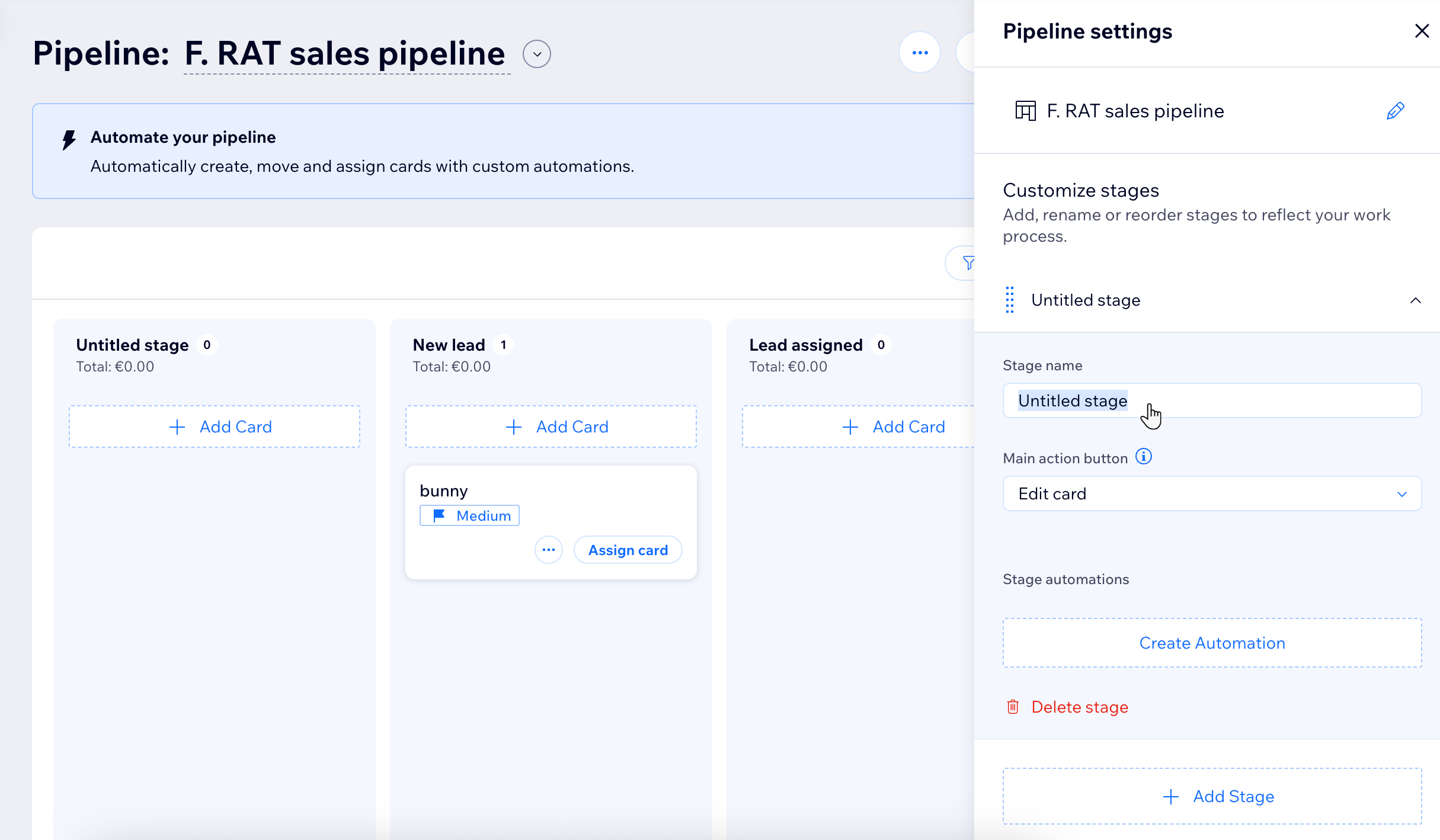
- Click + Add Stage at the bottom of the list.
- Click the new untitled stage.
- Enter a name for the new stage.
- Select the main action button you want to display on this stage. For example, add the 'Assign card' button to the 'New lead' stage for the option to quickly assign leads to your team.
- (Optional) Click + Create Automations and set up your automation.
- Reorder stages: Drag and drop the stages into the desired order using the handle next to each stage name.
- Delete a stage:
- Select the stage you want to remove and click Delete stage.
- Click Delete Stage again to confirm.
Note: Stages can only be deleted if they are empty, so move or delete all cards before removing a stage. Additionally, any connected automations stop working unless you connect them to another stage.
- Add a new stage:
Step 2 | Configure the 'Done' stage
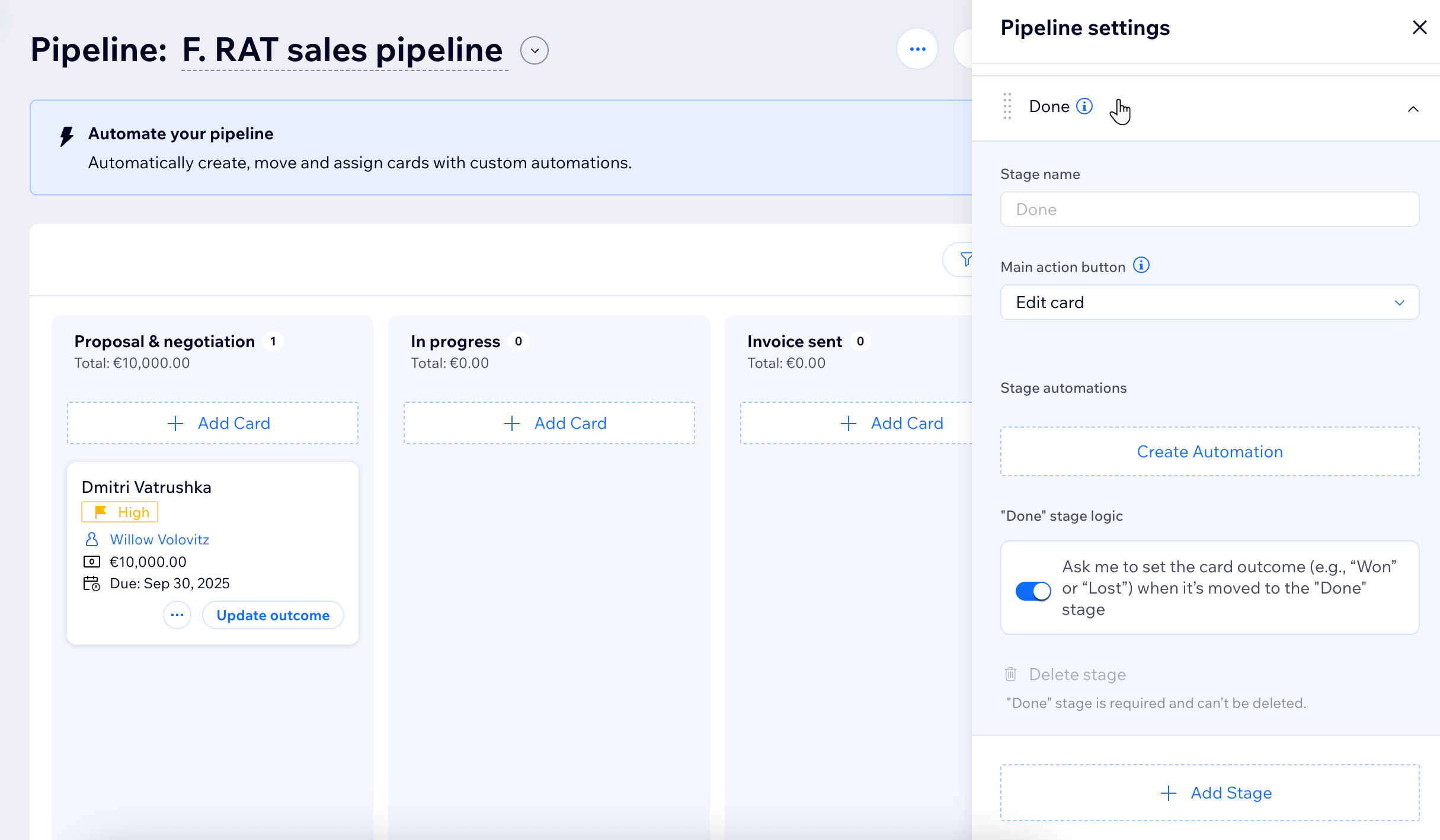
Set up your 'Done' stage to help you wrap up each process with clarity. You can require a 'Won' or 'Lost' outcome for every card that reaches the final stage, keeping your data accurate and making it easier to understand performance and forecast future work.
To configure the 'Done' stage:
- Go to Pipelines in your site's dashboard.
- Select the relevant pipeline from the drop-down at the top.
- Click Pipeline Settings.
- Click the Done stage to open its settings.
- Enable the "Done" stage logic toggle if you want to force a 'Won' or 'Lost' selection on each card.
Notes:
- The card outcome will be used for analytics.
- The 'Done' stage is required and can’t be deleted.
(Optional) Step 3 | Automate your pipelines
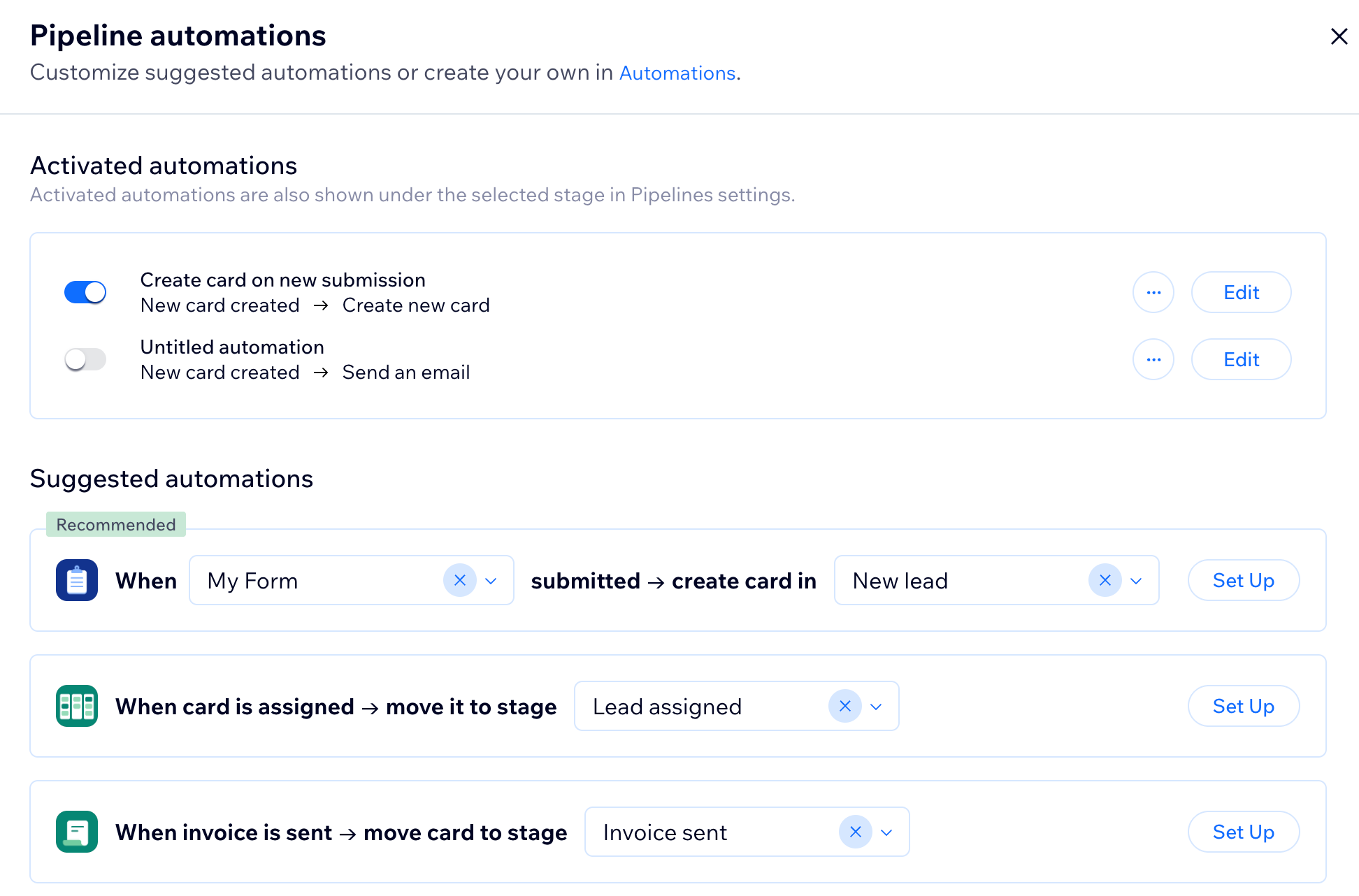
Automations in Wix Pipelines move leads, quotes, and invoices through each stage for you.
Set up custom automations in your pipeline settings to keep every opportunity up to date and let routine steps run automatically, so you can focus on growing your business.
Step 4 | Customize your pipelines settings
Organize each step of your process so you can track deals, tasks, or projects from start to finish. Match how your team works, letting you move work forward, automate key actions, and measure results in one place.