


Wix Mobile Apps: Managing Your Native Mobile App from the Wix App
6 min
In this article
- Design and customize your own mobile app
- Manage your site's apps
- Edit your business information
- Manage your contacts
- Manage roles & permissions
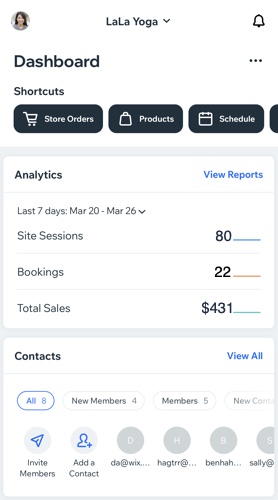
The Wix app lets you control your native mobile app right from your phone. Update bookings, send notifications, and engage with your customers in real time. You can also customize your app's design, edit business information, and add features like forums or stores to boost engagement.
App store updates happen automatically, but design changes require resubmission.
Use the Wix app to manage all aspects of your site on your own mobile app. You can customize what your business looks like on your own app, update your business information, and add sections such as a forum or store to encourage your app users to engage and interact.
Wix Mobile Apps provide a seamless way to manage your site's mobile experience directly from your phone. With the Wix App, you can easily customize your mobile app, engage with your audience, and keep your site updated on the go. This tool is designed to help you stay connected with your site's visitors and manage your business efficiently, no matter where you are.
Design and customize your own mobile app
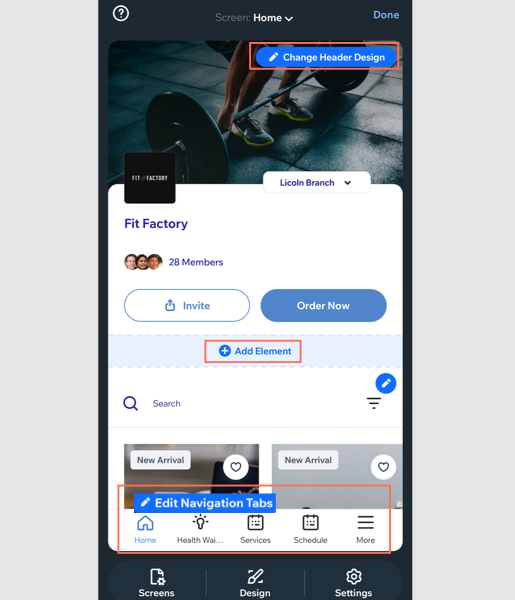
The Wix app allows you to design your own app to reflect your brand's style and integrate premium features. Customize content to meet your audience's needs, reinforcing your brand identity and providing a consistent experience across all platforms. Read more about designing your own mobile app.
From the Wix app, you can choose how your site is displayed on your app by customizing the content and layout to reflect your brand. You can adjust design elements, add new sections, and update content directly from your mobile device. This flexibility ensures that your app always looks fresh and professional. Read more about customizing your app's features and content.
Manage your site's apps
From the Wix app, you can add apps to your site to increase your members' engagement with your business. Choose a forum or blog to get people interested in your content and become more involved, or even add a store to sell your merchandise. It's completely up to you and your business needs. Learn More
Once you have added an app, you can manage it directly from the Wix mobile app, as well as from your desktop.

Show me how
 at the bottom.
Edit your business information
Make sure that your business information is always correct and up to date by managing it on the go, directly from the Wix app. You can update your contact details, preferred currency as well as your time zone.

Show me how
Note:
Your business information is visible in the Contact Us section on the mobile member apps. You can choose what information to show or hide by customizing the section. Learn more
Manage your contacts
From the Wix app, you can add new contacts, view details of existing contacts, and invite new contacts to become members of your site on the mobile apps.
You can also communicate with them directly from the app using chat, SMS, Facebook or email.

Show me how
 next to a contact's name and tap Delete.
 next to a contact's name and tap Invite.
 next to a contact's name and tap Send Message.
Manage roles & permissions
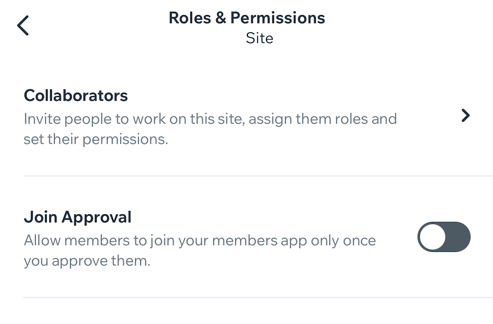
Invite people to become collaborators and assign them with special roles and permissions. Choosing roles and permissions for your collaborators makes it easy to bring in others to help manage your site.
You can also change the join approval settings for members and the visibility of the member list on the member apps.
Show me how
Manage Orders and Bookings
If you run an online store or offer services, the Wix App makes it simple to manage orders and bookings. You can view new orders, update order statuses, and manage your calendar for appointments all from your phone. This ensures you never miss an important update.
Monitor Site Analytics
Stay informed about your site's performance with the Wix App's analytics tools. You can track visitor statistics, monitor site traffic, and view sales data. These insights help you make informed decisions to improve your site's performance.
Using the Wix App to manage your mobile app provides flexibility, convenience, and the tools you need to keep your site running smoothly.
