


Wix Harmony Editor: Setting Up Your Brand
In this article
- Choosing your brand kit
- Choosing your brand colors
- Setting up your brand's text
- Customizing your brand's button styles
- Designing your brand's box styles
- Setting up your brand's line styles
- FAQs
Your brand is the foundation of your site’s identity. By defining your brand in the editor, you ensure your site stands out to visitors with a professional and consistent look.
You only need to set your brand's colors, text, and element styles once; every page and section automatically follows your chosen style. You still have full creative freedom to adjust any element, but the Brand panel helps keep your site consistent and professional from the very start .
Did you know?
Branded elements are always available for you to add in the Add Elements panel, so you can create a consistent design from the get-go.
Choosing your brand kit
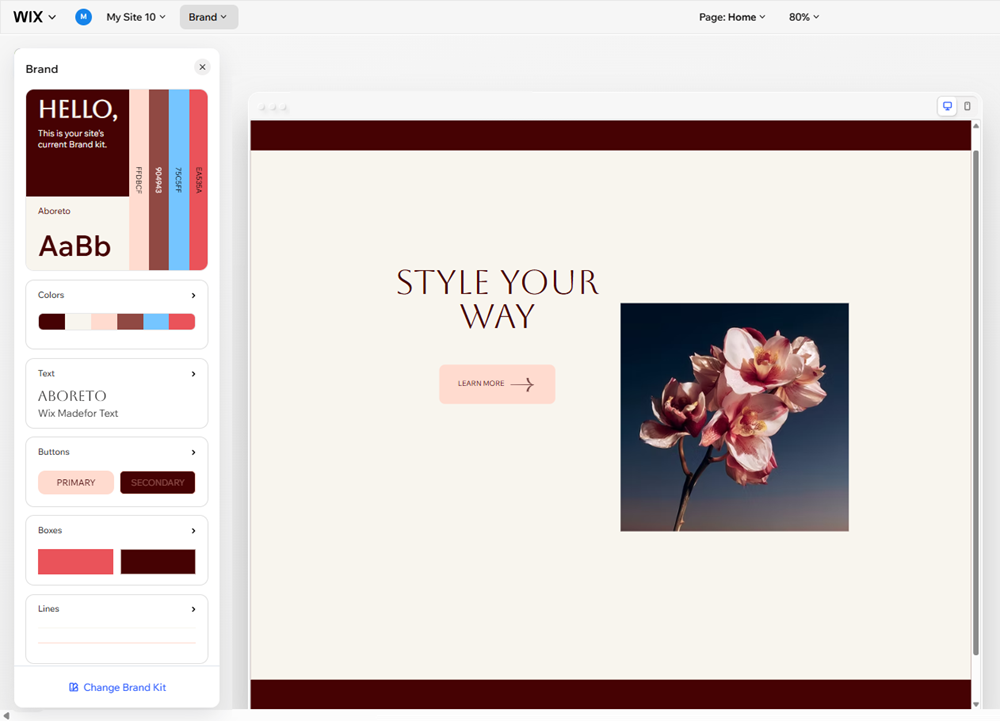
The brand kit at the top of the panel contains everything in your brand, so you can preview how it all looks together.
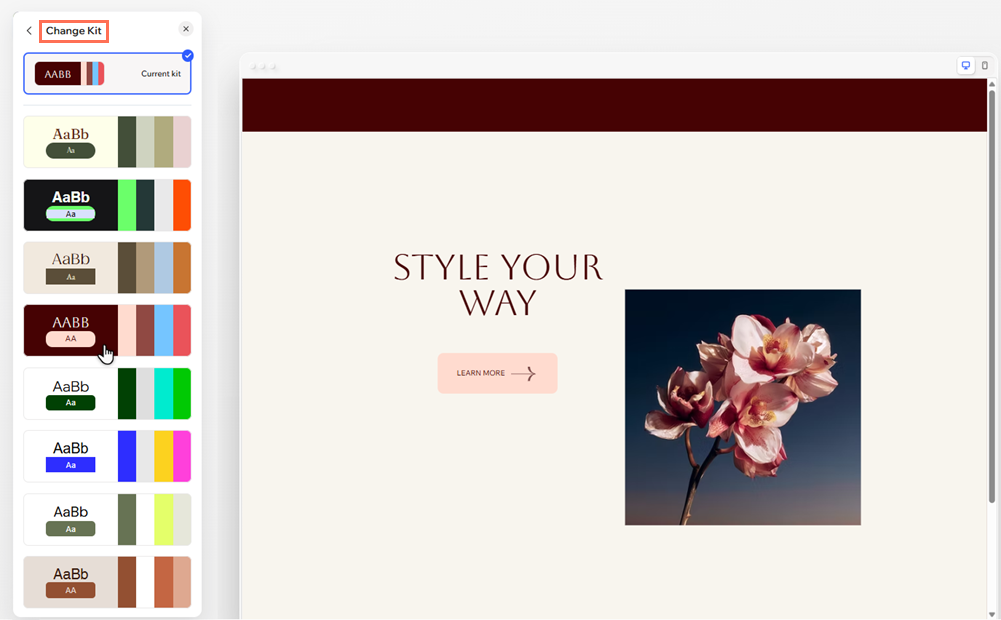
Want to shake it up? Choose from a ton of pre-designed suggestions to update your brand in a click. You can always adjust specific parts of the brand to make it yours.
To choose a brand kit:
- Go to your editor.
- Click Brand at the top of the editor.
- (In the Brand panel) Hover over the brand kit and click Change Kit.
- Select kits from the options to try them out.
- Once you've selected a kit you like, exit the tab to apply it to your site.
Tip:
You can revert to your original kit while you're still in the tab by clicking it under
Current kit.
Choosing your brand colors
When you create your site in the Harmony Editor, Wix automatically genera
tes a site color palette for you. This palette is made up of base colors (which are further divided into shades) and accent colors.
There are a ton of palettes for you to choose from, and you can always adjust them to suit your brand. Have a specific look in mind? You can set up each color individually to create a palette that's truly yours.
To set up your brand colors:
- Go to your editor.
- Click Brand at the top of the editor.
- (In the Brand panel) Click Colors.
- Choose what to do next:
Choose a new color palette
Set up specific colors

Tip:
Choose colors with high contrast to improve readability and create a welcoming experience for all your site visitors. Learn more about
color contrasts and accessibility.
Setting up your brand's text
Text plays an essential role in expressing your brand’s personality. We offer many ready-made font sets to give you a head start, but you can always choose your own.
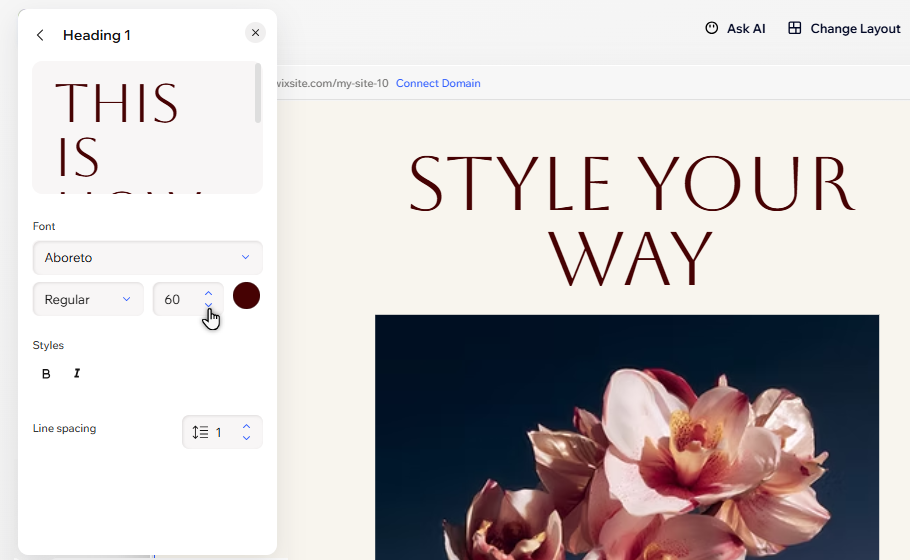
Select a font for all headings and another for all paragraphs, or adjust the styles one by one (font, size, color and formatting).
To set up your brand's text:
- Go to your editor.
- Click Brand at the top of the editor.
- (In the Brand panel) Click Text.
- Choose what you want to do:
Choose your brand's text set
Set up your heading or paragraph fonts
Customize specific text styles
Tip:
Stick to 1-2 font families to avoid clutter and create a polished look for your brand.
Customizing your brand's button styles
You can design every part of your buttons. Choose a whole new set, or customize details of specific buttons to keep reinforcing your brand identity while visitors explore
.
You can adjust the formatting of the text, change the color and shape of the button container, and much more.
To customize button styles:
- Go to your editor.
- Click Brand at the top of the editor.
- (In the Brand panel) Click Buttons.
- Choose what you want to do:
Choose a new button set
Customize the design of specific buttons
Designing your brand's box styles
C
ontainers (or boxes) are mostly used to organize and arrange other elements, making them an important part of your site's structure. Setting up your box styles is a quick and simple way to align your site's layout with its loo
k, and keep amplifying your brand.
Select an option from our predesigned sets to quickly apply a new style, or customize specific boxes to make them look how you want.
To design box styles:
- Go to your editor.
- Click Brand at the top of the editor.
- (In the Brand panel) Click Boxes.
- Choose what you want to do:
Choose a new box set
Customize the design of specific boxes
Setting up your brand's line styles
Similar to boxes, lines are a helpful way to divide and arrange page content. Setting them up with the rest of your brand keeps the site looking professional and truly cohesive in every detail.
To set up your line styles:
- Go to your editor.
- Click Brand at the top of the editor.
- (In the Brand panel) Click Lines.
- Select the line you want to adjust.
- Customize the line using the options:
- Fill colors: Click the color circle to change the line's color.
- Layout: Drag the slider under Length to make the line longer or shorter.
FAQs
Click a question below to learn
more about branding your site.
Why does the Brand panel look different or hard to read when I use high-contrast settings?
Can I change my brand later?
If I make changes to parts of my brand, are they updated automatically on my site?
What fonts should I use for my brand's text?
Can I add more colors to my palette?
How can I save more button, box, and style lines?
