


Wix Harmony Editor: Adding and Setting Up Social Share Buttons
In this article
- Adding social share buttons
- Managing your social share buttons
- Customizing your social share buttons
- FAQs
Boost your online presence by adding social share buttons to your site in the Wix Harmony Editor. Social share buttons make it easy for visitors to spread the word about your business, blog, or any page you choose, helping you reach new audiences and connect with more people.
You can choose the social icons you want, adjust their look and layout, and decide which pages are shared, creating a seamless sharing experience that matches your site’s unique style and goals.
Adding social share buttons
Give your visitors an easy way to share your content by adding social share buttons to your site. Pick a design you like and add it right where you want so people can spread the word with just a click.
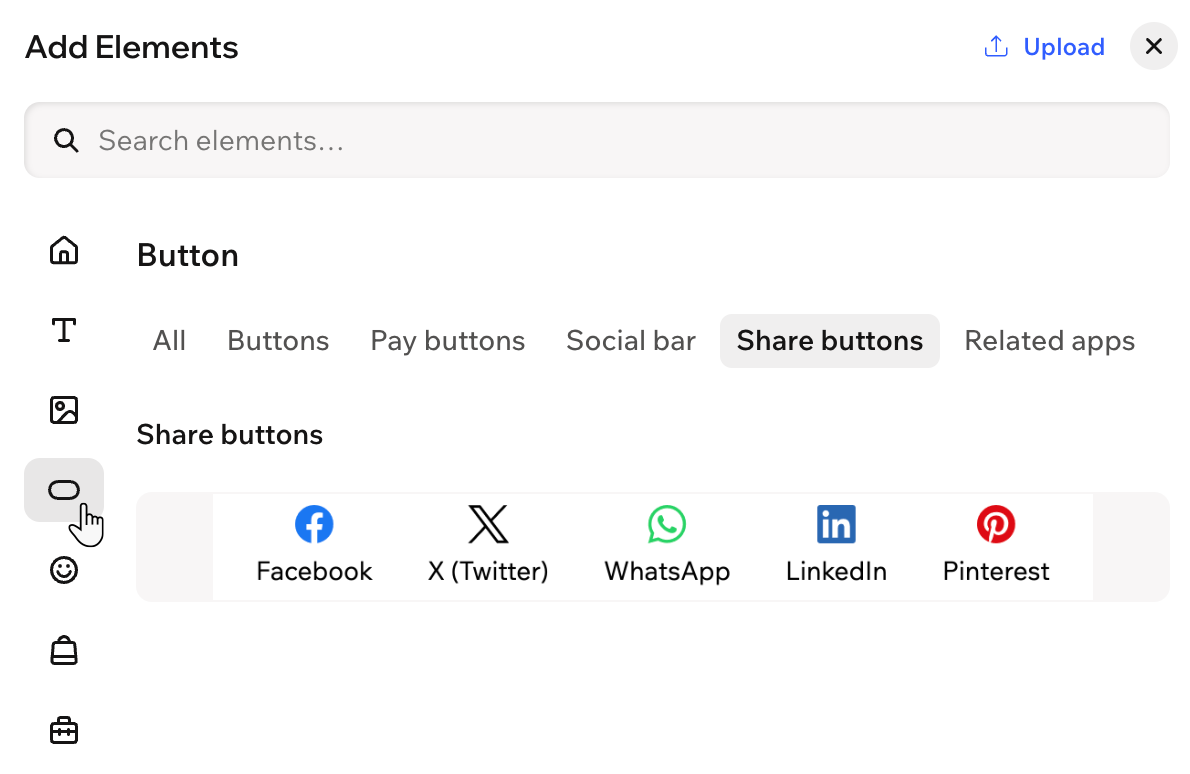
To add social share buttons:
- Go to your editor.
- Click + Add at the top left of the editor.
- Select Elements.
- Click the Buttons icon
 on the left.
 - Select the Share buttons tab.
- Drag a design you like onto your page.
Managing your social share buttons
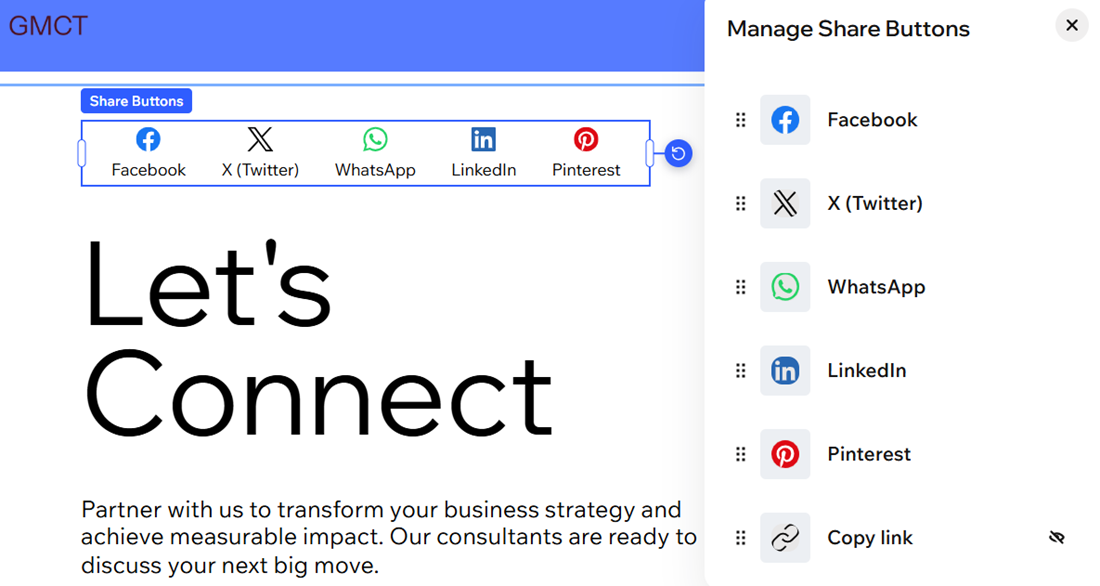
Easily manage your social share buttons to fit your brand and business needs. Swap out social icons, update social share button names, or hide any social networks you don’t want to show.
To manage your social share buttons:
- Go to your editor.
- Click the social share buttons in your editor.
- Click Manage Share Buttons on the action bar.
- Choose what you want to do:
Replace an icon
 .
.Rename a button
 .
.Hide a button
Customizing your social share buttons
Customize your social share buttons to match your site’s personality. Change their layout, decide what details show, pick which page gets shared, add eye-catching animations, and adjust their design, all so your share buttons match your vision.
To customize your social share buttons:
- Go to your editor.
- Click the social share buttons in your editor.
- Choose what you want to do:
Change the orientation of your social share buttons
Show or hide elements on your social share buttons
 on the action bar.
Change which page will be shared
 on the action bar.
Add an animation to your social share buttons
 on the action bar.
Change the design of your social share buttons
 on the action bar.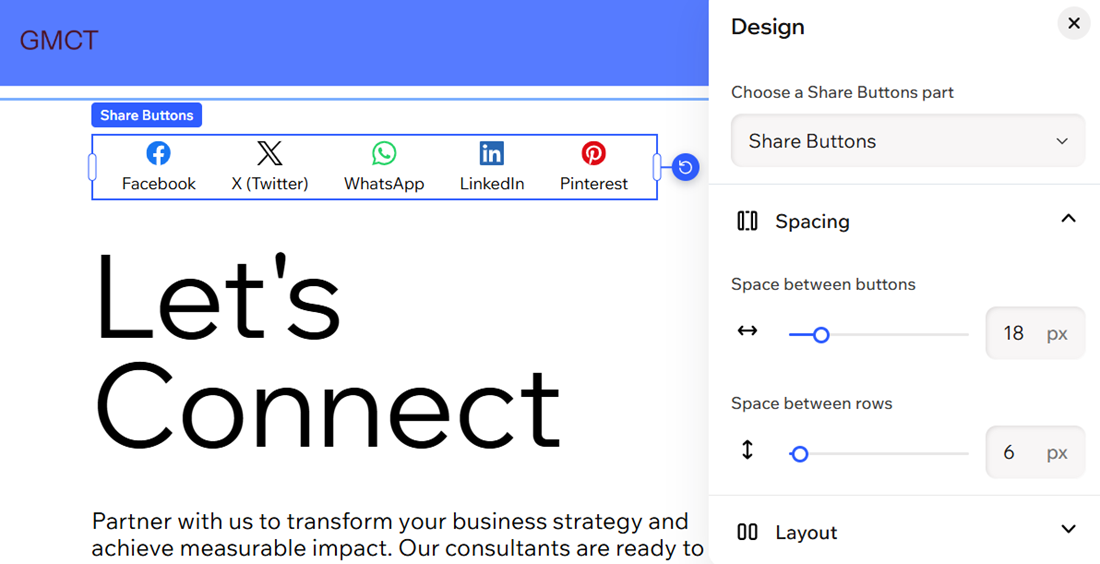
FAQs
Click a question below to learn more about adding and setting up social share buttons on your site.
Can I add more social networks to my social share buttons?
Can I change the order of the social share buttons?
Will social share buttons work if my visitor doesn’t use that social network?
Can I upload a custom icon for a social network?
Can I remove a social network from my social share buttons?
