


Wix Events: Editing an Event
In this article
- Editing a single event
- Editing a recurring event
- Duplicating an event as a different type
- FAQs
Edit your event at any stage, whether you want to update one event, make changes to a recurring series, or duplicate an event as a different type. This gives you flexibility to keep your event details up to date as your plans change.
Editing a single event
Need to update just one event? You can edit a single RSVP or ticketed event. Whether you’re making small adjustments or updating key details, changes apply only to the event you select.
To edit a single event:
Dashboard
Wix app
Wix Studio app
- Go to Events in your site's dashboard.
- Click Manage next to the relevant event.
- Click the relevant tab to make the desired changes:
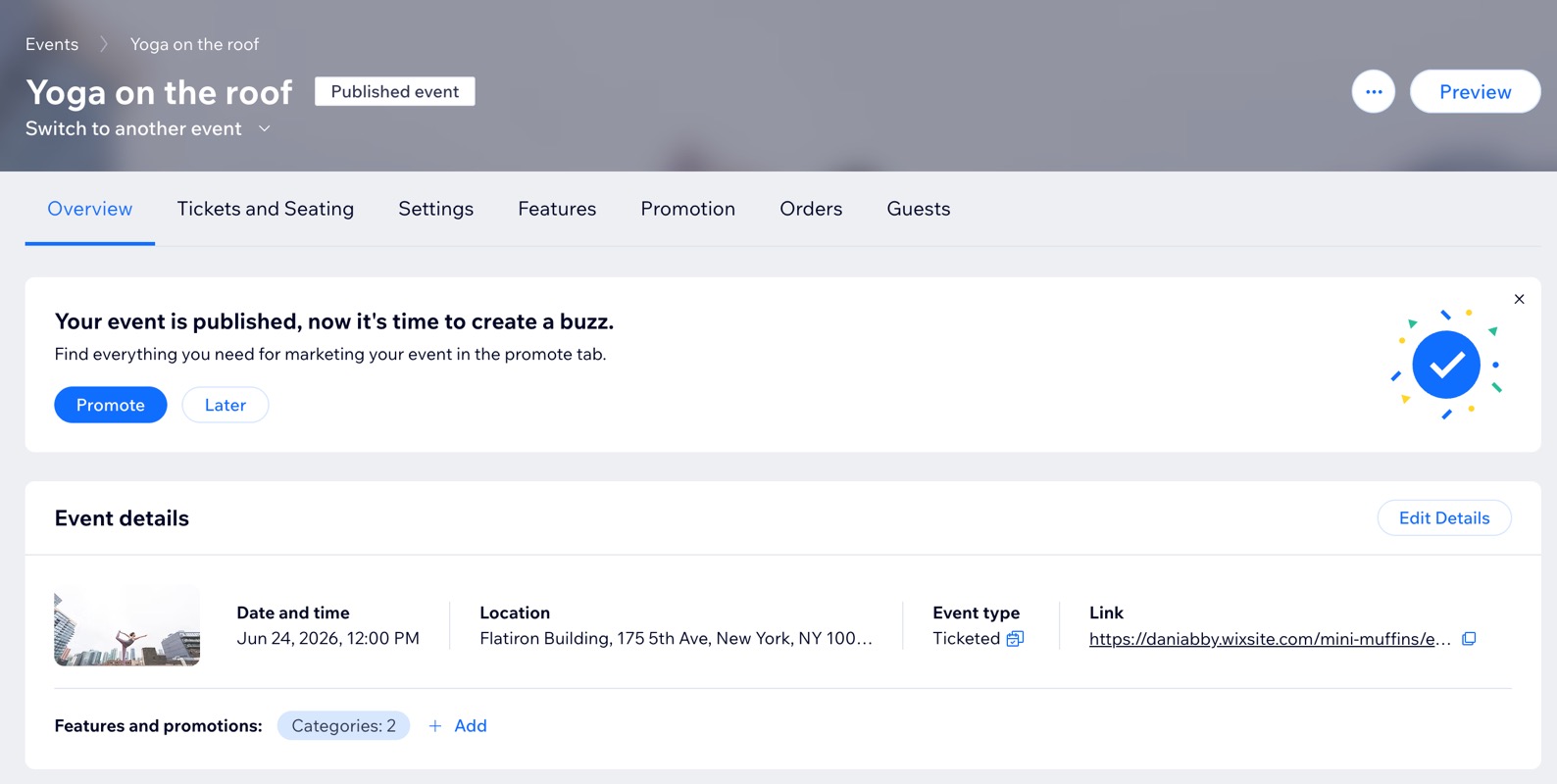
- Overview: Click Edit Details and make the relevant changes. When ready, click Save.
- (Ticketed events only) Tickets & Seating: Make changes to how you sell event tickets.
- Settings: Customize your registration settings & messages.
- Features: Add a variety of features to your event such as video conferencing.
- Promotion: Promote your event using a variety of options (e.g. gift cards).
- (Ticketed events only) Orders: View your orders for guests who buy tickets to your event.
- Guests: Manage your guest list (e.g. manually add new guests to your event).
Editing a recurring event
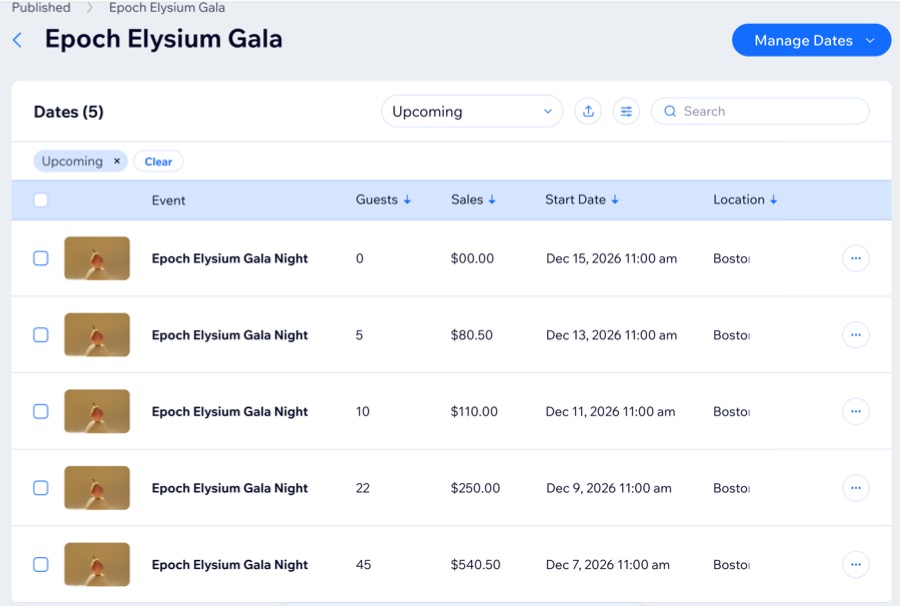
If your event is part of a recurring series, you can choose to edit either a single occurrence or all events in the series. This gives you flexibility to make quick updates such as an event name, date, or location, and apply them where needed.
To edit a recurring event:
- Go to Events in your site's dashboard.
- Click Manage next to the relevant event.
- Click Edit Details.
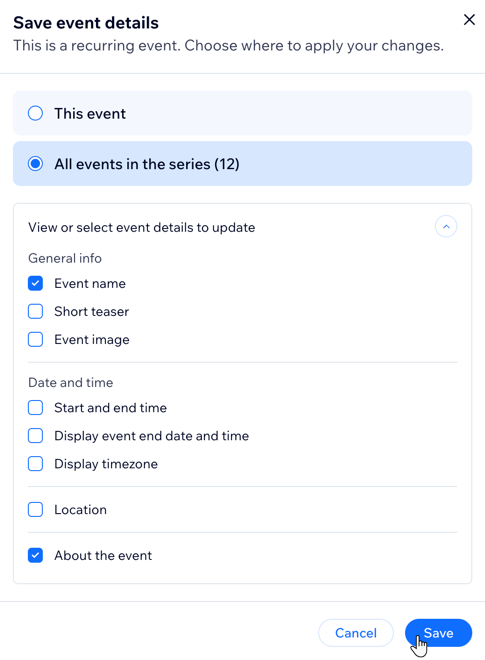
- Make the relevant changes (e.g. Event name or Event image).
- Click Save.
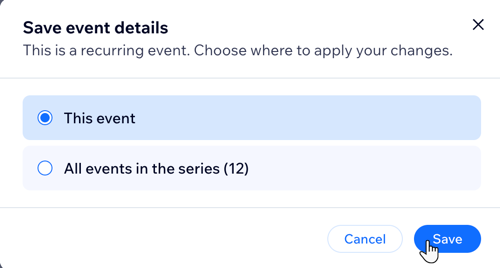
- Choose where to apply your changes:
A single event in the series
All events in the series
Duplicating an event as a different type
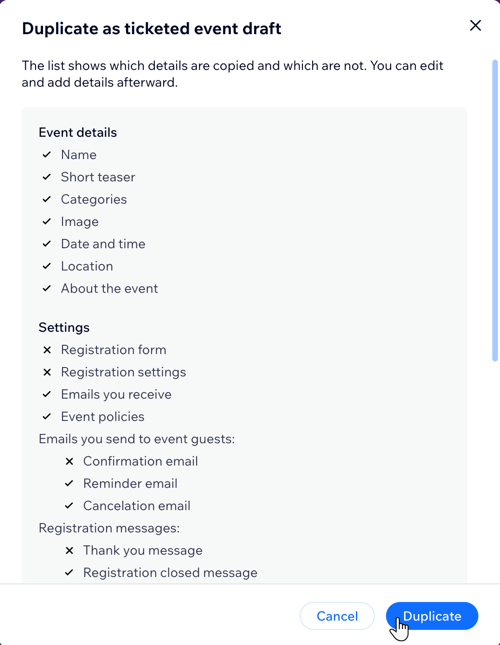
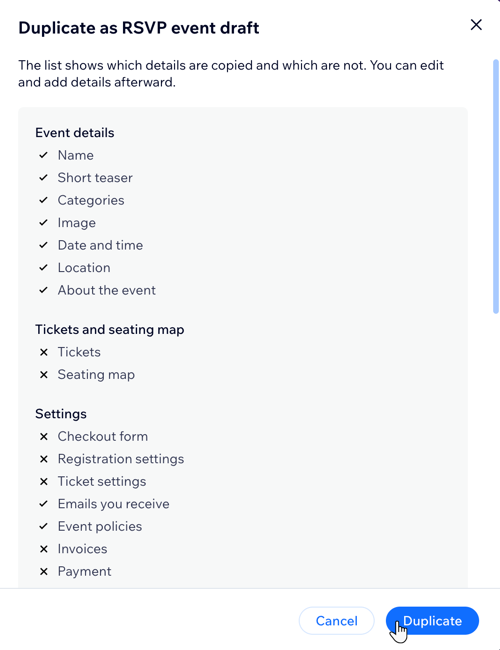
You can duplicate an existing event as a different type if you want to create either a ticketed or RSVP version of it. The original event stays the same. The new event includes the details and settings that are available in both event types.
To duplicate an event as a different type:
- Go to Events in your site's dashboard.
- Click Manage next to the relevant event.
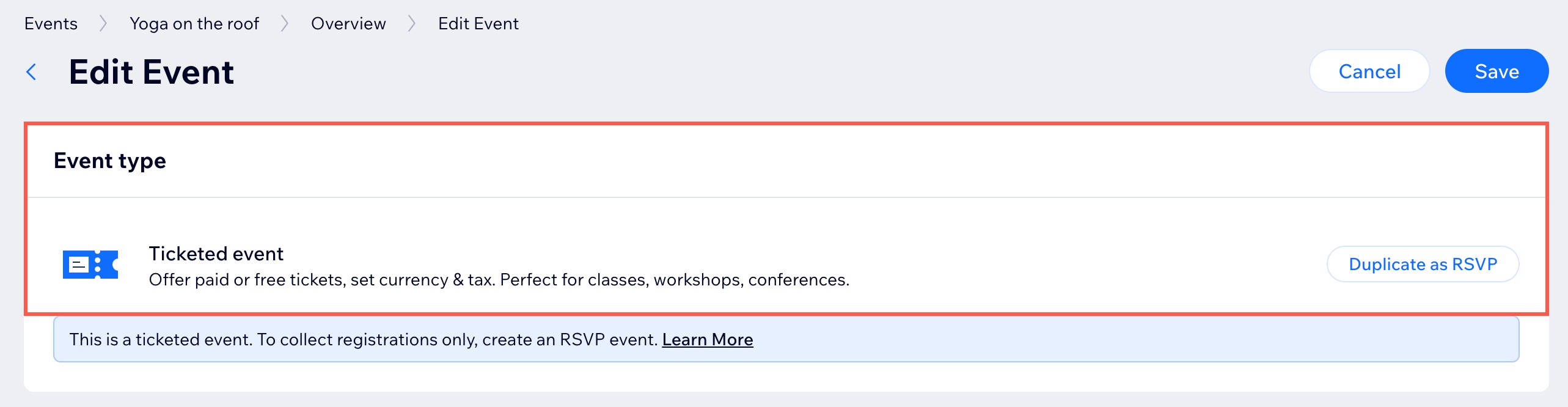
- Click Edit Details.
- Choose the relevant option:
Duplicate an RSVP event as a ticketed event
Duplicate a ticketed event as an RSVP event
FAQs
Click a question below to learn more about editing an event.
What happens to guests if I duplicate my event as a different type?
What happens to my tickets if I duplicate a ticketed event as an RSVP event?
Can I limit who can view or access my event page?
Does duplicating an event as a different type change my original event?