
Wix Bookings: Filtering Your Booking Calendar
5 min
The booking calendar is the place to monitor and control what's happening in your business. If you have many services and staff members, calendar filters can help you stay on top of things.
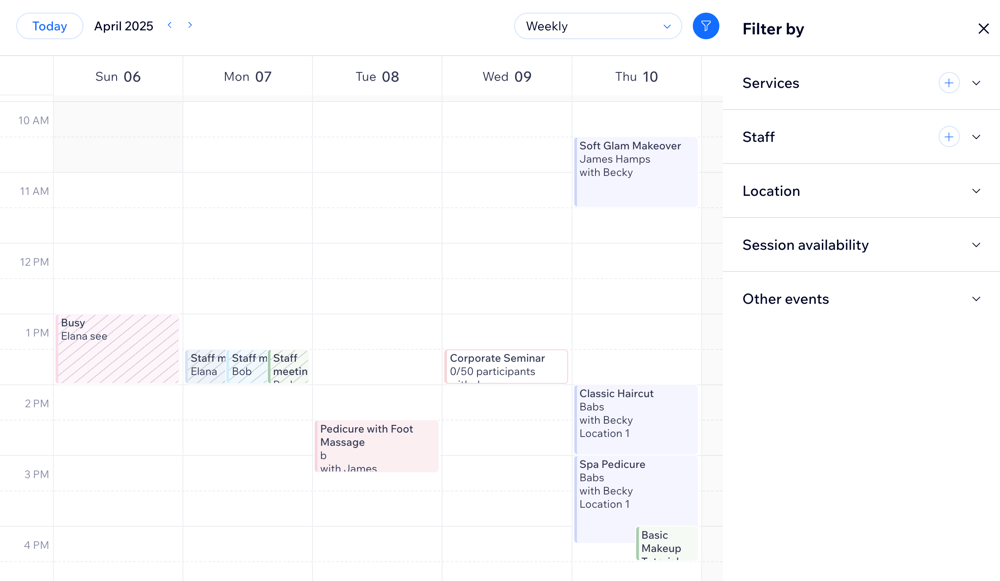
Filtering your calendar
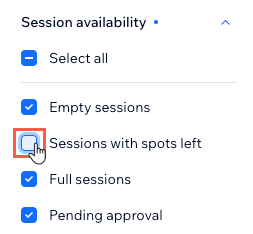
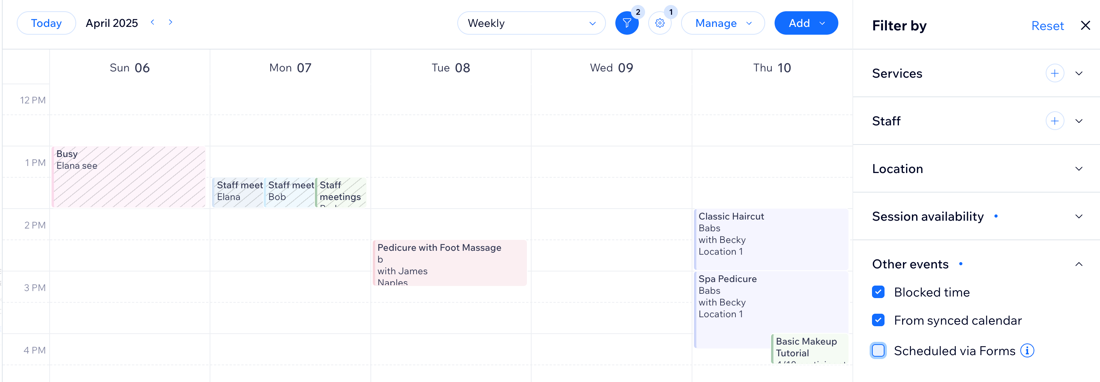
Add filters to customize how your calendar looks and find the details you need faster. You can choose which services, staff, or locations to view, check session availability, review pending approvals, and show or hide blocked time slots.
To filter your calendar:
- Go to Booking Calendar in your site's dashboard.
- Click the Filter icon
 at the top of your calendar.
 - Choose the filters you want to add to your calendar:
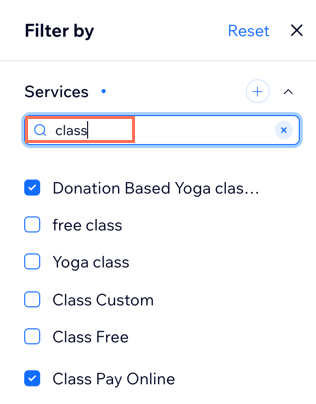
Services
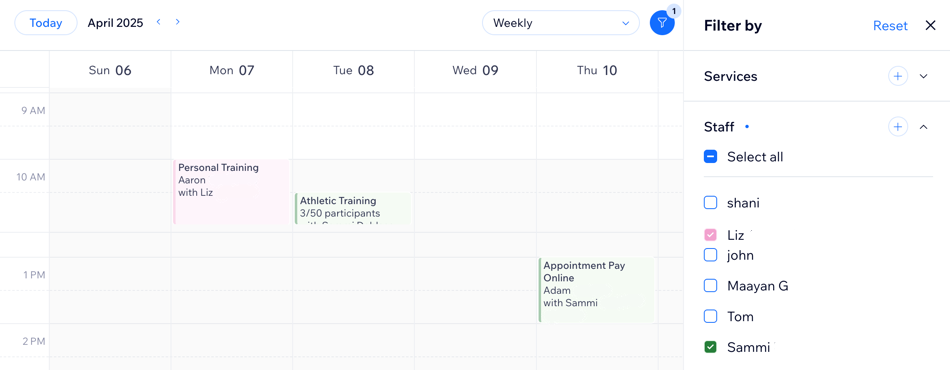
Staff
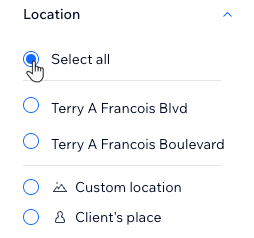
Location
Session availability
Other events
Notes:
- After you add filters, you'll see how many are active on the Filter icon at the at the top of your calendar. Click Reset any time to remove all filters and view your full schedule again.
- At the bottom of the Filter by panel, you can see the total number of sessions currently shown in your calendar. This count updates based on your selected calendar view and any filters you apply.
FAQs
Click below for answers to common questions about filtering the booking calendar.
How do I assign a color to staff members or services?
 at the top of the calendar.
 next to the staff or service name to select a color.
How do I switch between daily and weekly views in the booking calendar?

How can i update my time zone for my calendar?

Why does the 'Filter' icon have a number on it?