


Wix Automations: Using a Global Storage Item in Automations
In this article
- Creating a global storage item
- Using a global storage item in your automation
- Updating the value of a global storage item
- FAQs
The Global Storage feature enables you to create dynamic global values that can be read, and updated across all your automations. This gives your automations the ability to remember and update shared information as they run.
For example, a storage item can track sign-up counts, manage sales promotions, or store business flags in one place.
Once you create your global storage item, use it as a shared value in any of your automations. You can always update the value and it will apply to all of the relevant automations. This allows you to build scalable, adaptable logic without duplicating work across flows.
Creating a global storage item
Create a global storage item to save values that can be reused and updated across all your automations.
To create a global storage item:
- Create a new automation or edit an existing automation.
- Click the Add Step icon
 .
. - Click Custom value drop-down and select Global storage item.
- Click Item drop-down and select + Create Item.
- Select the item's data type:
- Text: For unformatted information, like names or phone numbers.
- Email: For formatted email addresses.
- URL: For links (must start with http:// or https://).
- Date-time: For dates and times, such as event dates or when something was added.
- Number: For numerical values, such as points, amounts, or discounts.
- Counter: For values that increase step by step, like tracking the number of sign-ups.
- Boolean: For settings that are either true or false, such as an on/off flag or promotion status.
- Click Next.
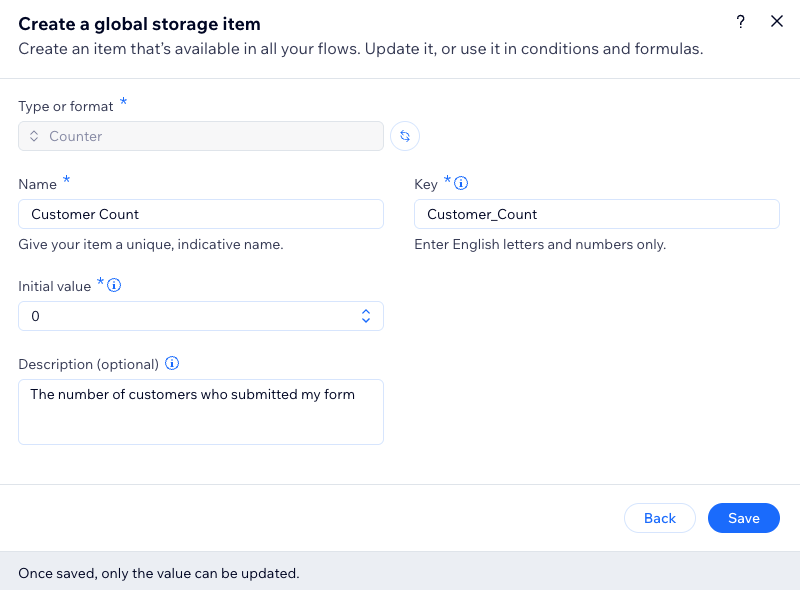
- Configure the item as needed:
- Name: Give your item a unique, indicative name.
- Initial value: Give a starting value to your item.
- (Optional) Description: Help you to easily identify the item.
- Click Save.
Important:
Once the item is saved, only the value can be updated.
Using a global storage item in your automation
Add a global storage item anywhere in your automation where you need to use an item's value. Because they’re available across all your automations, you can easily keep key information like promotion statuses, counters, or scheduled dates consistent everywhere you need it.
To use a global storage item in your automation:
- Create a new automation or edit an existing automation.
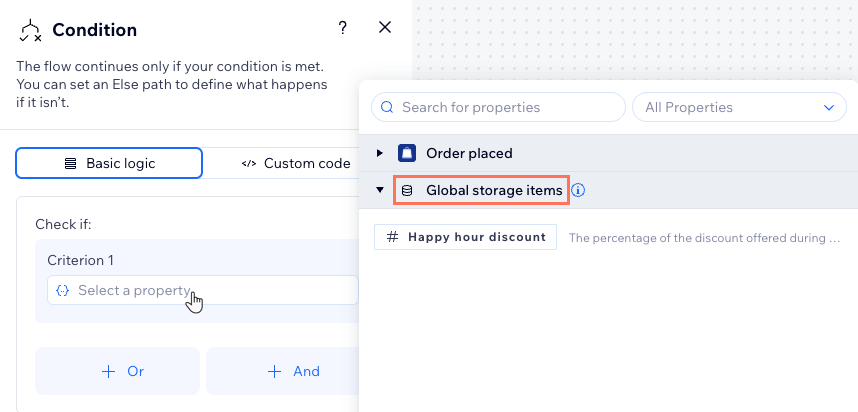
- Click the condition or action where you want to add your global storage item.
- Click the relevant field to open the property picker
- Select your global storage item needed for your automation.
Tip: You may need to click the Properties tab of the property picker. - Continue building your automation as needed.
Note about actions:
Global storage items are only available for actions that you customize using the
property picker.
Updating the value of a global storage item
Update the shared value in your global storage item to match your automation's needs (e.g. new happy hour discount).
To update the value of a global storage item:
- Create a new automation or edit an existing automation.
- Click the Add Step icon .
- Click Custom value drop-down and select Global storage item.
- Click Item drop-down and select your global storage item.
- Update the item value as needed.

FAQs
Click a question below to learn more.
Can I delete a storage item?
How many items can I create?
What’s the difference between global storage items and local variables?
What are the best examples for using each format?
