


Wix Automations: Creating and Managing an Action with the AI Custom Agent
In this article
- Creating a delegate to AI custom agent action
- Managing your action's tasks
- FAQs
Use the Delegate to AI Custom Agent action to hand off parts of your automations to your AI Custom Agent. When an automation is triggered, the agent follows your instructions and uses connected tools and integrations to handle the work. The agent initiates important actions, for example sending emails or making changes to your site, and asks for your approval before carrying them out.
Automations that have this action appear in your AI Custom Agent dashboard, so you can track what the agent is doing, review pending approvals, and refine your workflows over time.
Learn more about the
AI custom agent and its capabilities.
Creating a delegate to AI custom agent action
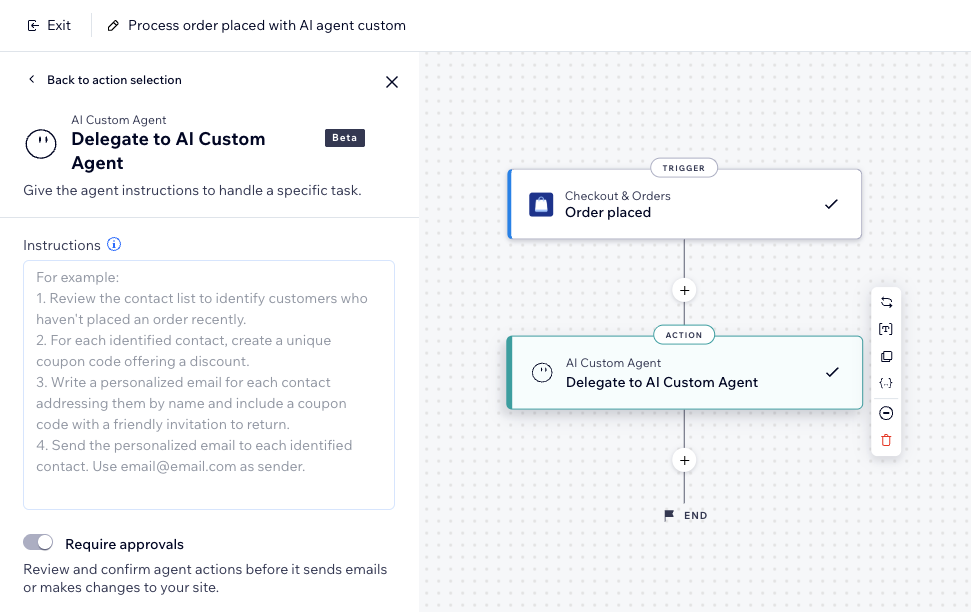
Add the Delegate to AI Custom Agent action to your automation to let the agent react to triggers such as orders, form submissions, or scheduled times. You define the instructions, and optionally select additional integrations and output data if you want to reuse the agent’s output in later steps.
To create a delegate to custom agent action:
- Go to Automations in your site's dashboard.
- Click + Create Automation at the top right
- Click + Start from Scratch.
- Select a trigger for your automation.
- Click the Add Step icon
 and add an Action.
 - Select Delegate to AI Custom Agent on the left.
- Click the Instructions text box to start writing instructions about the tasks you want the agent to handle.
- (Optional) Click Manage in the Integrations and tools section to manage your integrations for this action.
Tip: Learn more about connecting and managing Integrations. - (Optional) Click Manage in the Output data section to structure the data provided by AI Custom Agent to use it in later automation steps like conditions or actions.
Note:
- While this feature is in beta, the Require approvals toggle will always be enabled. This means the agent will ask you to approve or reject a task's action, rather than carrying it out without your approval.
- Since each task runs in real time, results may differ slightly on each run to reach the goal you described in the task instructions.
Managing your action's tasks
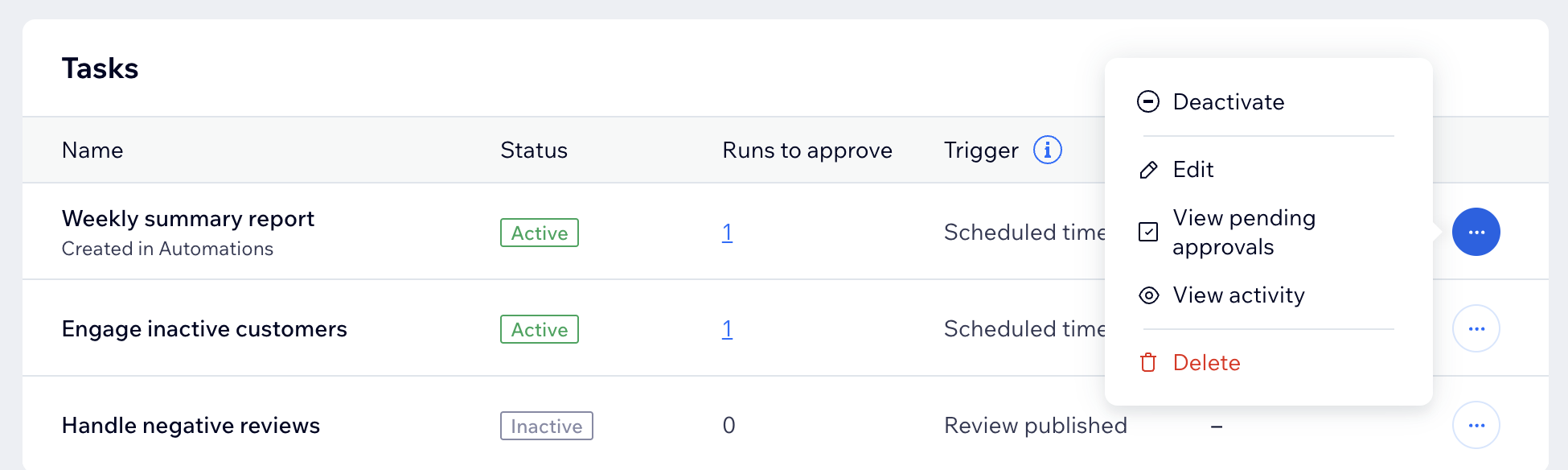
Use the AI Custom Agent dashboard to keep track of automations that include the Delegate to AI Custom Agent action and see which ones require your attention. You can review and approve the agent's proposed actions, open a task to edit its setup in the Automations Builder, or deactivate and delete tasks you no longer need.
On the dashboard, you can view the following information for each task:
- Status: Shows whether the task is active, inactive, or a draft.
- Active: The task is running as expected.
- Inactive: The task deactivates if you do not approve or reject agent actions within 3 days, or if the task runs 5 times in a row without your response.
- Draft: The task appears as a draft when you create it and save without activating it.
- Runs to approve: The number of task runs waiting for your review and approval. For example, you may have several runs pending, each for a separate email the agent wants to send to a customer.
- Trigger: What makes the agent run the task. You can change the trigger from the task's settings.
- Last run: The last time the agent ran the task.
Tip:
Tasks that were created by an automation show a "Created in automations" badge so you can spot them quickly.
To manage your tasks:
- Go to the AI Custom Agent in your site's dashboard.
- Go to the Tasks section.
- Manage your tasks using the available options.
FAQs
Click below to learn more about using the Delegate to AI Custom Agent action.
Why don't I see the option to Approve Runs for my task?
What is the difference between built-in tools and external integrations?
Can I add more than one Delegate to AI Custom Agent action in the same automation?
Why can't I turn off the Require approvals toggle for this action?
What happens if I ignore a pending approval?