


CMS: Adding the Digital Asset Field Type
In this article
- Adding a 'Digital asset' field
- Changing which 'Digital asset' field customers receive
- FAQs
Use the 'Digital asset' field type when you want to sell a secured digital file — such as an eBook, template, music file, or software download — from a
catalog collection. The field stores one file per item and, when mapped as the digital file for sale, delivers it automatically to customers after purchase.
Important:
The 'Digital asset' field type is only intended for catalog collections and cannot connect to page elements. To store a file as part of regular CMS content or display it on a page, use a 'Document'
field type instead.
Adding a 'Digital asset' field
The 'Digital asset' field type is for catalog collections only — it's how you attach a secured file to items for customers to receive after purchase. When you create or convert a collection to a catalog collection, you can add one 'Digital asset' field. You can add more later, but only one can be the file customers receive at any time.
To add a 'Digital asset' field to your collection:
- Go to CMS in your site's dashboard. Alternatively, you can click CMS
 in your editor, then click Your Collections.
 - Click the relevant collection.
- Click Manage Fields.
- Click + Add Field.
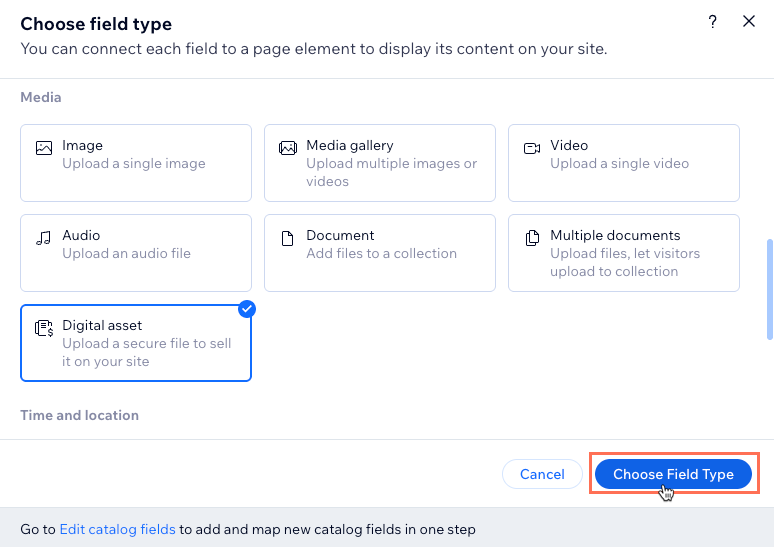
- Under Media, select the Digital asset field type and click Choose Field Type.
- Enter the Field name.
- (If needed) Edit the Field ID used in your site's code. This cannot be changed later.
- (Optional) Enter text in the Help text (optional) field that will appear in a tooltip at the top of the field in your collection view.
- Click Save.
- Hover over the relevant cell under your new 'Digital asset' field and click the Plus icon
 .
. - Upload or select the relevant file and click Add to Item.
- Repeat steps 10-11 to add digital files for each item that needs one.
Changing which 'Digital asset' field customers receive
A 'Digital asset' field is only sent to customers after purchase when it's mapped as the digital file for sale. If your collection has more than one 'Digital asset' field, only one can be mapped for delivery at a time. The others remain in the collection but aren't part of the purchase flow.
To change which 'Digital asset' field customers receive:
- Go to the relevant catalog collection:
- Go to CMS in your site's dashboard. Alternatively, you can click CMS in your editor, then click Your Collections.
- Click the relevant collection.
- Go to CMS in your site's dashboard. Alternatively, you can click CMS
- Click the More Actions dropdown at the top right and select Edit catalog fields.
- Click + Add catalog field and select Digital file.
- Click the Digital file dropdown and select the 'Digital asset' field you want to use.
Tip: Select + Add field if you need to add a new 'Digital asset' field.
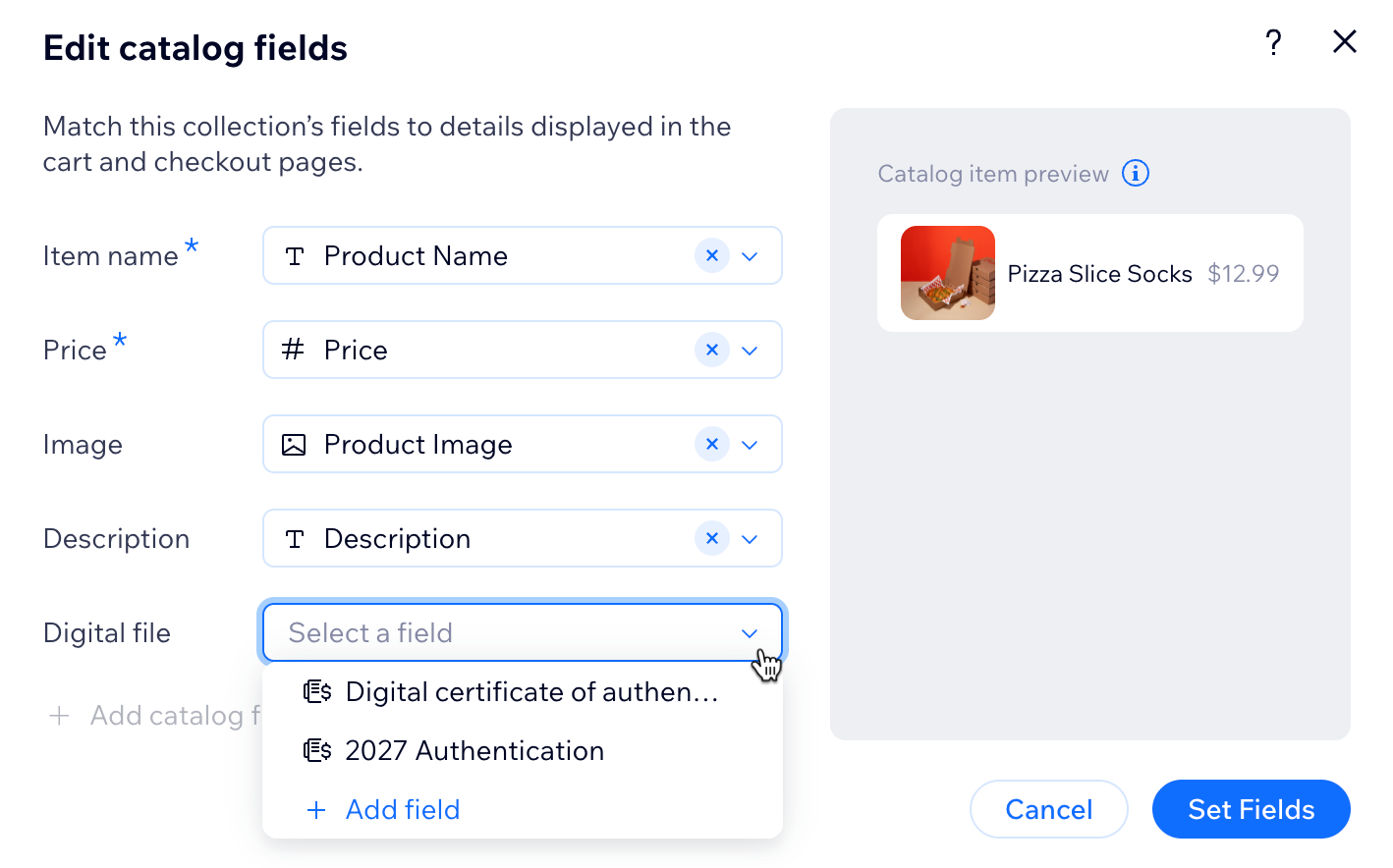
- Click Set Fields.
FAQs
Click below to learn more about the 'Digital asset' field type.
What file types and sizes are supported for digital assets?
What are the main limitations of the Digital asset field?
Can I delete a 'Digital asset' field?
Can I change a 'Digital asset' field to another field type later?
What kinds of items can I sell with a 'Digital asset' field?
How is the 'Digital asset' field different from a 'Document' field?
