


Base44 Wix Payments: Overview
8 min
In this article
- Accepting payments
- Prohibited products and services
- Completing your Wix Payments account setup
- Viewing your payment history
- Receiving your payouts
- Issuing refunds
- Handling a negative Wix Payments balance
- Managing your payment methods at checkout
- Accessing your settlement reports
- FAQs
Wix Payments for Base44 is is currently only available to select users in the U.S
Wix Payments is Base44's built-in payment provider that lets you accept payments directly on your site/app. With Wix Payments, you can accept credit and debit cards, Apple Pay, Google Pay and PayPal.
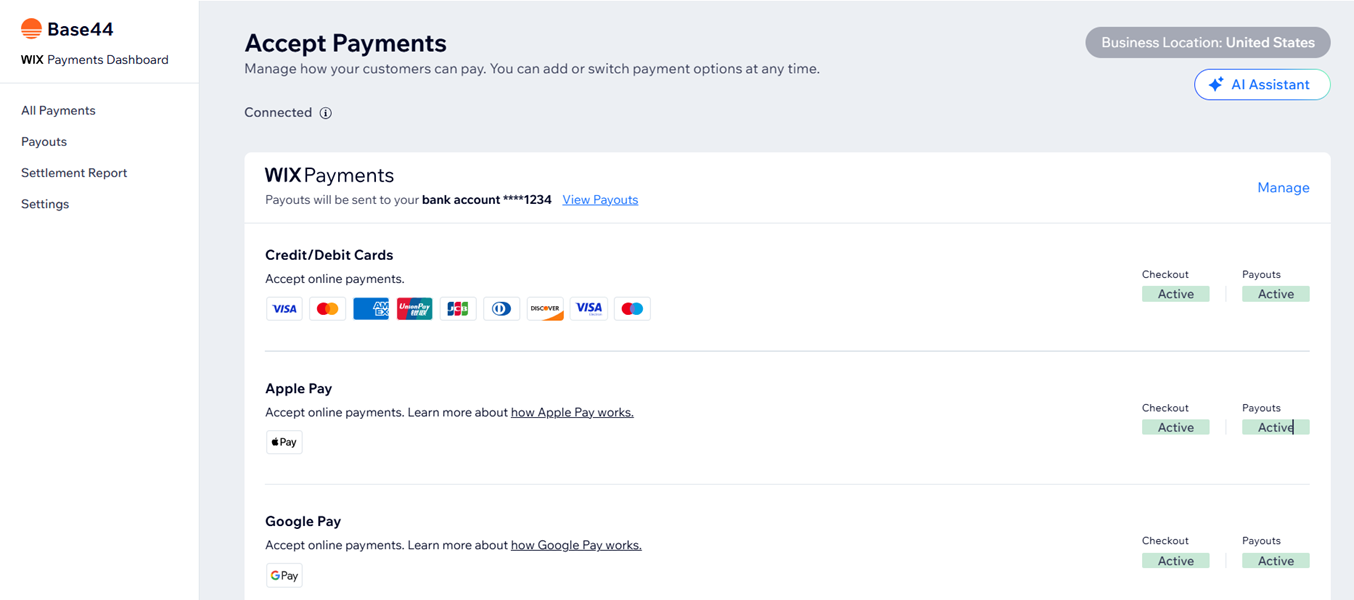
Manage your payments, payouts, refunds and reports from your Wix Payments dashboard, so you always have a clear view of your cash flow in one place.
Accepting payments
With Wix Payments, your customers can pay using:
- Major credit and debit cards
- Apple Pay
- Google Pay
- PayPal with Wix Payments
Once you connect to Wix Payments in Base44, all payment methods are available. If, for any reason, you wish to disable a payment method, you can do so from your Manage Wix Payments page.
Your customers can start paying immediately. To receive payouts, complete your Wix Payments account setup. Once your account is successfully verified, you can receive payouts to a bank account of your choice.
To accept payment with Wix Payments:
- Log in to Base44.
- Go to your app editor.
- Ask the AI chat to set up payments on your app. For example, you can ask: "Connect Wix Payments."
- Click Connect to accept terms of use and service fees for Wix Payments.
- (Optional) Click Dashboard in your app editor and go to Payments to access your Wix Payments dashboard.
Prohibited products and services
To keep payments safe and compliant, some products and services cannot be sold via Wix Payments. Examples include:
- Illegal products or services
- Certain financial services, investment schemes or high-risk lending
- Some adult content or services
- Weapons, some types of ammunition and related accessories
- Certain gambling or betting services
- Products that encourage hate or violence
The exact list can change over time and may depend on Wix’s banking and payment partners. Review the Wix Payments prohibited products and services list before you start selling.
Completing your Wix Payments account setup
Before you can receive payouts, you need to set up your Wix Payments account for your site/app. You provide details such as:
- Your business type and legal name
- Your business address in the United States
- The main contact person’s details
- The bank account where you want to receive payouts
Enter and review these details in your Wix Payments dashboard. Some details may require documents to confirm your identity and business information. Until setup is complete and verified, your account may be limited and payouts may be delayed, so it is important to upload any requested documents as soon as possible.
Viewing your payment history
Your Wix Payments dashboard shows a full history of your payments.
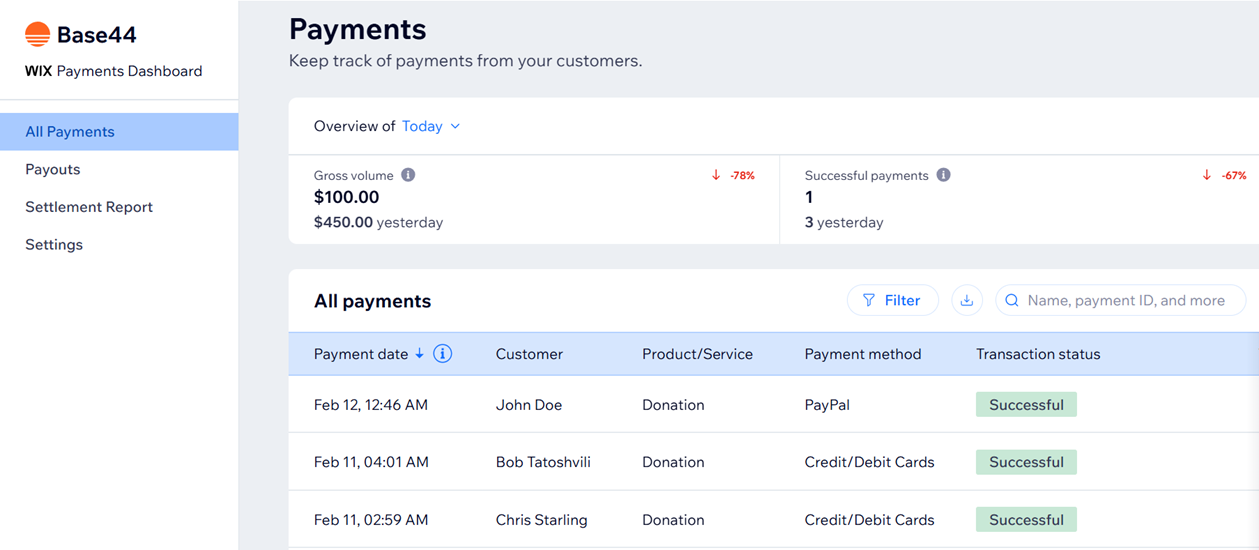
From here you can:
- View each transaction, including its amount, date, payment method and status
- Filter by date range, status or payment method
- Search for a specific payment using the customer name, order ID or transaction ID
This helps you track individual payments, answer customer questions and match orders with payments.
To view your payments:
- Log in to Base44.
- Click Dashboard in your app editor.
- Click Payments to access your Wix Payments dashboard.
- Click All Payments.
- Organize your payments using the following options:
- Filter your payment history by payment date, transaction status, transaction date, payment provider, and more.
- Click the Download icon
 to download a CSV file of your payments.
Tip:
Click a payment to see more details about that payment.
Receiving your payouts
Wix Payments groups your successful customer payments into payouts that are sent to your bank account.
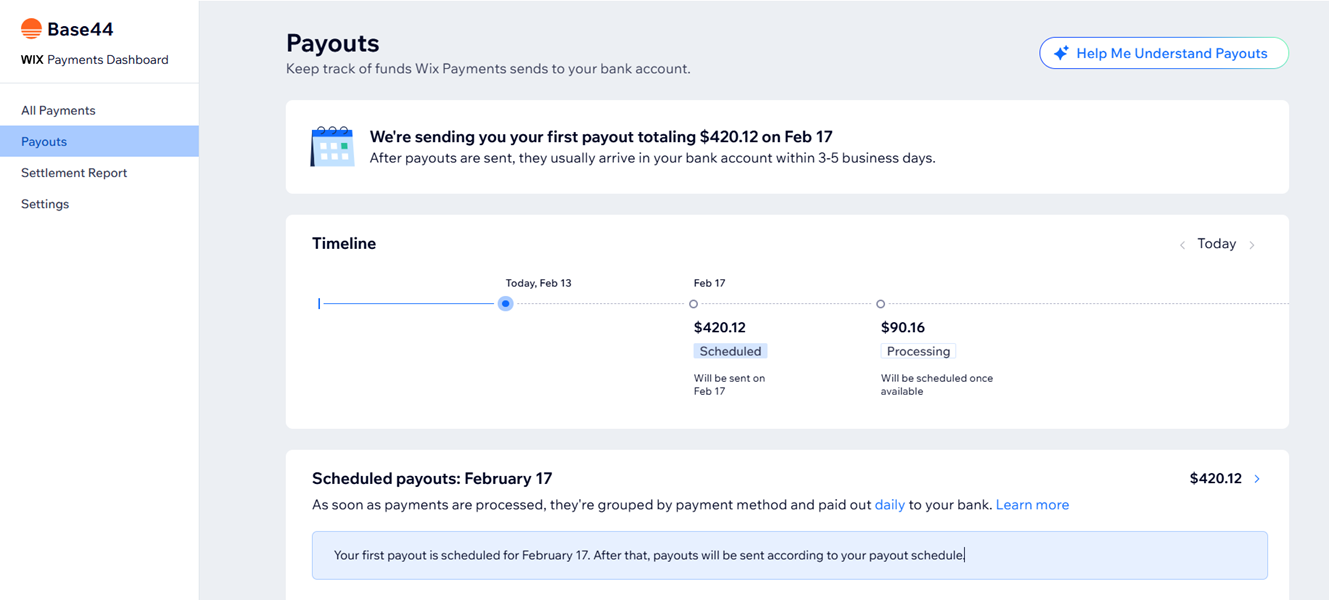
Key points about payouts:
- Payment processing: There is a standard delay between when a customer pays and when the funds are sent to your bank. This gives time for processing, refunds and disputes. Processing usually takes 2-5 business days.
- Payout schedule: You can usually choose how often you get paid. This can be daily, weekly, or monthly, as preferred.
- Payout destination: Payouts go to the bank account you add during setup. You can change this account later, if needed.
If a payout fails, your Wix Payments dashboard shows a message explaining what went wrong; for example, incorrect bank details.
To view your payouts:
- Log in to Base44.
- Click Dashboard in your app editor.
- Click Payments to access your Wix Payments dashboard.
- Click Payouts.
- Click a payout to view details.
Issuing refunds
You can refund your customers directly from your Wix Payments dashboard.
When you issue a refund:
- The refunded amount is taken from your Wix Payments balance.
- If your balance does not cover the full refund, the remaining amount may be taken from upcoming payments or from your next payout.
- Refunds may take several business days to reach your customer, depending on their bank or payment method.
Refunds reduce your available balance and may affect the size and timing of your next payouts.
To issue refunds:
- Log in to Base44.
- Click Dashboard in your app editor.
- Click Payments to access your Wix Payments dashboard.
- Click All Payments.
- Click on the payment to refund.
- Click Refund.
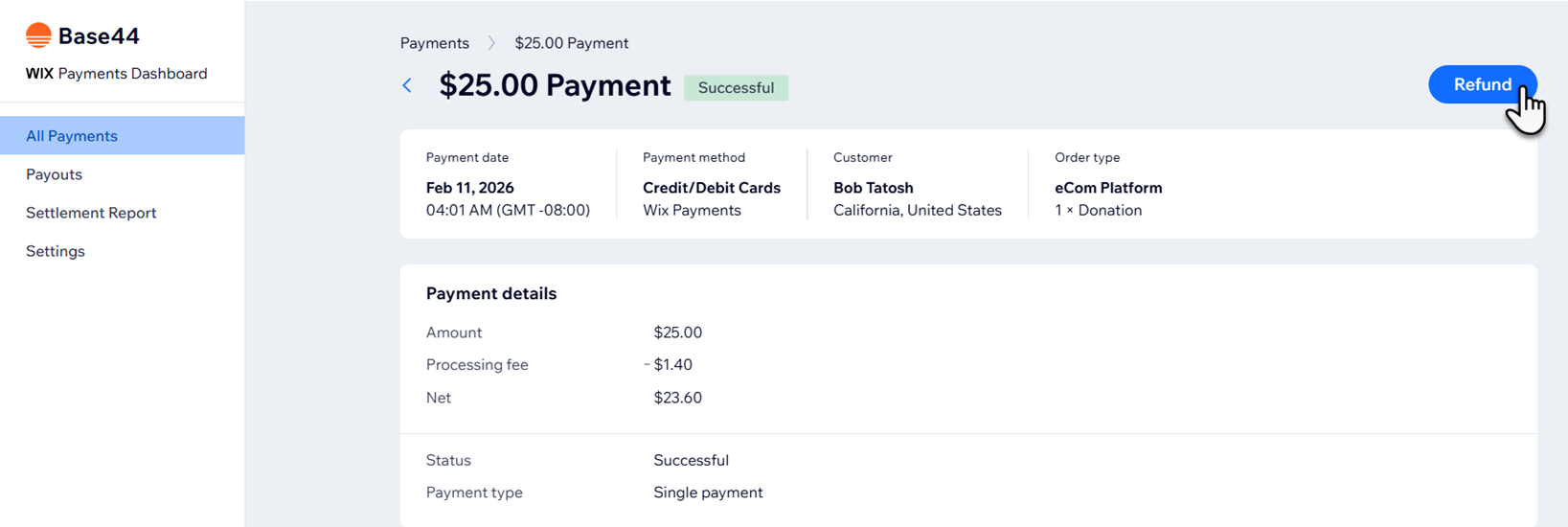
- Enter the amount to refund and a note (if needed).
- Click Refund.
Handling a negative Wix Payments balance
Your Wix Payments balance can become negative if you issue refunds or incur chargebacks that amount to more than your available funds.
If your balance is negative:
- New successful payments go toward covering the negative amount.
- Payouts are paused until your balance returns to a positive amount.
- You won't have enough funds to cover any additional refunds or chargebacks that may occur.
You can return to a positive balance by adding funds to your account using a credit/debit card.
To add funds:
- Log in to Base44.
- Click Dashboard in your app editor.
- Click Payments to access your Wix Payments dashboard.
- Click Payouts.
- Click Add Funds in the Negative Balance notification.
Note: If you have more than one negative balance, select the shortfall you'd like to cover.

- Enter your details to pay by credit/debit card.
- Click Add Funds.
- (Optional) If you still have a remaining debt from another payment method group:
- Click Add Remaining Funds to cover that negative balance now.
- Click Later to cover that negative balance later.
- It may take up to 7 business days to process your payment and update your Wix Payments dashboard accordingly.
- Currently, it's not possible to top-up a negative balance for PayPal payments. To return to a positive balance for PayPal, you need to receive additional PayPal payments.
Managing your payment methods at checkout
From your Wix Payments dashboard you can choose which payment methods you offer your customers. All payment methods are available when you connect Wix Payments. If, for any reason, you wish to disable a payment method:
To manage payment methods:
- Log in to Base44.
- Click Dashboard in your app editor.
- Click Payments to access your Wix Payments dashboard.
- Click Manage next to Wix Payments.
- Enable / disable the toggle next to your desired payment method.
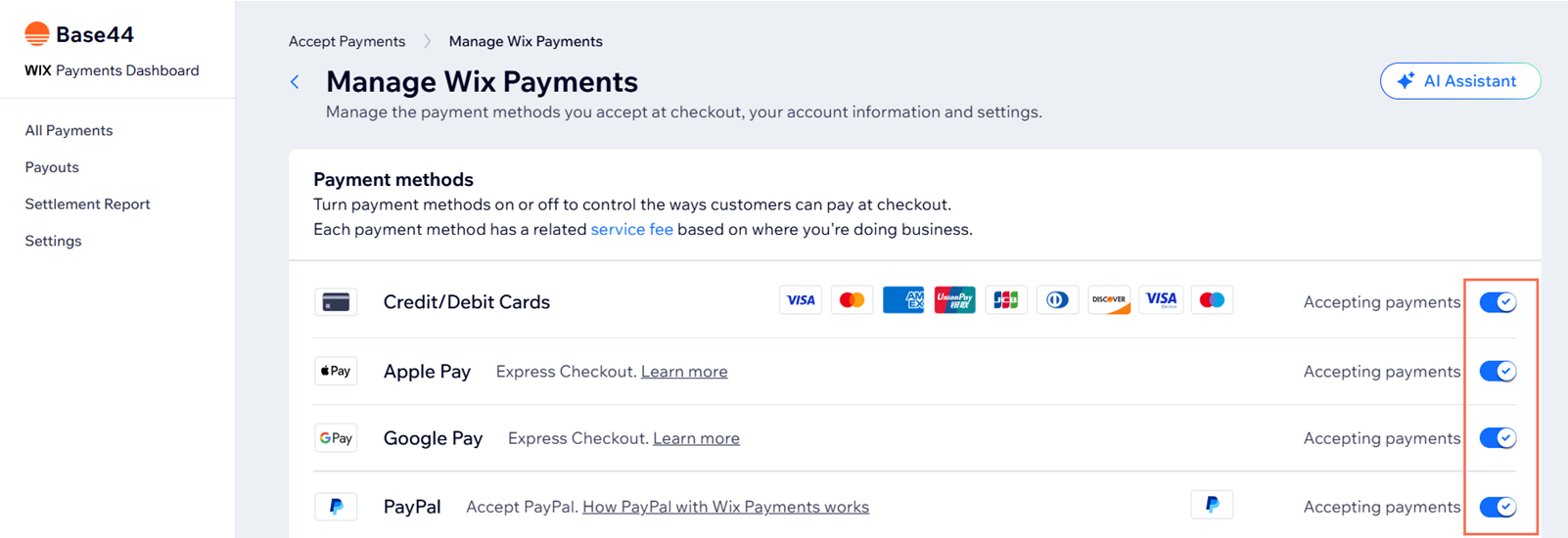
Your customers only see the wallet buttons that are supported on their device. For example, Apple Pay appears for customers using Safari on supported Apple devices.
Accessing your settlement reports
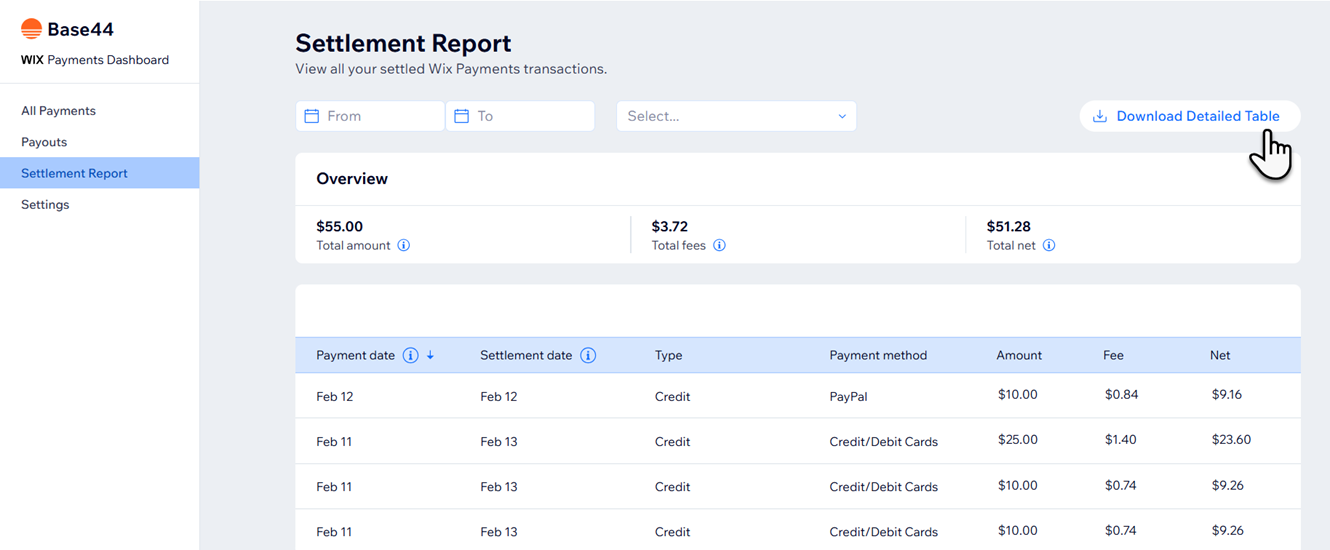
Settlement reports give you a detailed, exportable list of all transactions processed through Wix Payments.
In your dashboard you can:
- See each transaction, its status and the related payout
- View the Wix Payments service fee for each transaction
- Download a CSV file of the full report for accounting or tax purposes
- Filter by date range or transaction type before you download
You can usually access your settlement report even if your Wix Payments account is disconnected, which lets you keep historical records for your business.
To access your settlement report:
- Log in to Base44.
- Click Dashboard in your app editor.
- Click Payments to access your Wix Payments dashboard.
- Click Settlement Report.
- (Optional) Filter by transaction type and date range, or click Download Detailed Table to download a CSV file of your settlement report.
FAQs
Click a question below to learn more about using Wix Payments with Base44.
Who can use this version of Wix Payments?
Which payment methods are included?
How do I know if my products are allowed?
When do I receive my payouts?
What happens if I refund a customer?
What should I do if my balance is negative?
Can I change the bank account where I receive payouts?
How can I download my payment and settlement information for accounting?
Can I accept donation payments with Wix Payments?
