


Wix Restaurants: Accepting Orders in the Wix App
Important:
- This article is about the original Restaurants Orders app.
- We've released a new online ordering app. Learn how to add and set up the new Wix Restaurants Orders (New) app.
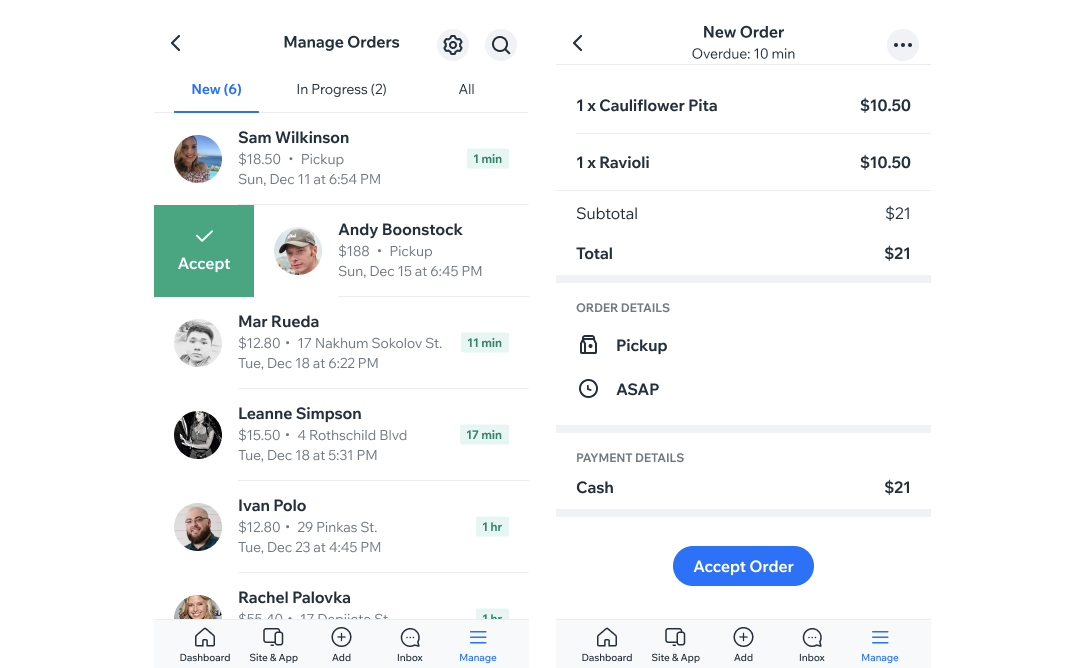
View incoming orders in real-time directly from the Wix app and accept them with just a swipe to the right. You'll get a notification as soon as a customer places an order on your restaurant site. You can tap an order to see its details and a price breakdown, and print or email the order. In cases where you're unable to fulfill an order, you can also reject it directly from the app.
To accept incoming restaurant orders in the Wix app:
- Go to your site in the Wix app.
- Tap Manage at the bottom right.
- Tap Restaurant Orders. The New tab displays the new orders waiting to be accepted or rejected.
- Tap on the order you want to accept.
- Review the order and then tap Accept Order at the bottom to accept it.
The newly accepted orders now appear in the
In Progress tab. Once you've completed the order, tap
Fulfill Order.
Tip:
You can swipe an order to the right to quickly accept it.
