Wixel: Exploring Your Project Workspace on the Wixel App
- Opening your project workspace
- The top navigation bar
- The action bar
- The AI tools in your project
- Aria, your AI design agent
- AI breakdown
- Suggestion bubbles
- Switching between designs and projects
Opening your project workspace
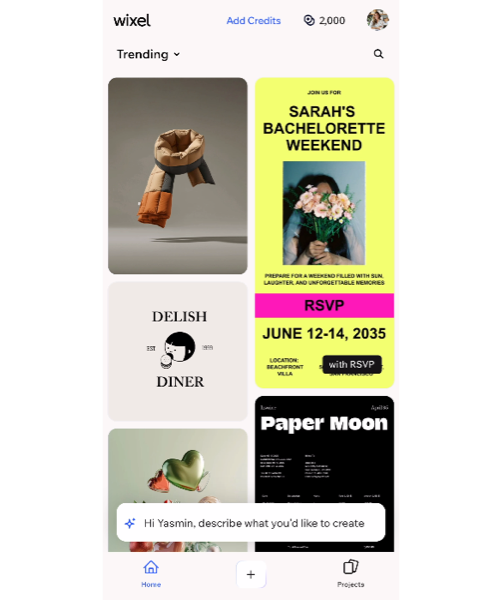
When you open the Wixel app, you land on the Home tab. From here you can browse suggested templates and scroll through trending designs.
To start with a blank frame or a specific format, tap the Create icon  at the bottom and choose the type of design you want to create. To keep working on something you already started, tap Projects at the bottom right to open your projects list and select the project you want to work on.
The top navigation bar
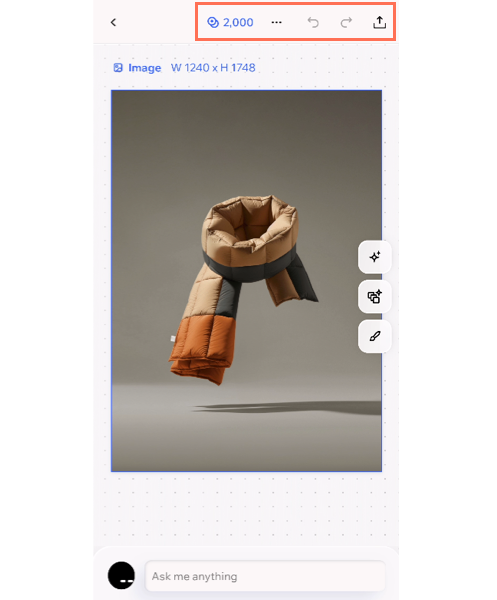
 to access additional options. From this panel, you can add a new design to the current project, and rename, duplicate and delete the design. You can also open the
Layers panel from here to get a structured view of the elements in your design, and access the
Help Center for extra support.
to access additional options. From this panel, you can add a new design to the current project, and rename, duplicate and delete the design. You can also open the
Layers panel from here to get a structured view of the elements in your design, and access the
Help Center for extra support.
The action bar
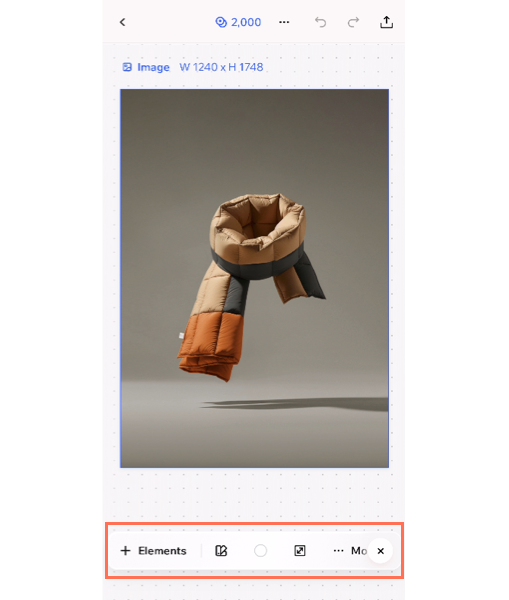
For example, when you select an image the action bar will offer photo editing options. If you're working on a document, you'll get background and layout options. The action bar is also where you'll find the option to add elements to a design.
 on the right side of the design. To minimize it, tap the
X icon.
on the right side of the design. To minimize it, tap the
X icon.
The AI tools in your project
Aria, your AI design agent
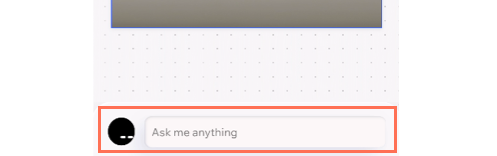
At the bottom of the workspace, you'll find Aria, your AI design agent. Aria is your creative partner for creating and editing designs. You can brainstorm, create, and make changes to any design in your project - logos, images, videos, documents, PDFs, and more - directly from the chat.
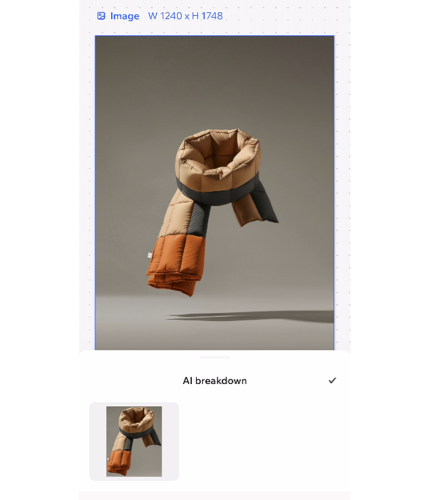
AI breakdown
 to open the panel, and select an item to work on it. For example, you can regenerate or remove an object in an image or rewrite text and apply a different text style.
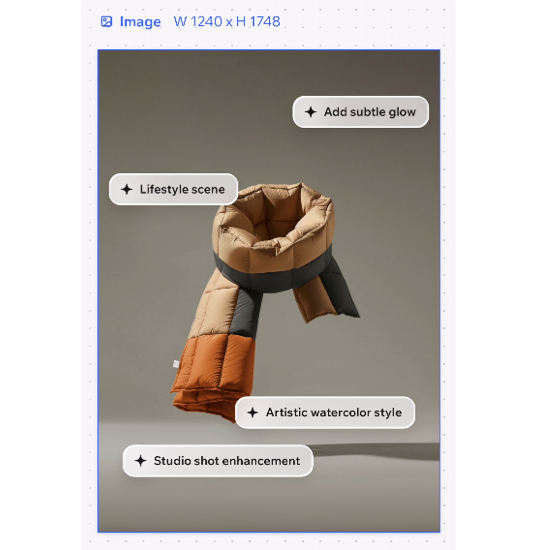
Suggestion bubbles
 on the right side of your workspace. To hide the suggestions, tap the
X icon.
on the right side of your workspace. To hide the suggestions, tap the
X icon.
Switching between designs and projects
Unlike the desktop browser, in the Wixel app you focus on one design at a time. When you are ready to move to a different design, tap the
Back icon
 at the top left. This takes you to an overview of the project's designs. Each design has an icon at the top right of its thumbnail that shows what type of design it is (e.g. video, document, image).
again. This takes you back to the home page, where you can choose another project or start a new one.