Wix Help

Wix Restaurants: Setting Up Pickup and Delivery in Wix Restaurant Orders

13 min
Your delivery and pickup settings is where you can specify when customers can collect their orders or receive deliveries in different areas. You can also set minimum order requirements and associated fees.
You can also add closures for dates and times when orders cannot be fulfilled, such as holidays or dates that have reached capacity. These closures can block orders entirely or just a specific fulfillment method.
Did you know?
In addition to pickup and delivery, you can enable the dine-in option - this lets your customers scan a QR code at your restaurant and place their order from their own device.

Setting up pickup and delivery

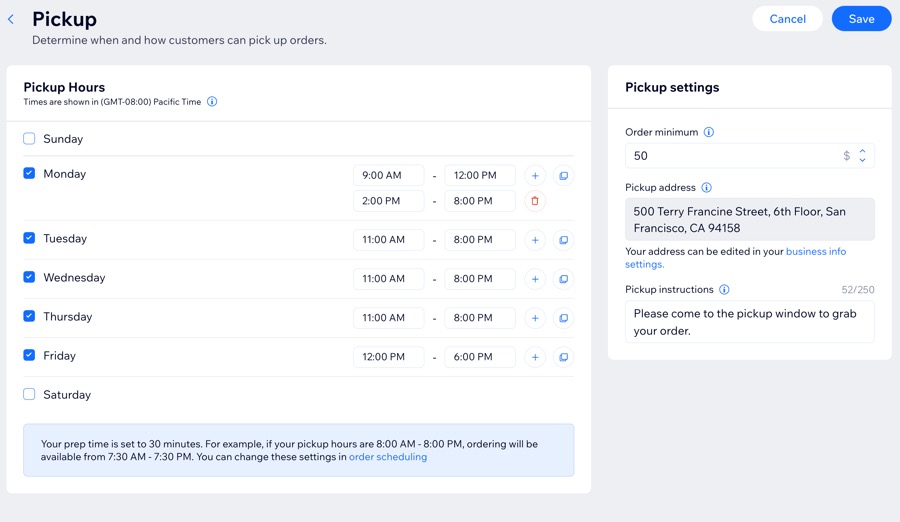
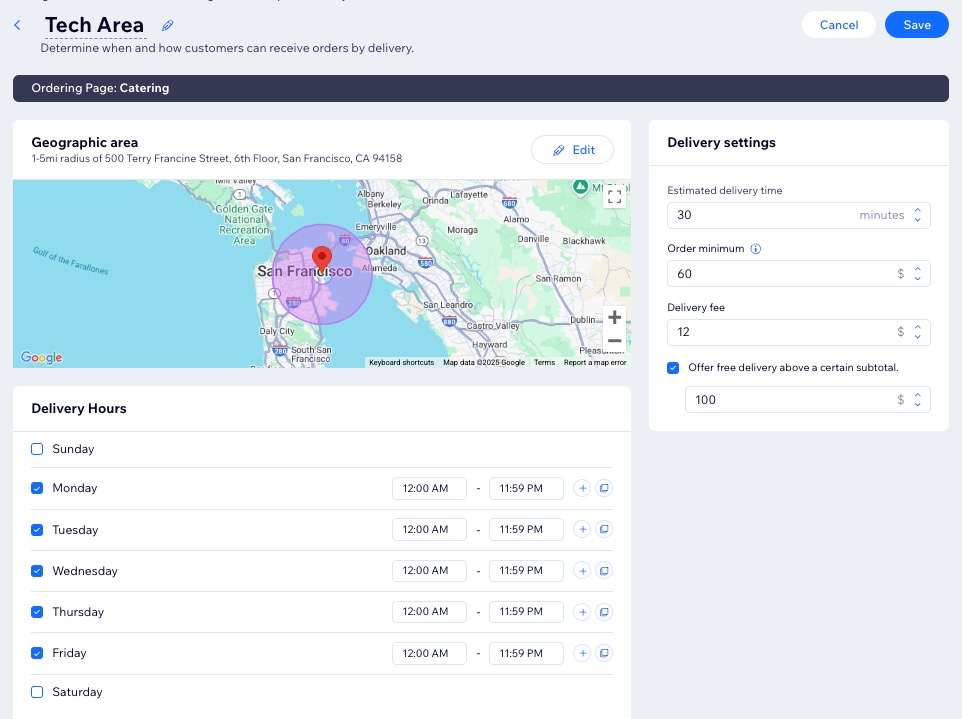
Customize pickup days and timeframes, define delivery areas with specified fees, and offer free delivery on orders above a certain subtotal.
Additionally, you decide which fulfillment method appears as the default on your online ordering page – pickup or delivery.

To set up pickup and delivery:

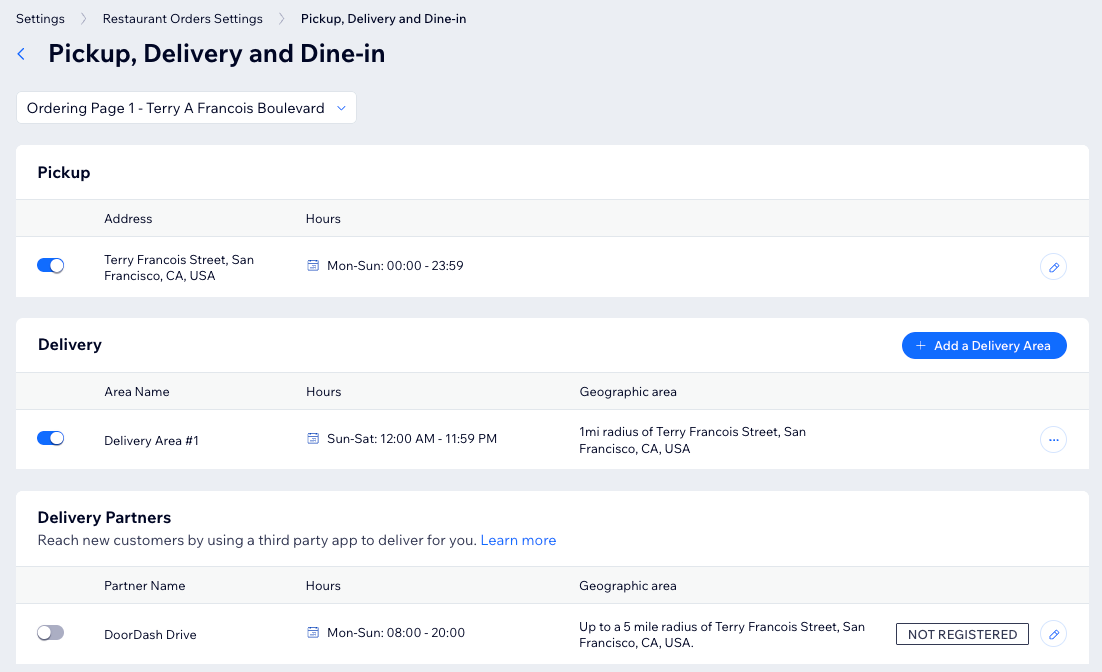
  1. Go to Pickup, Delivery and Dine-in in your site's dashboard.
  2. Select what you want to set up:
A screenshot of the Fulfillment settings in a site's dashboard.

Adding closures

Add closures to block orders on specific dates, holidays or when maximum order capacity is reached. Specify dates, hours, and select pickup or delivery methods for designated areas.
For instance, if your restaurant reaches its maximum capacity for orders on Friday evening, set a closure from 5:00 PM to 10:00 PM to ensure those hours do not appear as available on your site.

To add closure dates:

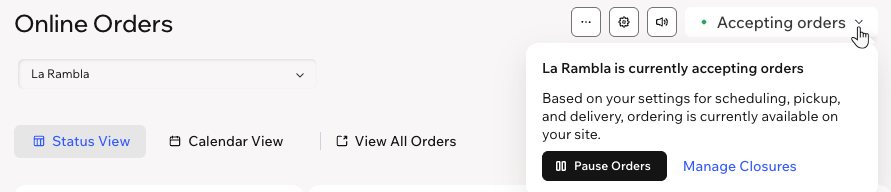
  1. Go to Online Orders in your site's dashboard.

  2. Click Accepting Orders at the top right.

  3. Click Manage Closures.

  4. Click + Add a Closure. 

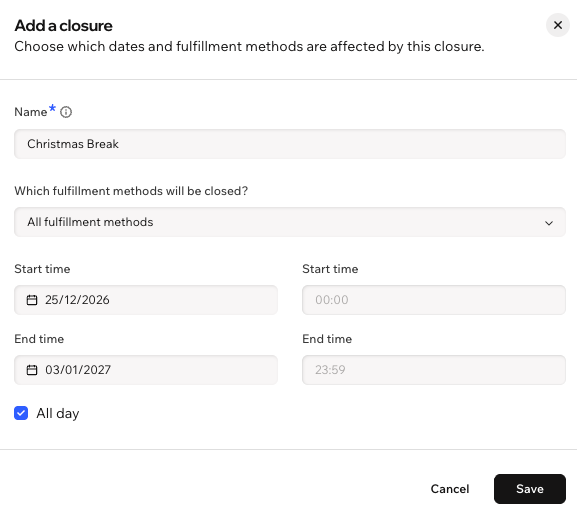
  5. Enter a name.
    Tip: This does not appear on your site. It only appears when managing closures in your fulfillment settings.

  6. Select the relevant method(s) from the Which fulfillment methods will be closed? dropdown.
    Note: When selecting Specific delivery area(s), click the Select delivery area(s) dropdown to choose the areas.

  7. Select the relevant dates under Start time and End time.

  8. Choose what to do next:

    • Select the All day checkbox to indicate that the hours are from the beginning to the end of the day.

    • Enter the Start / End time to specify closure hours.

  9. Click Save.

A screenshot of adding Closure information for a restaurant's fulfillment settings.
Aren't accepting orders yet?

You can set up closures in advance, before you open your online orders to site visitors. Go to Pickup, Delivery and Dine-in in your site's dashboard and scroll down to Closures to get started.

FAQs

Click a question below to learn more about pickup and delivery.
Hire a Wix PartnerGet a professional online menu set up on your restaurant website.