


Wix Restaurants: Importing Your Menu from a File
Import a menu file to quickly create a new menu for your restaurant. Wix Restuarants detects and organizes your dishes, prices, and sections, then saves your menu as a draft so you can review and edit it anytime.
Have more than one menu to import?
- Import each menu as a separate file.
- Supported formats: PDF (up to 100 pages), CSV, Excel (XLS or XLSX).
- If your file includes several menus, Wix Restaurants combines them into one menu with multiple sections.
To import your menu from a file:
- Go to Menus in your site's dashboard.
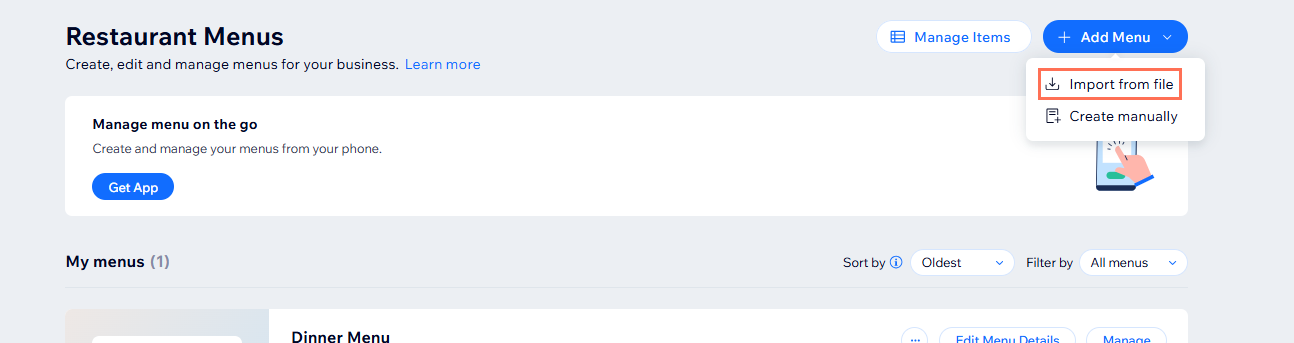
- Click + Add Menu at the top right.
- Select Import from file.
- Click Select Menu File.
- In the Media Manager, select the relevant file, or click + Upload Media to upload a new one.
- Click Continue.
- Review the file preview, then click Continue.
- Review your menu summary and confirm or adjust the relevant details:
- Keep or update the Menu name.
- (If relevant) Click the Location dropdown and select the relevant location.
- Click Confirm & Add.
- (Optional) Edit the relevant menu details:
- Add section: Click + Add Section to create a new menu section.
- Edit menu: Click Edit menu details to update your menu’s name, description, or settings.
Note:
Only text-based menu items can be imported. Images in PDFs are not extracted and added to your menu.
