


Wix Restaurants POS: Connecting Square to Your Menus and Orders
6 min
In this article
- Step 1 | Add the Square for Restaurants app
- Step 2 | View the menu synced from Square
- FAQs
Connect Square Point of Sale to your Wix Restaurants site to keep your menus and online orders in sync. When you connect, your menu from Square appears on your site and you can start managing incoming online orders directly from Square.
Before you begin:
We recommend connecting Square as your main payment provider. You can use other payment providers, but Square charges an extra 1% fee for orders processed through other providers.
Step 1 | Add the Square for Restaurants app
Get started by adding Square for Restaurants as a third-party integration in your site’s dashboard. After logging in to your Square account, you'll be taken back to Wix to set up your locations and menus.
To connect your POS:
- Go to Restaurant Orders Settings in your site's dashboard.
- Click Third Party Integrations next to Order Management.
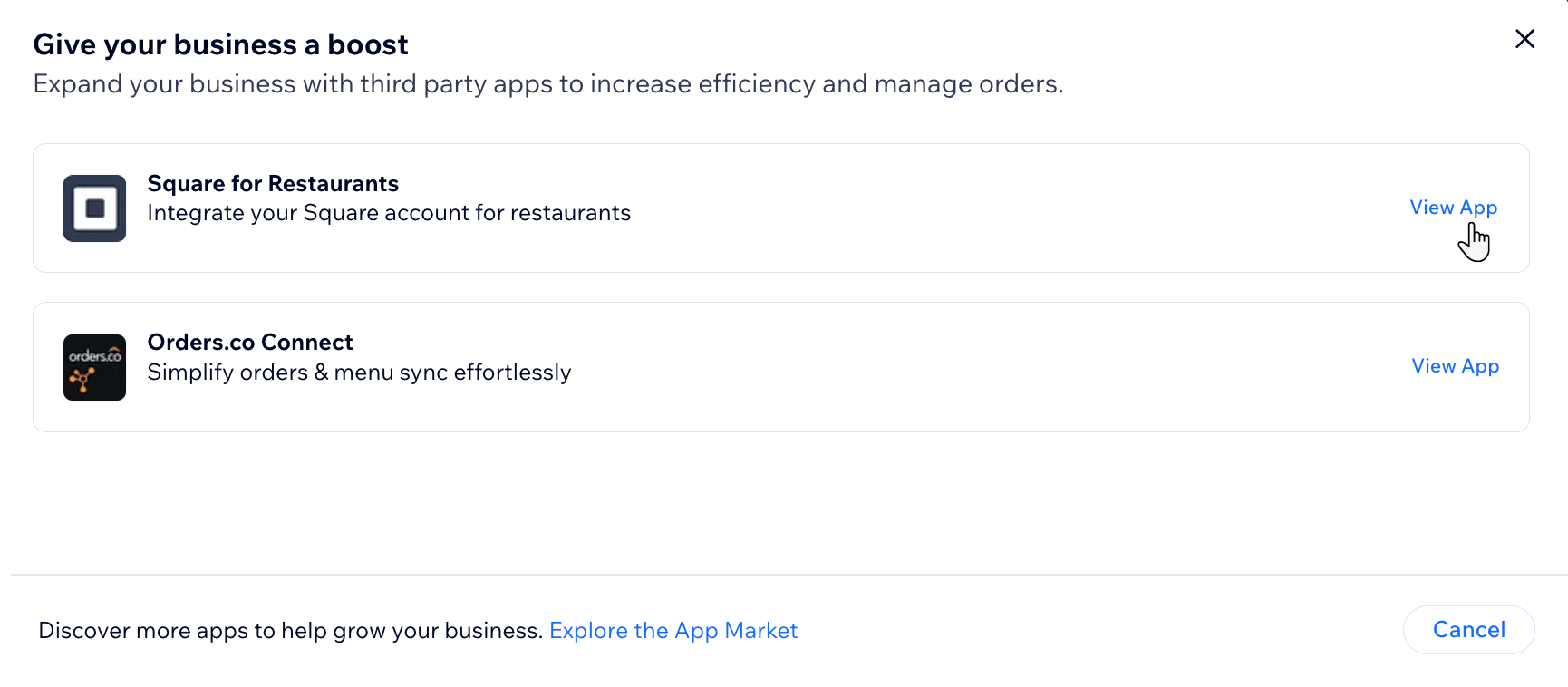
- Click View App next to Square for Restaurants.
- Click Add to Site.
Tip: This opens a new browser tab for you to sign in to your Square account. - (In the browser tab that opens) Log in with your Square credentials.
- Review the list of permissions and click Allow.
Tip: This redirects you to back to your Wix site dashboard, where you can finish setting up the Square integration.
Step 2 | View the menu synced from Square
After you connect the app, your Square menus sync to your Wix site. You can check what was imported and control what appears on your online ordering page.
To view and edit the synced menu:
- Go to Square POS Integration in your site's dashboard.
- Sync your menu from Square:
- Click Sync Data next to the location name under Synced menus and orders.
- Select the Square location you want to sync with Wix.
- Click Sync.
- For multiple locations, repeat the previous steps for your other restaurant locations.
- Review the menu that was just synced with Wix:
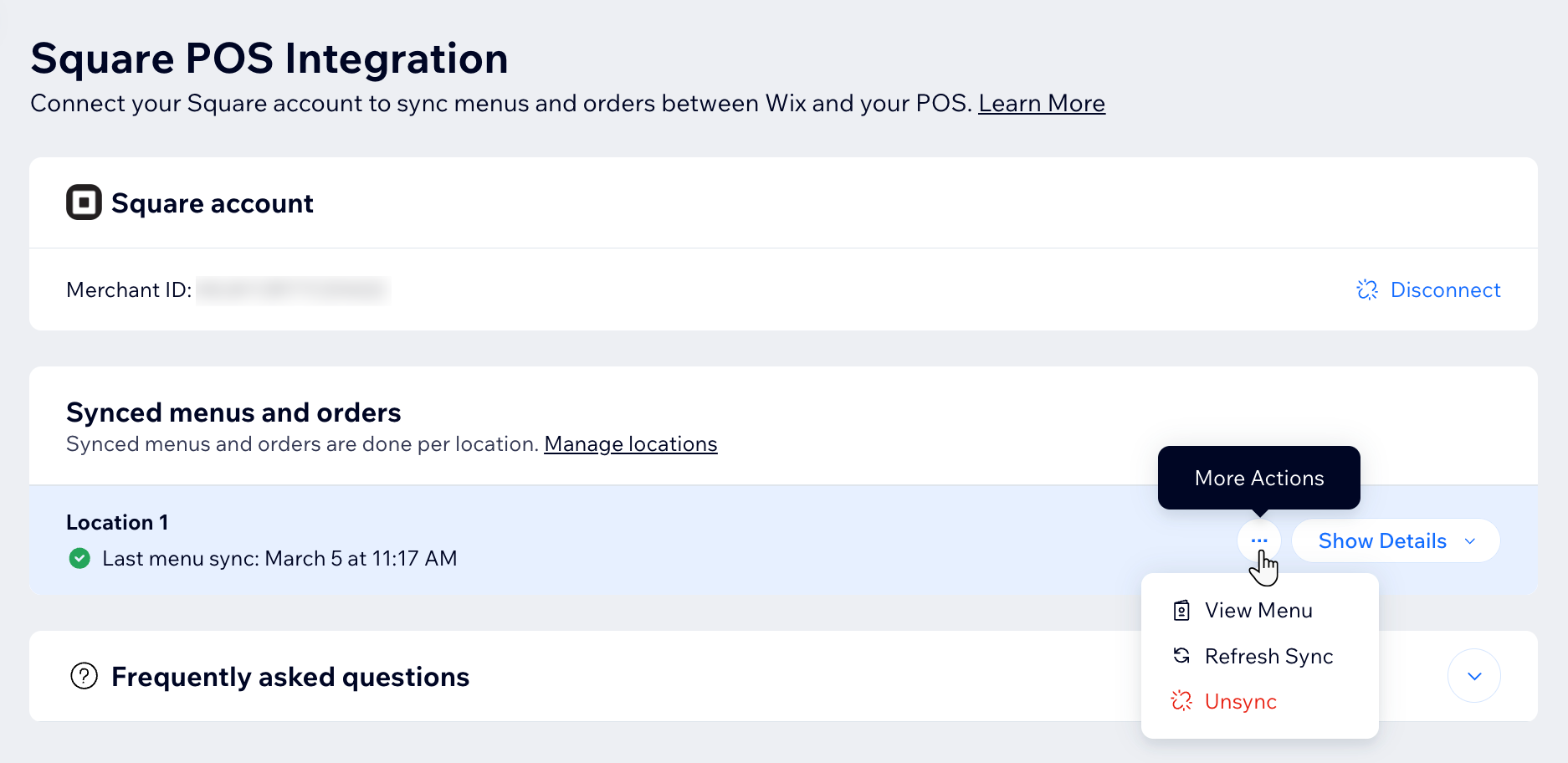
- Click the More Actions icon
 next to the location name.
 - Select View Menu.
Tip: This takes you to see your synced menu on the Restaurant Menus page. - Choose what to do next:
- Click the More Actions icon
Reorder the menu items or sections
Adjust the settings of a specific item
Edit the details of a specific section
Edit the menu's details
What's next?
Your Square menu appears on your Wix site and customers can order from it online.
FAQs
Click a question to learn more.
What happens to my existing Wix menus if I sync my Square POS menu?
Can I use DoorDash Drive with Square POS?
Why can't I edit some of the item and section details on Wix?
Where can I see my orders after connecting to Square?
Can I test the Square integration before launching it on my site?
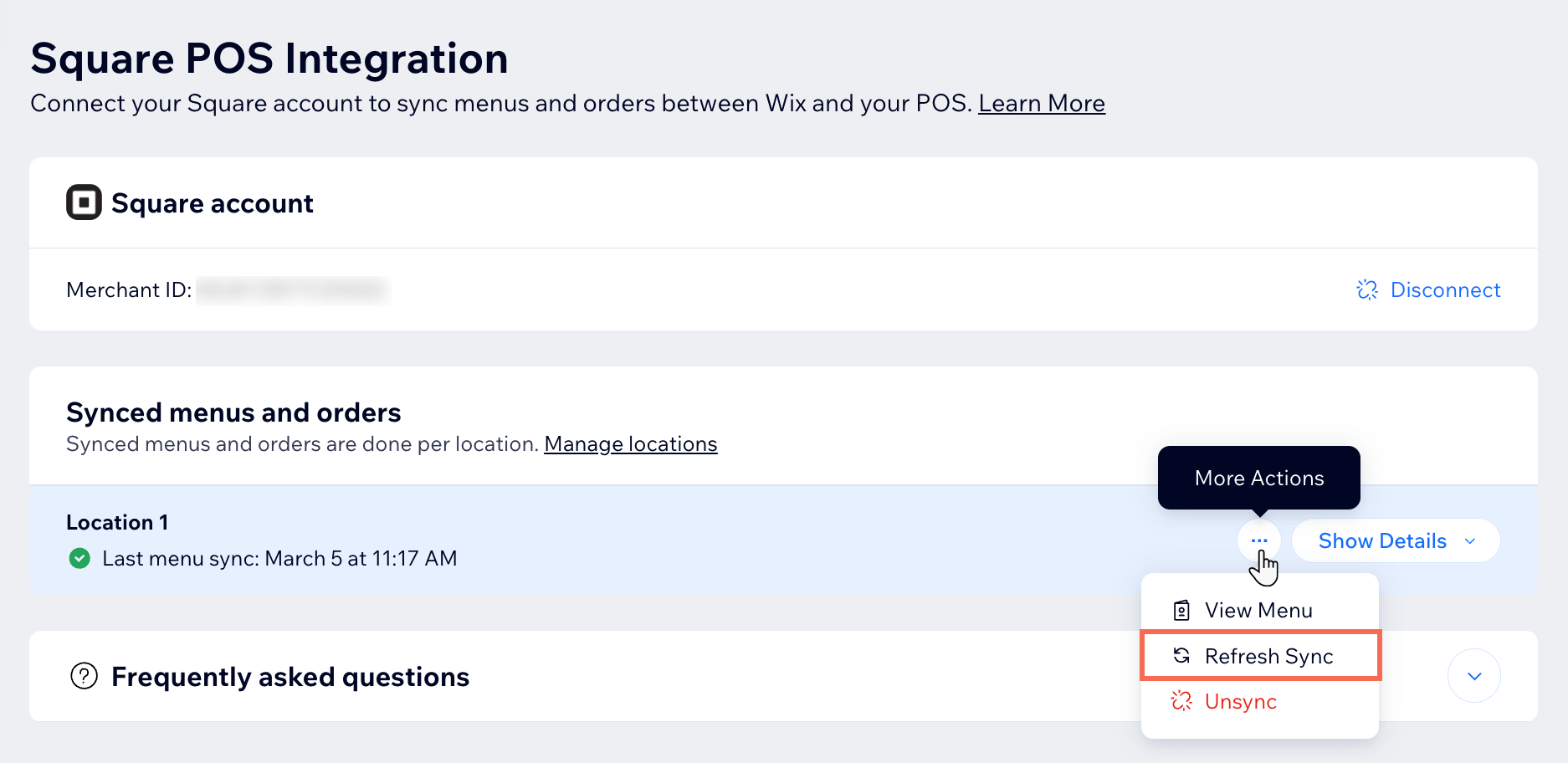
How often will my menus be synced? Can I manually sync them?
How do I disconnect the Square integration?
