


Wix POS Register: Connecting a Network Card Reader
In this article
- Step 1 | Get the card reader
- Step 2 | Unbox and charge your card reader
- Step 3 | Connect the reader to WiFi
- Step 4 | Pair the card reader to your POS tablet
- Troubleshooting your network card reader
Important:
- This article is about the Wix POS Register for brick and mortar businesses. Learn more about Wix Mobile POS, or learn more about our Desktop POS solution.
- The Desktop Card Reader is not currently for sale. If you already own this card reader, you can still follow the instructions below to pair it with your POS tablet.
Before you can collect payment from customers by credit card, debit card, or phone app, you need to connect a card reader to your POS tablet. This article will walk you through how to connect a network card reader, which is a reader that connects to your POS tablet via a WiFi connection.
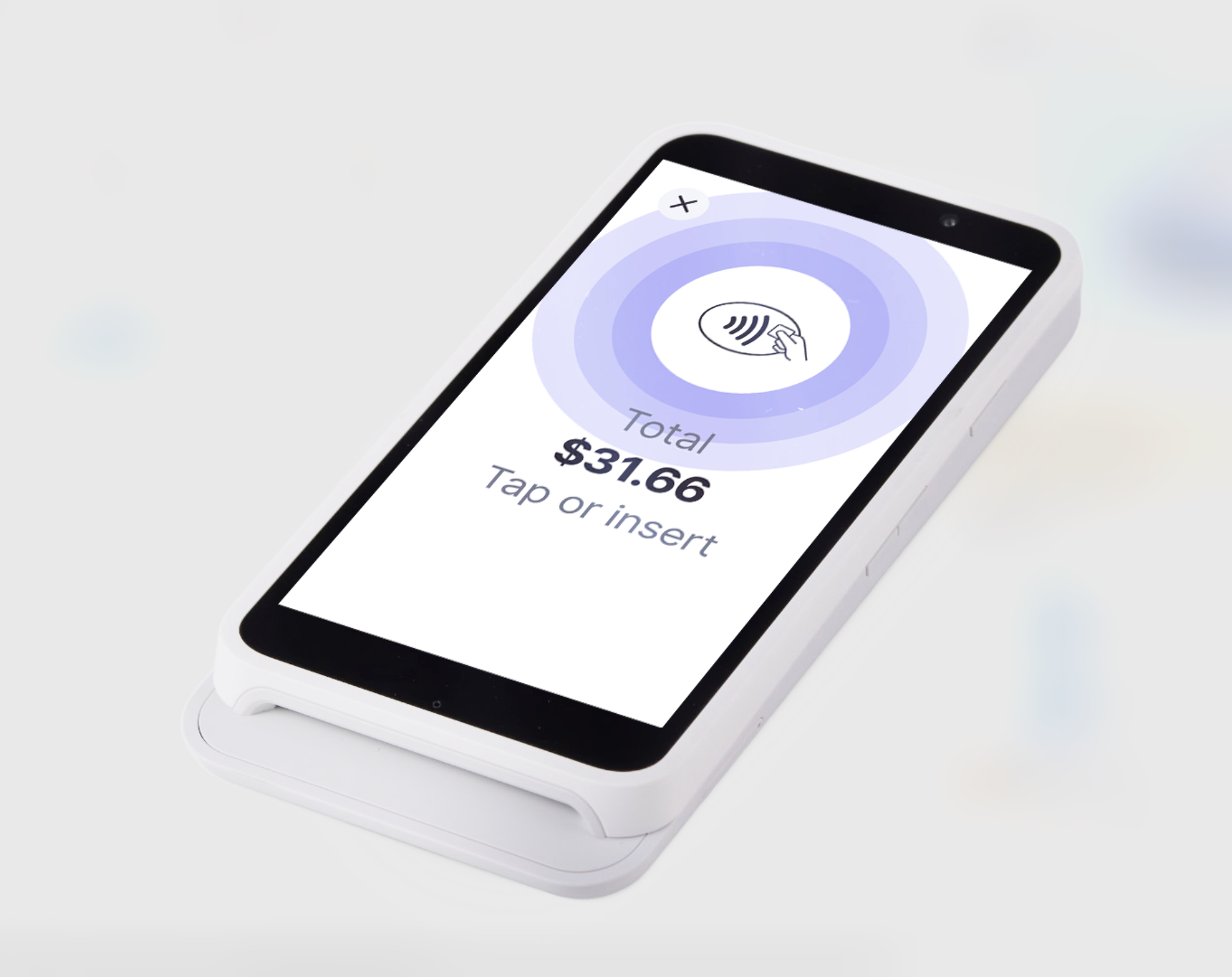
The Wix POS Go card reader supports all magstripe and EMV payment functions and you can use it to accept new forms of payment, such as Apple Pay, Android Pay, Samsung Pay, VISA payWave, Mastercard Contactless, AMEX ExpressPay and Discover D-PAS.
Tip:
You can also use a Bluetooth card reader with your POS tablet, such as the
Stripe M2 card reader (US) or the
WisePad 3 Card Reader (Canada and UK).
Step 1 | Get the card reader
You can purchase your Wix POS Go card reader from the
Wix POS shop.
Step 2 | Unbox and charge your card reader
Once you have the card reader, unbox it and charge it so it'll be ready to set up.
To prepare your reader:
- Unbox your card reader.
- Insert the battery.
- Press the power button to turn the reader on.
- If required, charge your reader.
Tip: Plug the reader into a wall outlet, not directly into the tablet.
Step 3 | Connect the reader to WiFi
Important:
If the reader and tablet are connected to different WiFi networks, you won't be able to use the reader.
Now you can connect your card reader to the same WiFi network you're using for your POS tablet.
To check which network your tablet is connected to, click the
Menu icon
 on the tablet, select
App & Tablet and click
Wi-Fi & Network.
on the tablet, select
App & Tablet and click
Wi-Fi & Network.
on the tablet, select
App & Tablet and click
Wi-Fi & Network.
Choose an option below based on what you see on your card reader's screen:
I see WiFi networks displayed on the reader's screen
I don't see WiFi networks displayed on the reader's screen
Step 4 | Pair the card reader to your POS tablet
When connecting to WiFi, a three-word code should automatically appear on the card reader screen. If not, you can generate the code. Once you have it, enter it in your POS tablet.
After your reader is paired, you'll see it in your list of available card readers in the
Manage Hardware tab in the tablet.
Choose an option below based on what you see on your card reader's screen:
I see a code displayed on the reader's screen
I don't see a code displayed on the reader's screen
Troubleshooting your network card reader
If you are experiencing any issues setting up a card reader, click a question below.
Why can't I pair the card reader to my tablet?
My reader is paired, but not connected. Why?
What happens to my reader when the charge is low?
What can I do if the card reader is frozen?
I have paired more than one reader. How can I switch between them?
How can I remove a reader from my list of readers?