


Wix POS Register: Using the Stripe Reader M2 Card Reader
- Charging the reader
- Connecting the reader to the tablet
- Using the card reader
- Understanding the card reader lights
- Updating the card reader software
- Troubleshooting your card reader
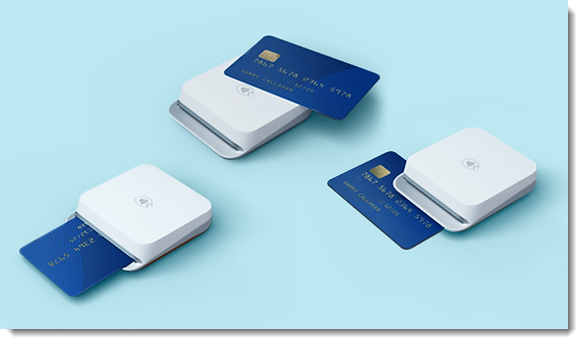
Charging the reader
Connecting the reader to the tablet
To connect or disconnect the reader:
- Tap and release the power button on the card reader to turn it on.
Tip: The Bluetooth turns on automatically.
This article will help you understand the differences between the New Wix POS and Wix POS Register.
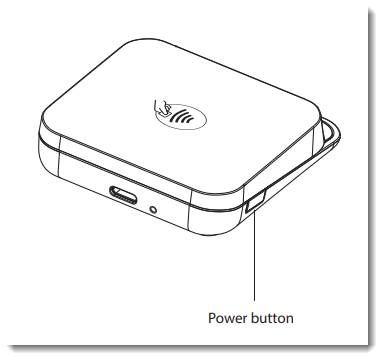
Open the POS tablet.
Tap the Connect icon .
Select what you want to do:
Connect your card reader:
Tap Connect next to Card reader.
Tap Connect New.
Tap the relevant reader.
Tap It's Powered On.
Tap It's Connected.
(Optional) Enter a name for the card reader and tap Continue.
Enter the code shown on your card reader and tap Pair Reader.
Tap Done.
Disconnect your card reader:
Tap Unpair at the top right.
Tap Unpair to confirm.
 .
.Using the card reader
Understanding the card reader lights
Updating the card reader software
To update the card reader software:
Open the POS tablet.
Tap the Connect icon .
Tap Card reader.
Tap Check for Updates.
If an update is available, tap Update Now and follow the instructions.
Note: After the update has been completed, it will flash blue and orange. If the reader is unresponsive, restart it.