


Wix POS Go: Managing Your Device Settings
In this article
- Managing app and inventory settings
- Managing your tip settings
- Switching your site or logging out of your device
- Accessing your advanced device settings
Important:
This article is about managing device settings when using the Wix POS Go as a standalone solution.
The Wix POS Go card reader is currently only available in the US, Canada, and the UK.
Your Wix POS Go card reader makes it simple to manage your store and device with its built-in touchscreen. The
More
tab gives you fast access to key actions and settings so you can run your store more efficiently, such as updating inventory rules, refreshing your product list, changing language and time zone, or accessing admin device
controls.
Managing app and inventory settings
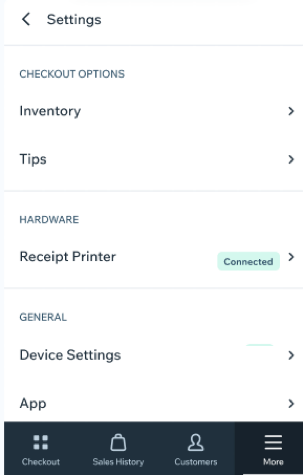
Open your settings to manage checkout rules, product info, language, time zone, and more - all from one place on your Wix POS Go device.
To open and customize your settings:
- Tap More
 at the bottom right of your Wix POS Go screen.
 - Tap Settings.
- From the Settings menu, choose one of the following:
- Inventory:
- Set how your Wix POS Go handles out-of-stock products under Sell out of stock products:
- Allow: Let customers purchase even if the item is out of stock.
- Allow with permissions: Only allow some team members to sell out-of-stock products. You can manage permissions in the Roles & Permissions page in your site dashboard. Learn more about site roles and permissions.
- Don’t allow: Out-of-stock items cannot be sold.
- Show out-of-stock labels: Enable or disable the toggle to show or hide labels for sold-out products at checkout, in the cart, and in your products list.
- Set how your Wix POS Go handles out-of-stock products under Sell out of stock products:
- Tips:
- Tap the Collect tips toggle to enable it.
- Enter your tip presets.
- Tap the Allow a custom tip amount to allow or block customers from entering a custom tip.
- App:
- App Language: Tap the Language drop-down to change the display language for your Wix POS Go. You can choose between English and Français (French).

- Troubleshooting: Tap Reload Catalog to sync your full product list with your store. You can use this option if you are having issues loading your catalog.
- Time zone: Tap Change Time Zone to set the device’s local time zone.
- App Language: Tap the Language drop-down to change the display language for your Wix POS Go. You can choose between English and Français (French).
- Inventory:
Managing your tip settings
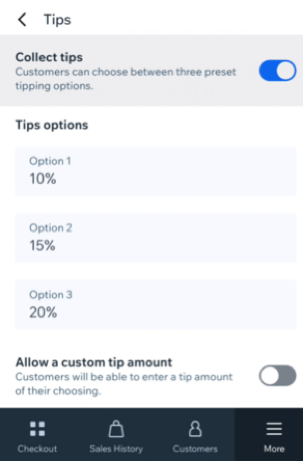
Turn on tips so your clients can choose their own tip on the card reader when they pay. There is no need to ask or enter it yourself. You can also configure the preset tip amounts that appear on the device.
To manage your tip settings:
Tap More at the bottom right of your Wix POS Go.
Tap Settings.
Tap the Collect tips toggle to enable it.
Under Tips, choose what to configure:
Tips: Turn on to show a tip prompt on the device when a client pays with the card reader.
Tip amounts: Set the preset tip percentages your clients can choose from.
Custom tips: Tap the Allow a custom tip amount to allow or block customers from entering a custom tip.
What happens at checkout?
When a client pays with the card reader, the tip prompt appears on the
device so they can select a tip before completing payment.
Switching your site or logging out of your device
When you manage more than one store or need to log out, you can quickly do so from the
More
tab.
To switch sites or log out:
- Tap More at the bottom right of your Wix POS Go device.
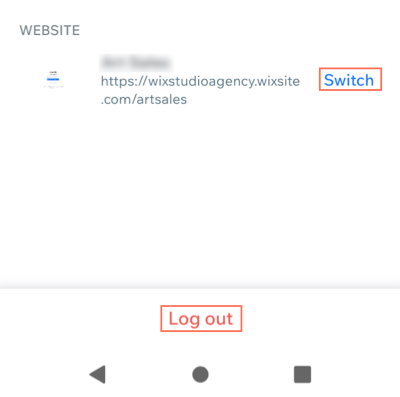
- Tap your site name at the top of the screen.
- Choose what you want to do:
- Switch site: Tap Switch next to your current site's URL in the Website section and select the store you want to manage. This changes your active store for sales, sales history and customer management.
- Log out: Tap Log out at the bottom of the screen when you’re ready to sign out or let another team member use the device.
Accessing your advanced device settings
Access all of your device's admin settings, including device network, pairing, device language, visual appearance controls, and more.
To access and manage your advanced device settings:
- Tap More at the bottom right of your Wix POS Go screen.
- Tap Settings and then tap Device Settings.
Tip: Alternatively, to access your device settings, you can swipe right from the left edge of the reader screen, then tap the Settings button. - Enter your admin PIN (07139).
- Choose which settings you want to access:
- Network: View and connect to available WiFi networks.
- Generate pairing code: Create a pairing code to sync the device with your Wix account.
- Language: Set your device language. This does not affect the language of your Wix POS Go interface.
- Country: Set your device location. This makes sure automatic updates happen at midnight so they do not disrupt your sales.
- Appearance:
- Appearance: Select a light or dark theme from the drop-down.
- Brightness: Use the slider to adjust the screen's brightness levels when the device is plugged in or unplugged from a power source.
- Display timeout: Choose when your device screen turns off automatically if the reader isn’t connected to a power source.
- Share device report: Share diagnostic information for troubleshooting.
- About device: View technical device details.

Ready to start selling?