Wix Meetings: Connecting Video Conferencing For Online Meetings
2 min
Want to meet with clients online? You can use Google Meet, Zoom or a custom video link to host your meetings when an in-person meeting isn’t possible.
Before you begin:
- Sites on the Basic Studio plan, Light Premium plan, or a free plan can host up to 3 free meetings per site. Upgrade your site to schedule unlimited meetings.
- The benefits, call hours and participant limits for video conferencing depend on the provider you use (Zoom, GoToMeeting, etc.) and are not controlled by Wix.
To connect your online video conference account:
- Go to Wix Meetings in your site's dashboard.
- Choose the relevant meeting type:
- Existing meeting: Click the More Actions icon
 next to the relevant meeting and select Edit.
 - New Meeting: Click + Add New Scheduling Link then add meeting details.
- Existing meeting: Click the More Actions icon
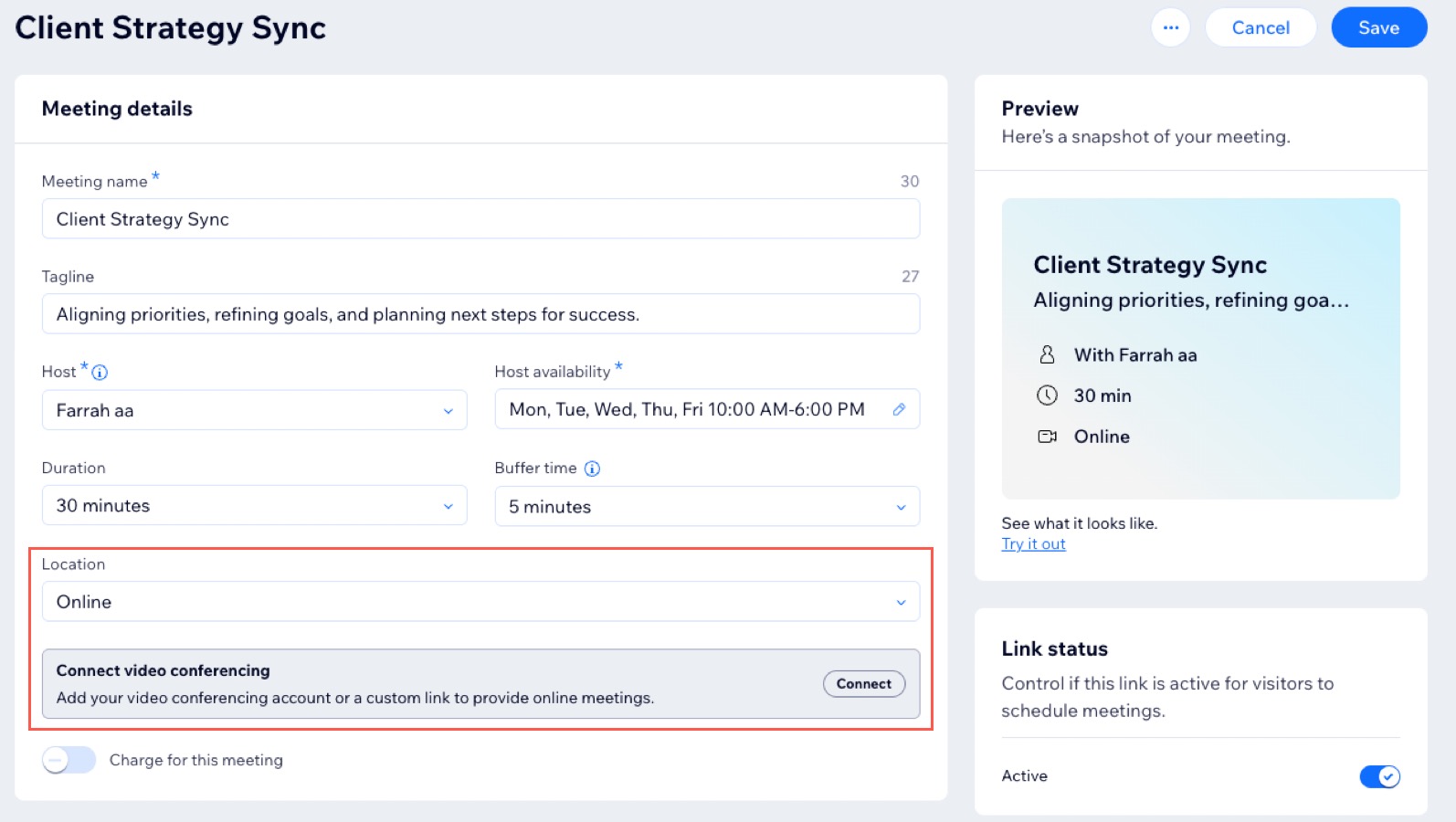
- Click the Location dropdown and select Online.
- Click Connect next to Connect video conferencing.
- Click Save & Continue in the Save your changes popup.
- Choose which video conferencing you want to connect: Google Meet, Zoom or Custom link.
- Click Continue.
- Depending on the video conferencing option you choose, follow these steps:
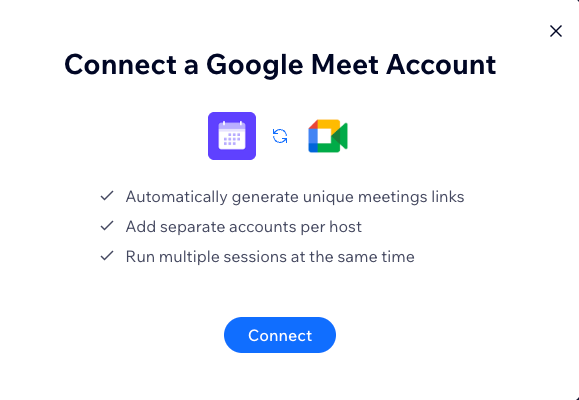
Google Meet
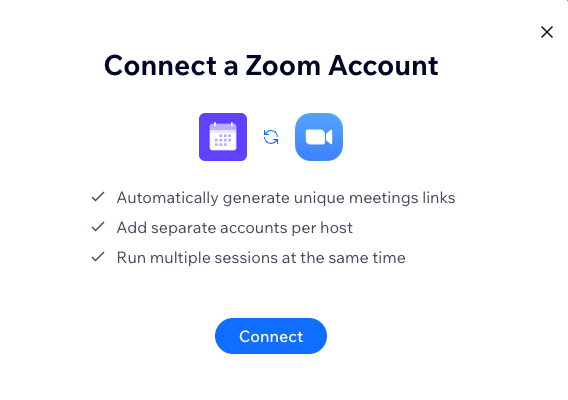
Zoom
Custom link