


Wix Harmony Editor: Linking Elements to Documents
2 min
In this article
- Linking an element to a document
- FAQs
Link buttons, images, or text to your documents so everything visitors need is right at their fingertips. This way, people can easily explore things like menus, price lists, or schedules without ever leaving your site.
Linking an element to a document
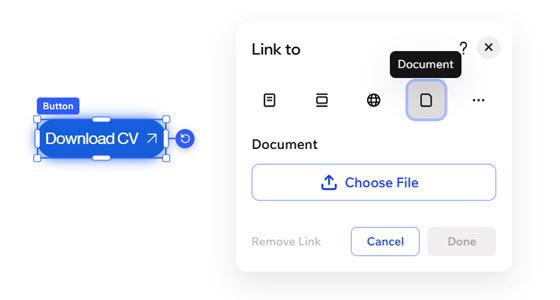
Link your element to a document of your choice. When your visitors click the element, a new browser tab opens with the document.
To link an element to a document:
- Go to your editor.
- Click the relevant element.
- Click the Link icon
 on the action bar.
 - Click Choose a link.
- Click the Document icon
 and click Choose File.
 - Click + Upload Media to upload a file or select an existing file from you Media Manager.
- Click Choose File.
- Click Done.
FAQs
Click a question below to learn more about sharing documents on your site:
What file types can I upload?
I've uploaded a document file type that is supported but it's not working. Why?
How can I preview my document?
How can I replace a document?
