


Wix Harmony Editor: Adding and Customizing Lines
In this article
- Adding a line
- Customizing lines
- FAQs
Add lines to help structure your content, highlight sections, or add subtle detail for visual interest. Choose from a variety of line styles and personalize your design further by adjusting the colors, width, and spacing to complement the page.
Adding a line
Add a decorative line anywhere on your page to create clear sections or guide your visitors’ eyes. You can place lines horizontally, vertically, or even at an angle for a creative look.
To add a line:
- Go to your editor.
- Click + Add at the top left of the editor.
- Select Elements.
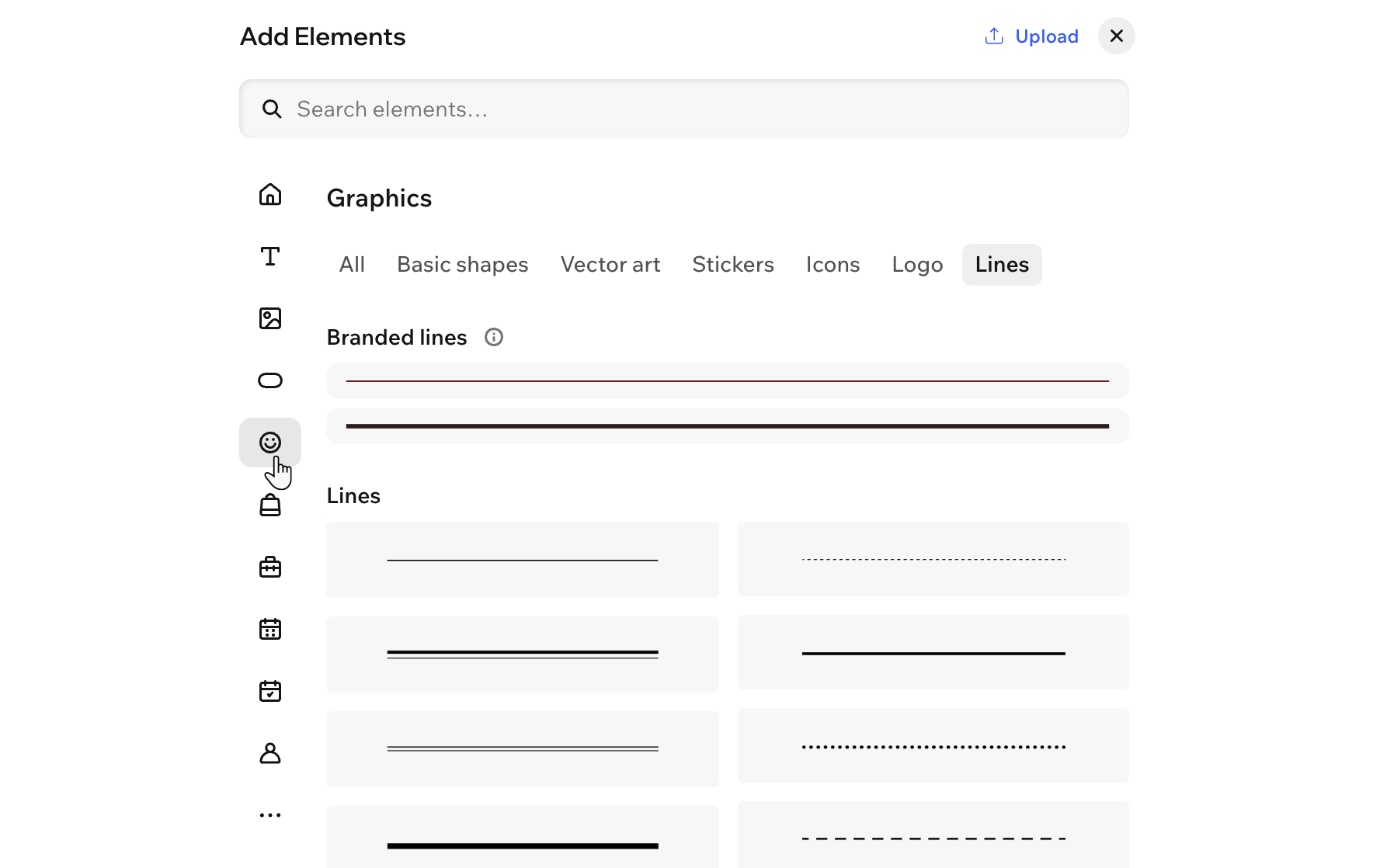
- Click the Graphics icon
 on the left.
 - Select the Lines tab.
- Click or drag a line onto your page.
Customizing lines
After adding a line, you can adjust its appearance to fit your site's look and structure. Choose from different line styles such as dashed or dotted lines - each with its own settings for sizing and spacing. You can also customize the start and end points with shapes like arrows or circles to help direct visitor attention or add decorative accents.
To customize a line:
- Go to your editor.
- Click the relevant line.
- Choose what you want to do:
Adjust the line length
Rotate the line
 at the end of the line.
Customize its design
 in the action bar.
 : Add a color and adjust the opacity to complement the content of your page.
 : Select a style and customize how the line looks.
 : Select the line direction that matches your site's direction. For example choose Left-to-right if your site is in a left-to-right language.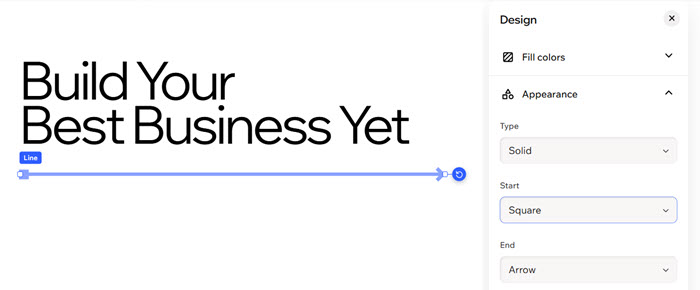
FAQs
Click a question below to learn more about lines.
Are there diagonal lines?
Can I group lines with other shapes and elements?
Can I revert any design changes I make?
 at the top of the editor, or press
Ctrl +
Z (
Command +
Z on a Mac) on your keyboard.
at the top of the editor, or press
Ctrl +
Z (
Command +
Z on a Mac) on your keyboard.
