Wix Bookings: Managing Monthly Subscriptions for Courses
In this article
- Viewing and tracking monthly subscriptions for courses
- Changing the subscription's payment date
- Pausing a monthly subscription
- Canceling a monthly subscription
- Adding a grace period for failed payments
- FAQs
When someone signs up for a course with
monthly pricing, a new subscription is created automatically. You can manage these subscriptions from your site's dashboard to track payment status, pause or cancel future payments, change billing dates, and handle failed payments.
Note:
Monthly pricing subscriptions are only available for courses. They do not apply to classes or appointments.
Viewing and tracking monthly subscriptions for courses
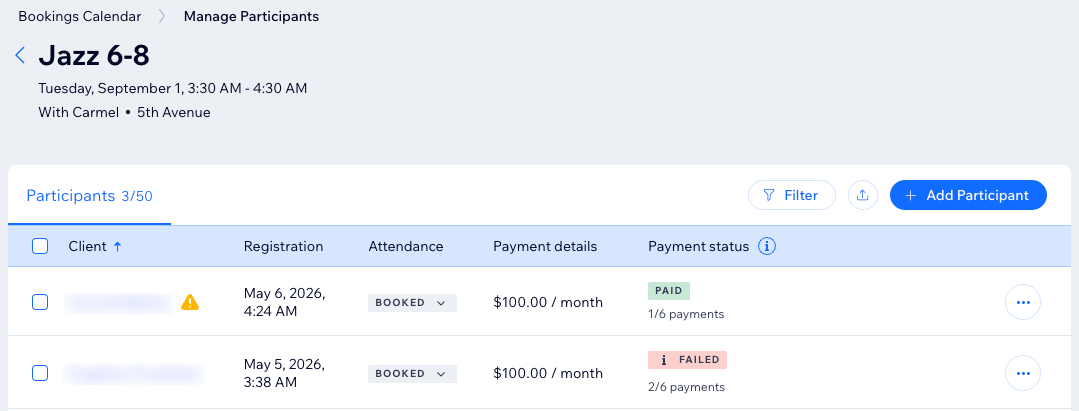
When managing course participants in your Booking Calendar, you can see each client's payment status, as well as the details of their subscription.
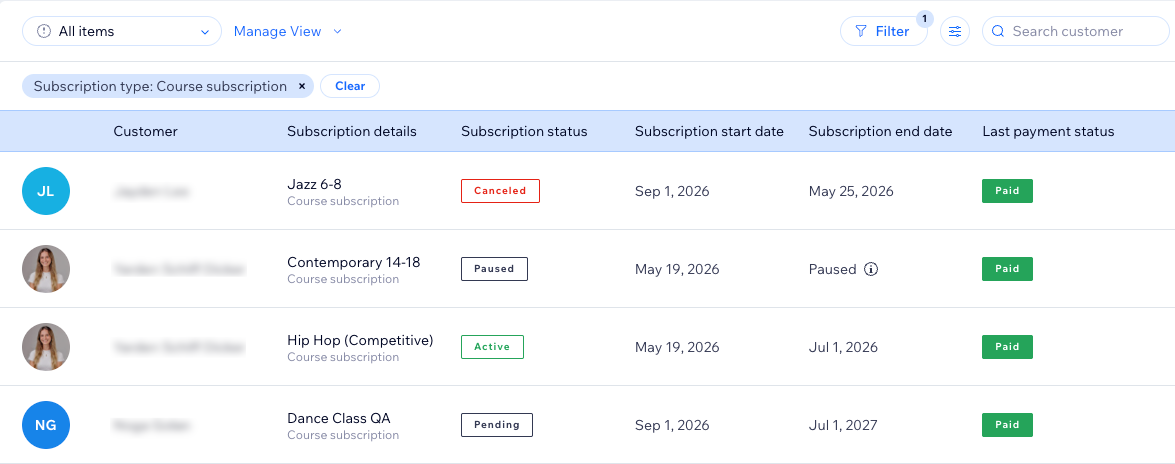
You can keep track of all of your course subscriptions from the Subscriptions page. This is where you see the status of each subscription, check the payment schedule, change the payment date and much more.
Good to know:
If someone signs up before the first month of the course begins, their subscription appears as 'Pending'. This means the subscription has been created and the first payment was charged at checkout. The next payment is charged in the following month, based on your payment schedule.
To check a participant's payment status from the Booking Calendar:
Dashboard
Wix app
- Go to Booking Calendar in your site's dashboard.
- Click the relevant course in your calendar.
- Click Manage Participants at the bottom.
- Check the status of the most recent payment in the Payment status column.
- (Optional) Click the More Actions icon
 next to a participant and select View subscription to see and manage their subscription.
Tip:
When a
Warning icon
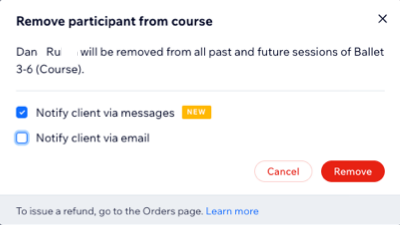
 appears next to a participant, it means their subscription was canceled while they're still enrolled to your course. You can hover over the icon and click
Remove Participant to remove them from the course.
appears next to a participant, it means their subscription was canceled while they're still enrolled to your course. You can hover over the icon and click
Remove Participant to remove them from the course.
appears next to a participant, it means their subscription was canceled while they're still enrolled to your course. You can hover over the icon and click
Remove Participant to remove them from the course.
To view a subscription from the Subscriptions page:
Dashboard
Wix app
- Go to Subscriptions in your site's dashboard.
- View details about each subscription, including its start date, end date and payment status.
- (Optional) Click the relevant subscription to manage it.
Tip:
Filter the list by
Course subscription (under
Subscription type).
Changing the subscription's payment date
You can change the payment date if you want recurring payments to be collected on a different day of the month. For example, if payments are currently collected on the 1st of each month, you can move them to a later date.
Note:
- It's not possible to change the payment date for a subscription that's still pending, or on its last cycle (i.e. last payment).
- Currently, the option to change the subscription's payment date is only available on desktop.
To change the subscription's payment date:
- Go to Subscriptions in your site's dashboard.
- Select the relevant subscription.
Tip: Filter the list by Course subscription (under Subscription type). - Click Manage Subscription at the top right.
- Select Change payment date.
- Select a new date and click Next.
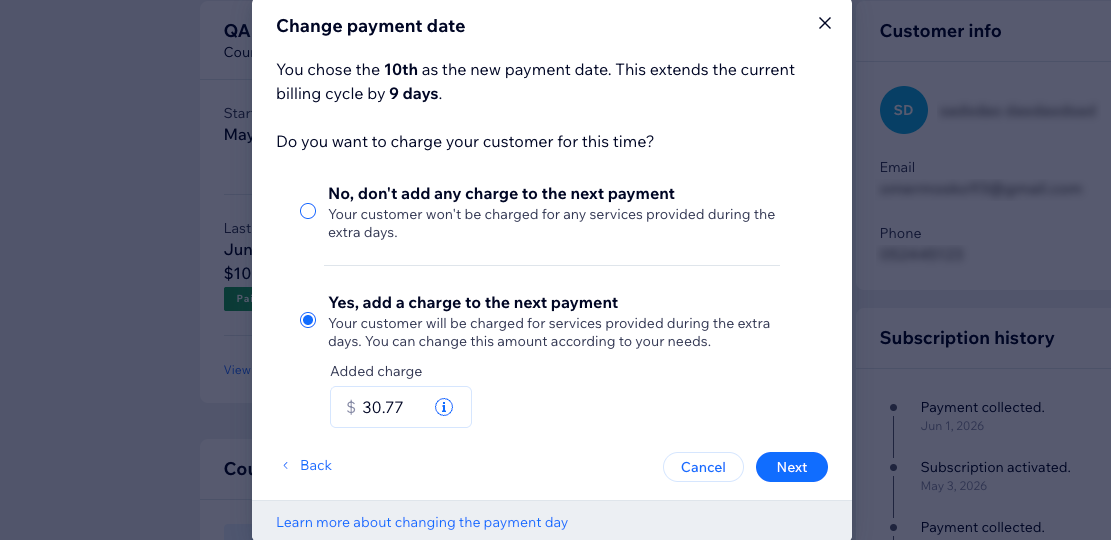
- Choose whether or not to charge your client for the extra days you've added to the billing cycle. Then click Next.
Tip: The suggested amount that you see is calculated based on your course's monthly pricing, plus tax and total time added. - Review the details and click Confirm.
What's next?
Your customer gets an email to notify them of the new monthly payment date.
Pausing a monthly subscription
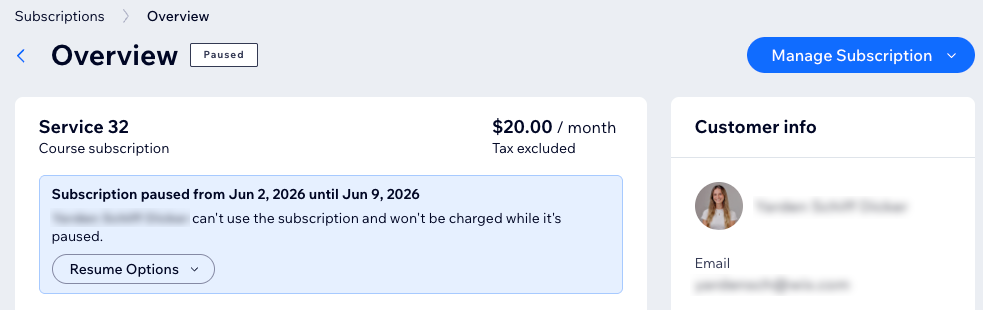
Pause a subscription if you need to postpone upcoming payments without canceling it. This can be useful if a participant is away for a short time, for example, during a holiday. You decide whether the subscription resumes automatically at a certain date, or if you resume it manually.
Note:
Currently, the option to pause a subscription is only available on desktop.
To pause a monthly subscription:
- Go to Subscriptions in your site's dashboard.
- Select the relevant subscription.
Tip: Filter the list by Course subscription (under Subscription type). - Click Manage Subscription at the top right.
- Select Pause subscription.
- Adjust the pause to your needs:
- Decide when the pause should begin: Now or On a specific date.
- Decide when to resume the subscription: On a specific date or Resume manually.
- Click Save.
Tips:
- Pausing a subscription postpones payments by the number of paused days. It does not skip a payment, and it does not remove the participant from the course.
- You can always decide to change the resume date, or resume the subscription instantly if needed. Follow steps 1-3, then select the relevant option (Change resume date or Resume subscription now).
Canceling a monthly subscription
Cancel a subscription if a participant should no longer be charged for the course. This stops future recurring payments, but you still need to remove the participant from the course separately if they should no longer be enrolled.
Important:
Canceling a subscription from the Subscriptions page stops future payments, but it does not automatically remove the participant from the course.
To cancel a monthly subscription:
Dashboard
Wix app
- Go to Subscriptions in your site's dashboard.
- Select the relevant subscription.
Tip: Filter the list by Course subscription (under Subscription type). - Click Manage Subscription.
- Click Cancel subscription.
- Select Cancel now.
- Click Yes, Cancel.
- (Optional) Remove the participant from your course.
Adding a grace period for failed payments
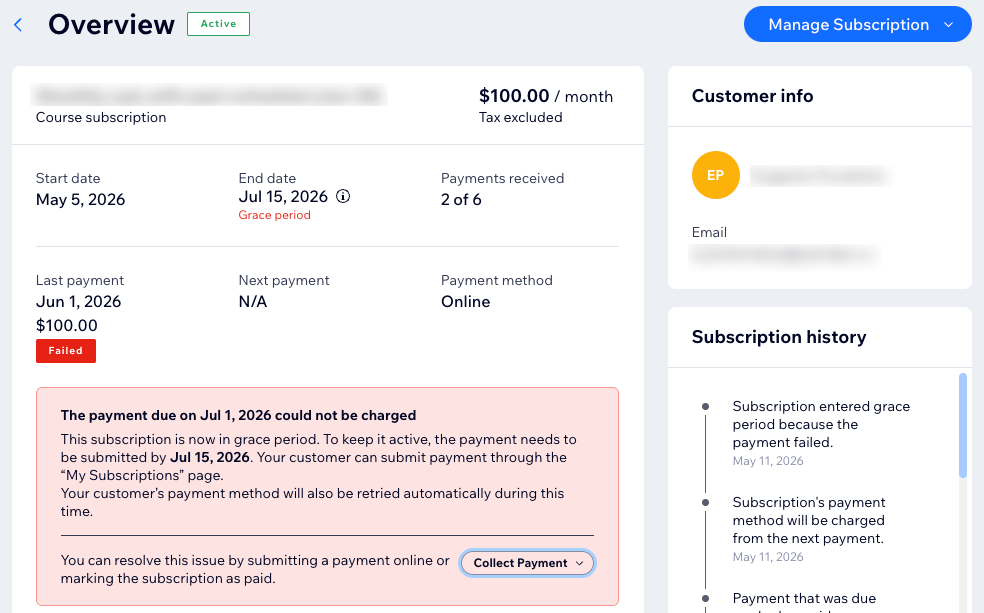
Make sure subscriptions stay active after failed payments by setting up a grace period (up to 14 days). This grace period applies to all of your subscriptions and gives your clients time to resolve the issue with their payment method before their subscription gets automatically canceled.
Note:
Currently, grace period settings are only available on desktop.
To add a grace period:
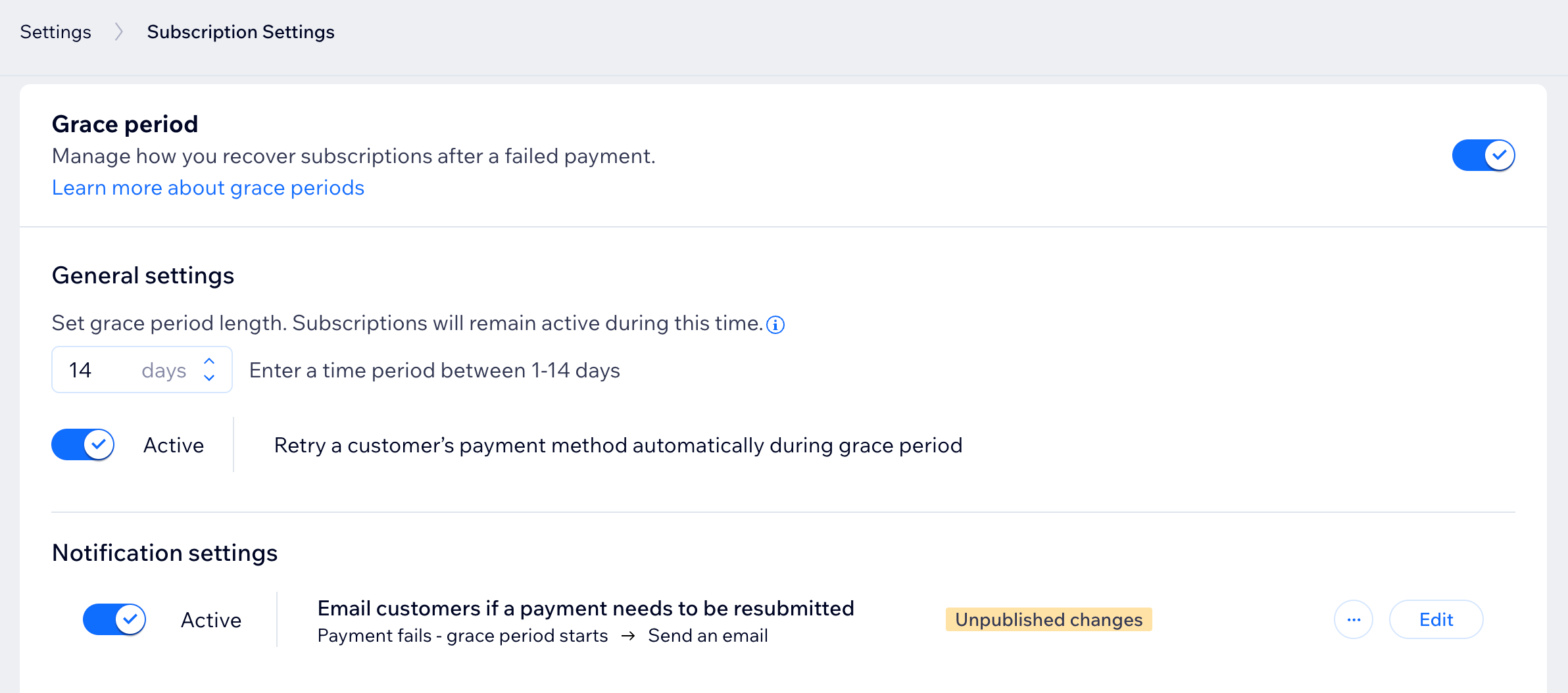
- Go to Subscription settings in your site's dashboard.
- Enable the toggle next to Grace Period.
- Enter the grace period (between 1-14 days) you want to offer clients who miss their payment.
- Click the toggle next to Retry a customer's payment method automatically during grace period:
- Enabled: The system automatically makes multiple attempts to collect payment from the client's existing payment method.
- Disabled: The system does not make any additional attempt to collect payment from the client's existing payment method.
- Click the toggle next to Send customers an automated email when a payment needs to be resubmitted:
- Enabled: Clients get an automated email about the grace period when their payment fails.
- Disabled: Clients don't get an email when their subscription enters the grace period.
Note: Automated emails for failed payments are active by default.
- Click the toggle next to Email customer when failed payment is successfully collected:
- Enabled: Clients receive an automated email that their payment was successful, and their grace period is over.
- Disabled: Clients don't receive an email about their successful payment and the end of their grace period.
Note: Automated emails for successful payments after entering a grace period are active by default.
FAQs
Click a question below to learn more.
Can clients cancel their subscription by themselves?
Does canceling a subscription remove someone from the course?
What does 'Pending' mean on a monthly subscription?
Can I edit the email that clients receive for failed payments?
How can I remove a participant from a course?
 next to the relevant participant.