


Wix Automations: Setting Up and Reusing Custom Actions
4 min
In this article
- Setting up a Wix custom action
- Reusing custom actions in other automations
- FAQs
Wix custom action lets you create powerful, tailored actions without writing code. You describe what you want the action to do and an AI assistant suggests options based on the apps installed on your site and your business context. It then builds the action for you and adds it to your automation.
Each custom action you create is saved so you can reuse it across multiple automations. When an automation runs, a Wix custom action behaves like any other action in the flow.
Setting up a Wix custom action
Use Wix custom action when you want an automation step that is not available as a built-in action. The AI assistant helps you turn a plain language request into a ready-to-use action, with all the technical details handled for you.
Notes:
- You can only create custom actions that use apps already installed on your site.
- You cannot edit a custom action after you create it. To change what it does, you need to create a new custom action.
- AI can make mistakes. Always review the settings and data preview before creating the action to make sure it matches what you want.
To create a Wix custom action:
- Go to Automations in your site's dashboard.
- Click + Create Automation at the top right
- Click + Start from Scratch.
- Select a trigger for your automation.
- Click the Add Step icon
 and add an Action.
 - Select Wix custom action on the left.
- In the Create Wix Custom Action window, choose how to describe what you want:
- Click one of the suggested prompts (e.g. Get all orders from your Wix site).
- Type your own sentence in the Ask me anything field at the bottom.
- (Optional) Use the chat box at the bottom to refine the action. For example, you can ask the assistant to adjust which fields the action returns or what it should be called.
- When everything looks correct in Settings preview and Data preview, click Create Action.
- In the action settings panel, fill in any required fields for this automation (e.g. Filters, Limits, Dates, or text values).
- Continue building the rest of your automation, then click Activate when you are ready for your automation to run.
Reusing custom actions in other automations
Every time you create a Wix custom action, it is saved to a catalog of custom actions for your site. You can add these saved actions to any automation on the same site.
When an automation runs, a reused custom action behaves like any other action. It appears in your run logs, respects delays and conditions, and uses the same inputs and outputs you saw in the Data preview.
Note:
Each action keeps the name and configuration you confirmed in the original action set-up.
- Go to Automations in your site's dashboard.
- Create a new automation or edit an existing automation.
- Click the Add Step icon and add an Action.
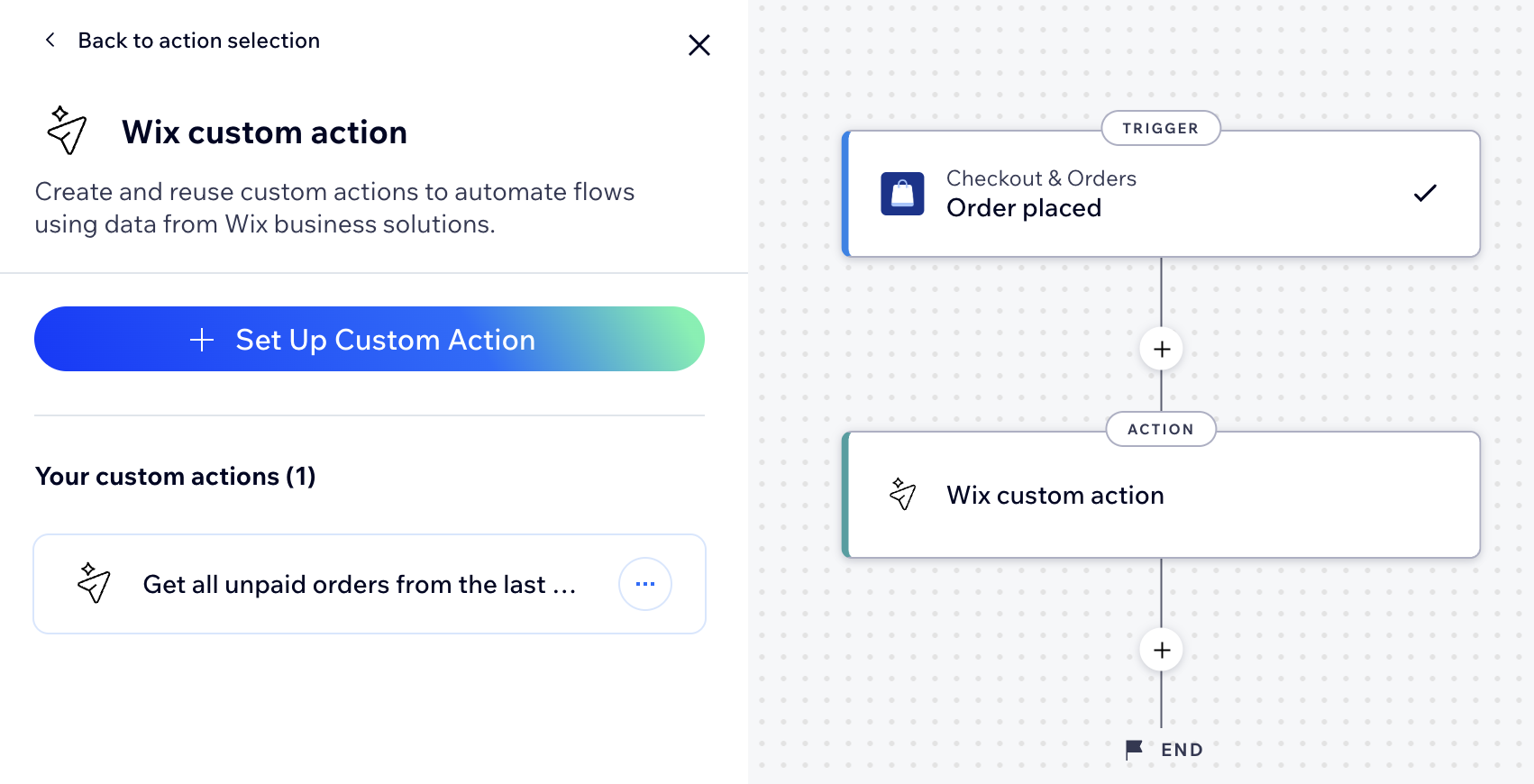
- Select Wix custom action on the left.
- Select the relevant custom action under Your custom actions.
- In the action settings panel, fill in any required fields for this automation (e.g. IDs, Limits, Dates, or text values).
- Continue building the rest of your automation, then click Activate when you are ready for your automation to run.
FAQs
Click below to learn more about custom actions.
What can I use Wix custom action for?
What do the settings and data preview show?
What happens if I delete a custom action?
Does Wix custom action use AI every time my automation runs?
Does Wix custom action build a full automation for me?
